
The Perfect Desktop - Ubuntu 7.04 Feisty Fawn - Page 5
This tutorial exists for these OS versions
- Ubuntu 14.10 (Utopic Unicorn)
- Ubuntu 13.10 (Saucy Salamander)
- Ubuntu 14.04 LTS (Trusty Tahr)
- Ubuntu 13.04 (Raring Ringtail)
- Ubuntu 12.10 (Quantal Quetzal)
- Ubuntu 12.04 LTS (Precise Pangolin)
On this page
7 VMware Server
With VMware Server you can let your old Windows desktop (that you previously converted into a VMware virtual machine with VMware Converter, as described in this tutorial: https://www.howtoforge.com/vmware_converter_windows_linux) run under your Ubuntu desktop. This can be useful if you depend on some applications that exist for Windows only, or if you want to switch to Linux slowly.
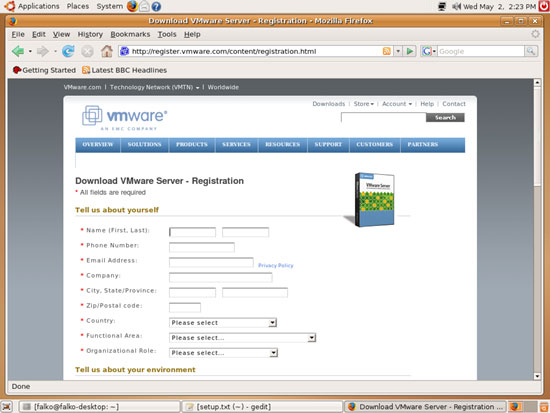
VMware Server is available as an Ubuntu package in the feisty-commercial repository, but before we install it, we need to get an VMware Server serial number from http://register.vmware.com/content/registration.html. Fill in your personal details:
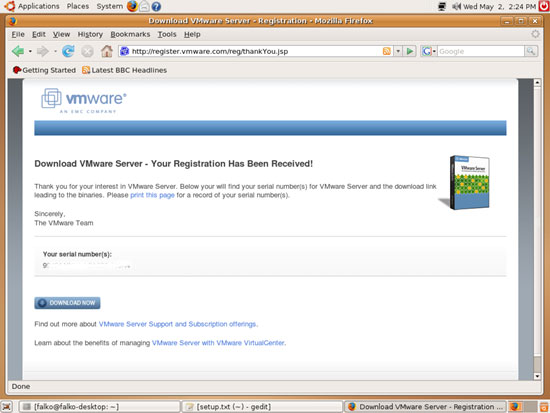
Afterwards you will get a page with a serial number for VMware Server. Write it down or print it out:
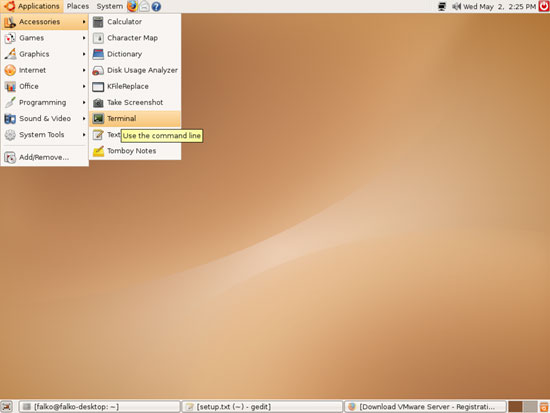
Now open a terminal (Applications > Accessories > Terminal):
We must modify /etc/apt/sources.list and add the feisty-commercial repository to it, therefore we open /etc/apt/sources.list in a text editor:
sudo gedit /etc/apt/sources.list
We add the following line at the end of the file and save it:
[...] deb http://archive.canonical.com/ubuntu feisty-commercial main |
Then we update our packages database:
sudo apt-get update
and install VMware Server like this:
sudo apt-get install vmware-server
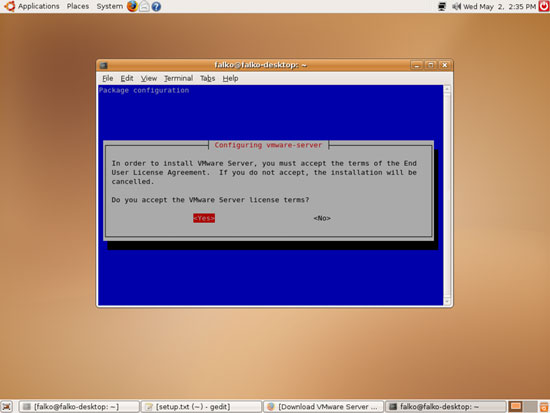
During the installation, you have to read through the VMware license agreement:
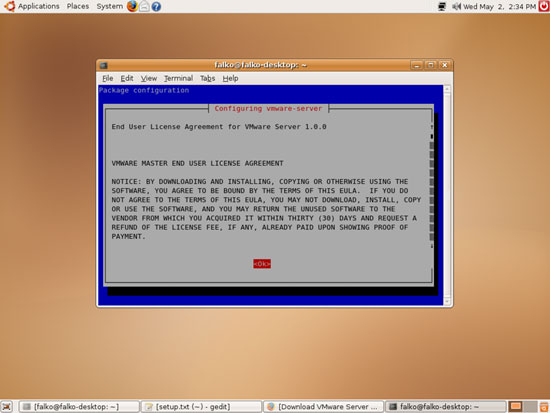
Then accept the VMware Server license:
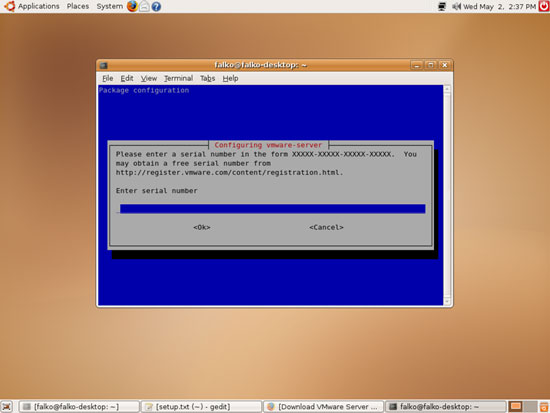
Finally, type in your VMware Server serial number:
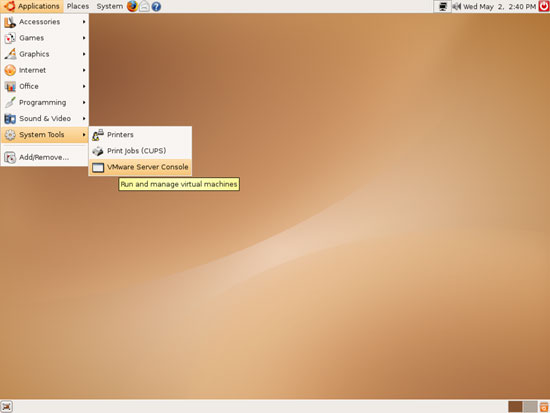
You will now find VMware Server under Applications > System Tools:
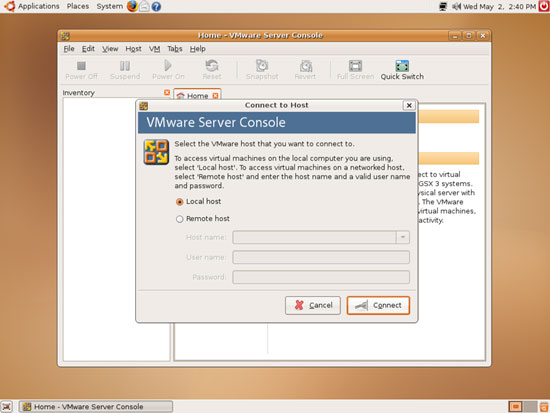
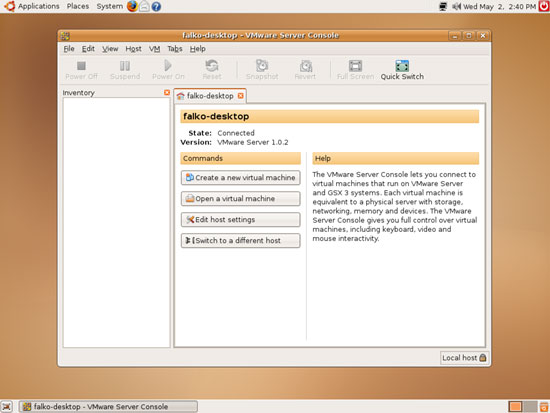
When you start it, select Local host:
Afterwards, you can create virtual machines (or import your virtual Windows machine that you created with VMware Converter):
8 Inventory (II)
Now let's check again what we have so far by browsing the menus again:
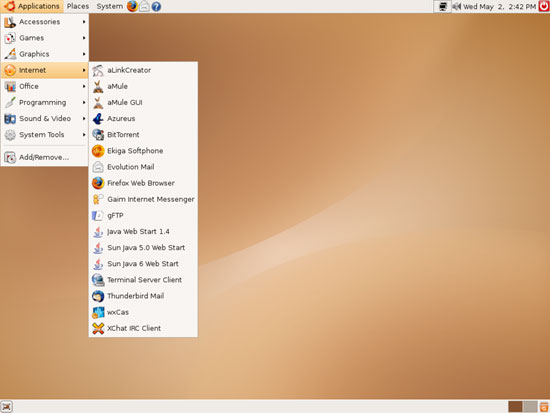
(If you don't find some applications anywhere in the menu although you know you've just installed them, log out and in again to the desktop. Afterwards they should be listed.)
Our inventory should now look like this:
Graphics:
[x] The GIMP
[x] F-Spot
[ ] Picasa
Internet:
[x] Firefox
[ ] Opera
[ ] Flash Player
[x] gFTP
[x] Thunderbird
[x] Evolution
[x] aMule
[x] Bittorrent
[x] Azureus
[x] Gaim
[ ] Skype
[ ] Google Earth
[x] Xchat IRC
Office:
[x] OpenOffice Writer
[x] OpenOffice Calc
[ ] Adobe Reader
[x] GnuCash
[x] Scribus
Sound & Video:
[x] Amarok
[x] Audacity
[x] Banshee
[x] MPlayer
[x] Rhythmbox Music Player
[x] gtkPod
[x] XMMS
[x] dvd::rip
[x] Kino
[x] Sound Juicer CD Extractor
[x] VLC Media Player
[ ] Real Player
[x] Totem
[x] Xine
[x] GnomeBaker
[x] K3B
[ ] Multimedia-Codecs
Programming:
[ ] Nvu
[x] Bluefish
[x] Quanta Plus
Other:
[x] VMware Server
[ ] TrueType fonts
[x] Java
[ ] Read/Write support for NTFS partitions





