The Perfect Desktop - Ubuntu 7.04 Feisty Fawn - Page 4
This tutorial exists for these OS versions
- Ubuntu 14.10 (Utopic Unicorn)
- Ubuntu 13.10 (Saucy Salamander)
- Ubuntu 14.04 LTS (Trusty Tahr)
- Ubuntu 13.04 (Raring Ringtail)
- Ubuntu 12.10 (Quantal Quetzal)
- Ubuntu 12.04 LTS (Precise Pangolin)
On this page
6 Install Additional Software
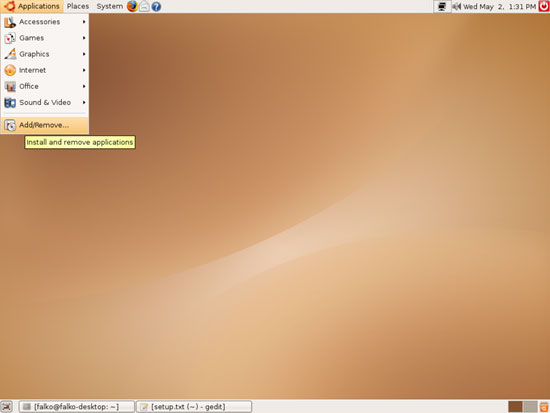
To install additional applications, go to Applications > Add/Remove...:
The Add/Remove Applications window opens. Select All available applications in the Show: menu:
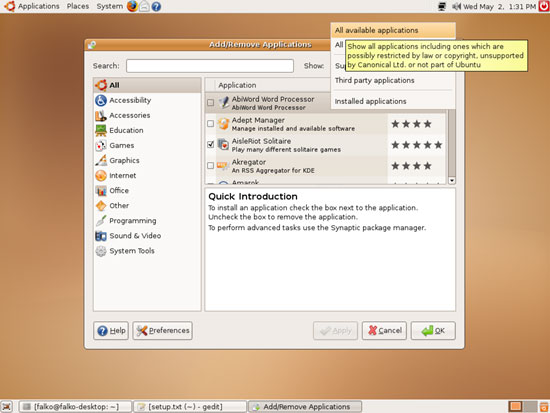
Select the following packages for installation:
- Amarok
- aMule
- aMule GUI
- Audacity
- Azureus
- Banshee Music Player
- Bluefish Editor
- CD/DVD Writer GnomeBaker
- dvd::rip
- gFTP
- GnuCash Finance Management
- GStreamer extra plugins
- GStreamer ffmpeg video plugin
- GStreamer plugins for aac, xvid, mpeg2, faad
- GStreamer plugins for mms, wavpack, quicktime, musepack
- gtkpod
- gxine
- Java 1.4 plugin for mozilla/firefox
- Java Web Start 1.4
- K3b
- Kino
- MPlayer Movie Player
- MPlayer Plugin for Mozilla
- Printers
- Print Jobs (CUPS)
- Quanta Plus
- Scribus
- Sun Java 5.0 Plugin
- Sun Java 5.0 Runtime
- Sun Java 6 Web Start
- Thunderbird Mail
- Ubuntu Studio
- VLC media player
- XChat IRC Client
- Xine extra plugins
- XMMS
There are also lots of other applications available that you can install as well if you like.
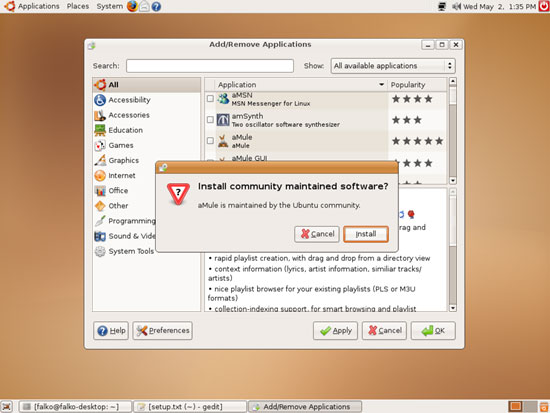
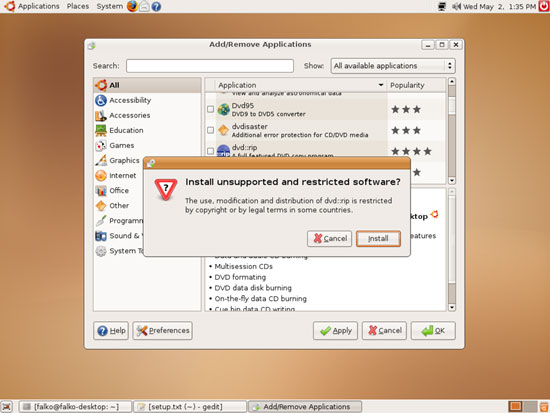
A few packages require interaction when you select them. For example, some packages are maintained by the Ubuntu community, others are categorized as unsupported or restricted. Accept them by clicking on Install:
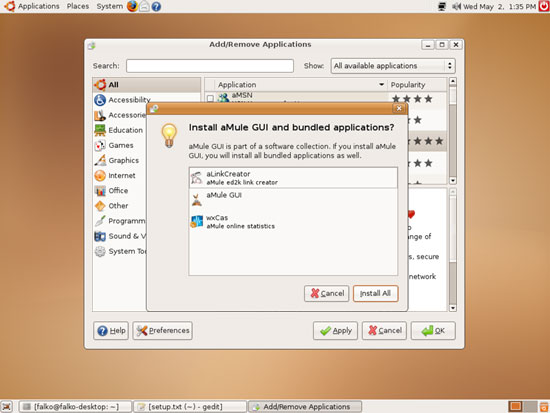
Some other packages have dependencies that must be installed as well if you select such a package. For example, aMule GUI has some dependencies. When you select aMule GUI, a new window will pop up telling you about the dependencies. Install them as well by clicking on Install All:
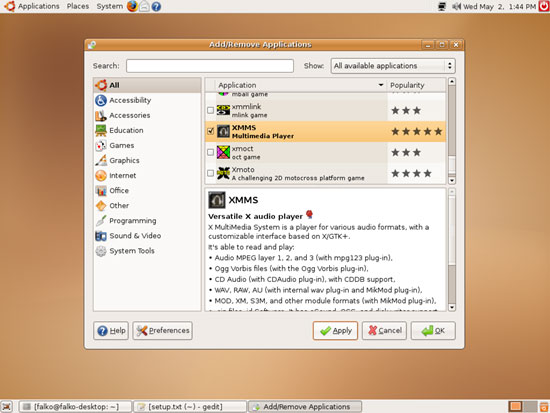
After you've selected all wanted packages, click on the Apply button in the lower right corner:
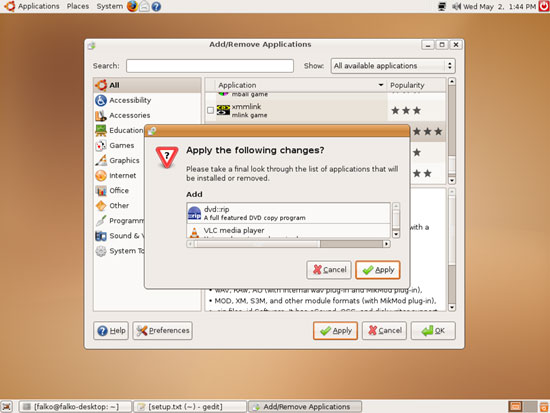
Confirm your selection by clicking on Apply:
Please type in your password:
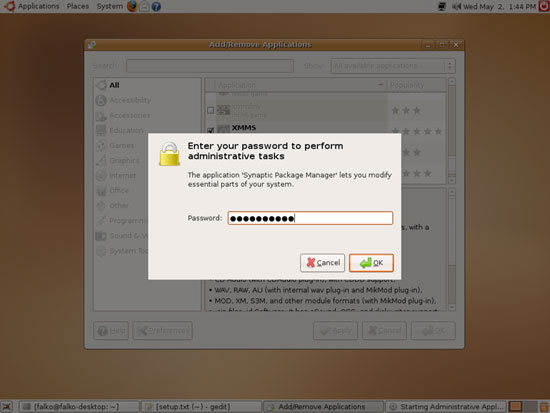
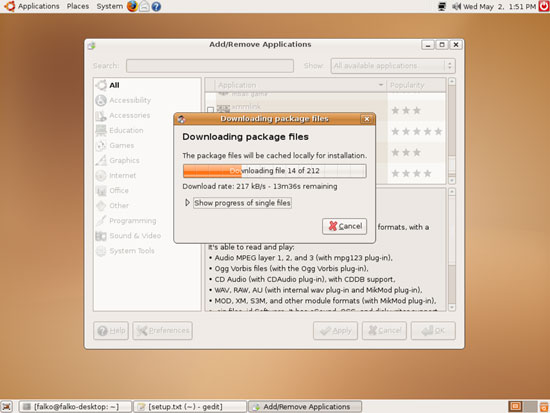
Afterwards all selected packages are downloaded and installed:
Some packages require that you accept their licenses (for example j2re1.4 and sun-java5-bin):
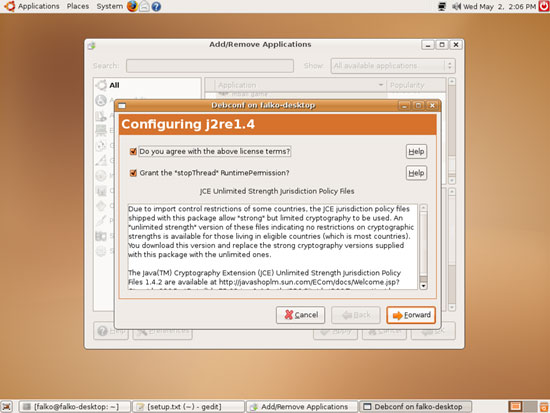
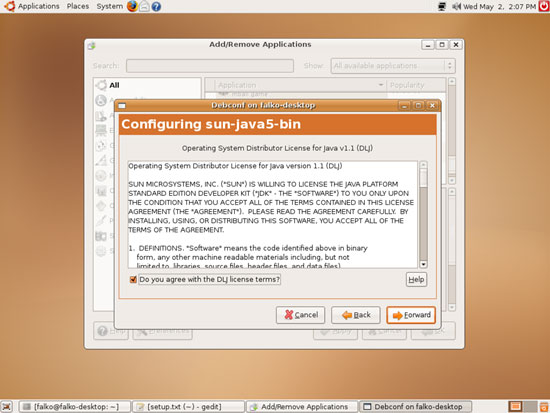
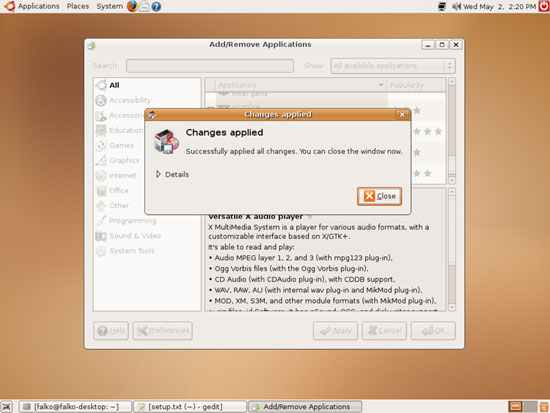
After all packages have been installed, click on Close:
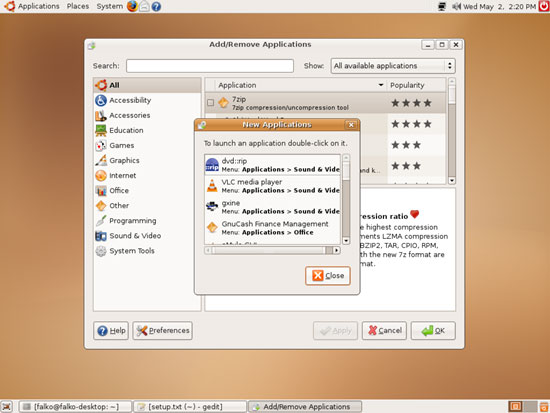
A small window opens where you can select to start any of your new applications. Close it and then leave the Add/Remove Applications window: