
Installation Guide: Fedora 8 Desktop (a.k.a. The Perfect Desktop) - Page 5
This tutorial exists for these OS versions
On this page
7 Desktop Effects
7.1 Installation
We have to install a few packages for compiz-fusion.
- compiz-fusion
- compiz-fusion-gnome
- compiz-fusion-extras
- compiz-fusion-extras-gnome
- compiz-manager
- gnome-compiz-manager
7.2 Enable Compiz
Note: You have to enable compiz this way - otherwise emerald won't work.
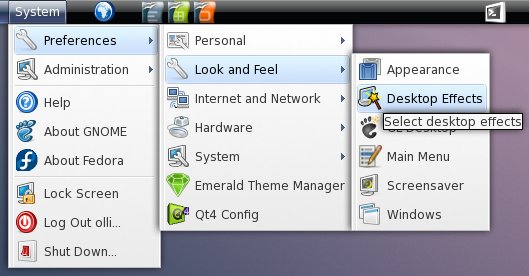
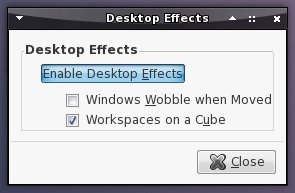
Click on the corresponding button to enable compiz.
7.3 Configuration
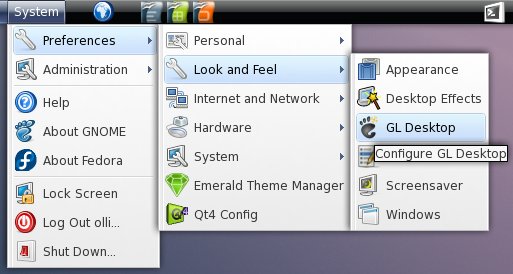
The compiz configuration-tool is available via the gnome system menu.
Tab 1: The basic settings. Don't change the checkbox "Enable GL Desktop" - otherwise you might get problems with emerald.
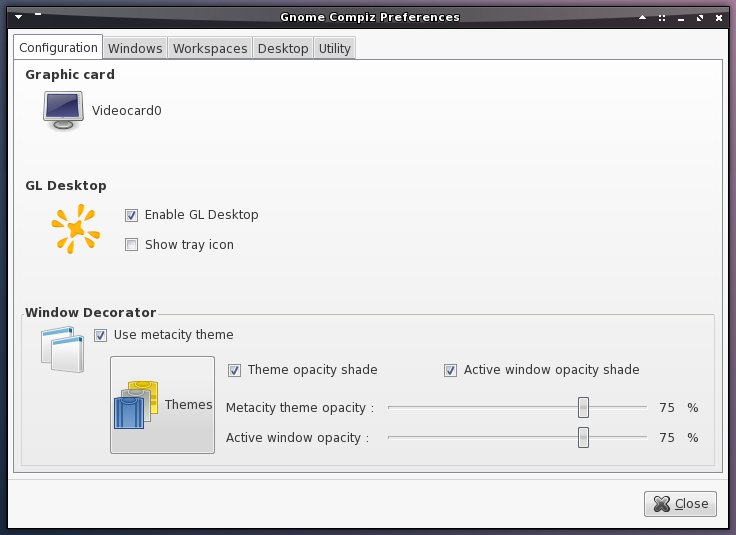
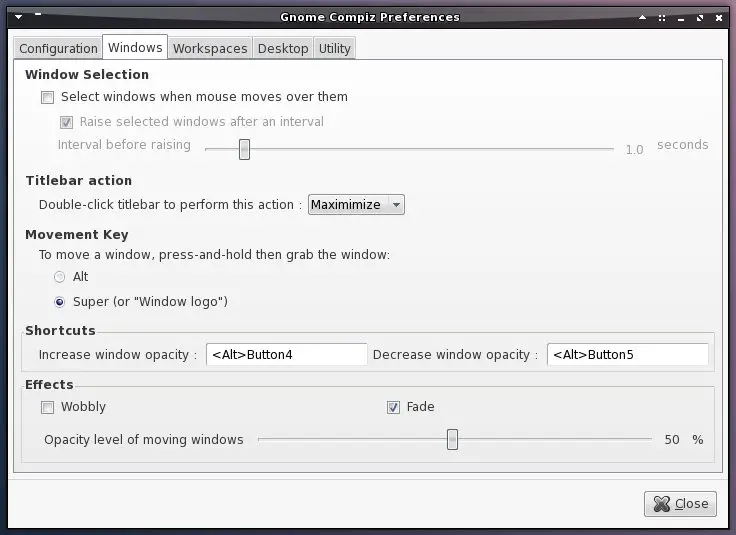
Tab 2: Here you can change the look and feel for the windows.
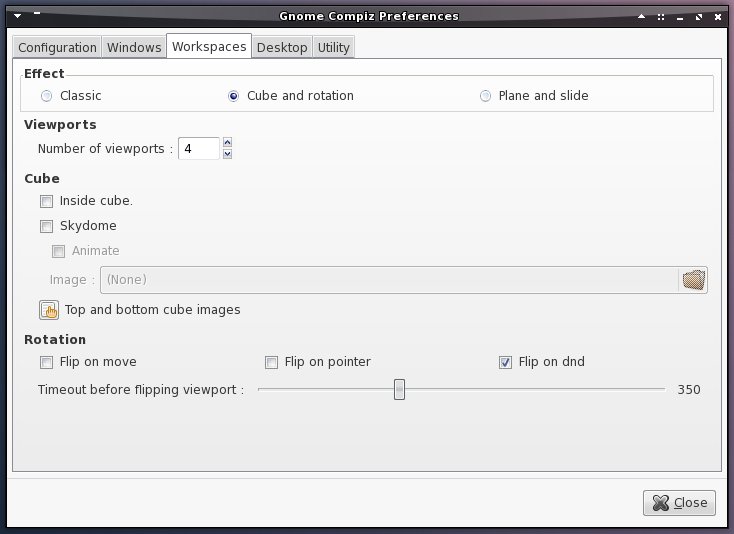
Tab 3: In this window you can change the settings for the workspaces.
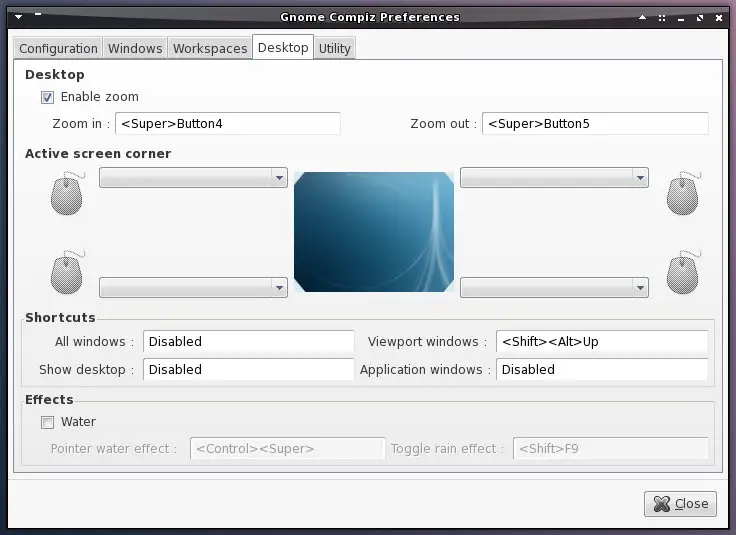
Tab 4: Configure the settings for the desktop.
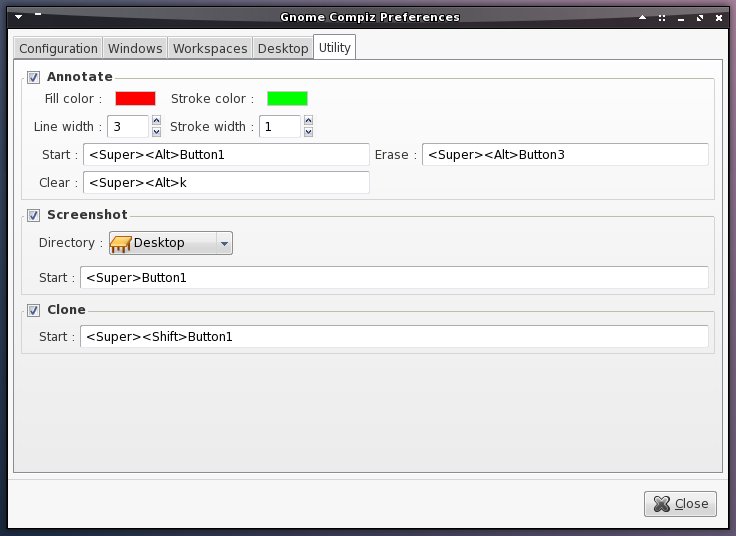
Tab 5: Utility configuration.
8 Themes & Icons
If you don't like the appearance of your desktop you can easy customize it.
8.1 Emerald
Emerald is a themeable window decorator and compositing manager for Compiz. Install the following packages:
- emerald
- emerald-themes
Currently (v0.5.2) has a bug that prevents emerald from switching the window decoration. To fix this you have to add a startup program to your session.
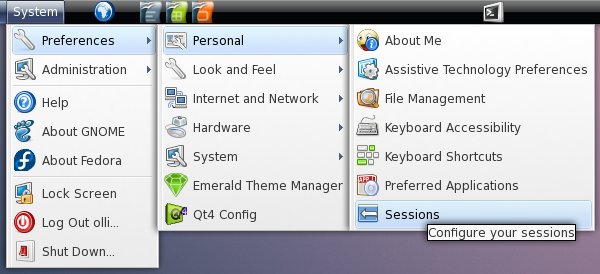
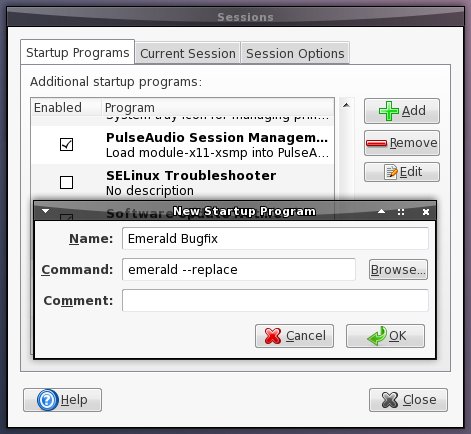
You have to log out and log in again to take the changes affect. After that emerald is ready to use.
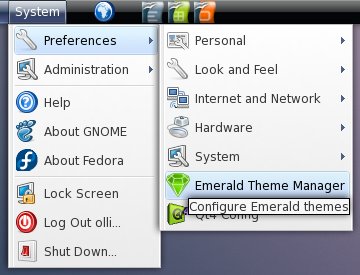
Select a window decoration that you like.
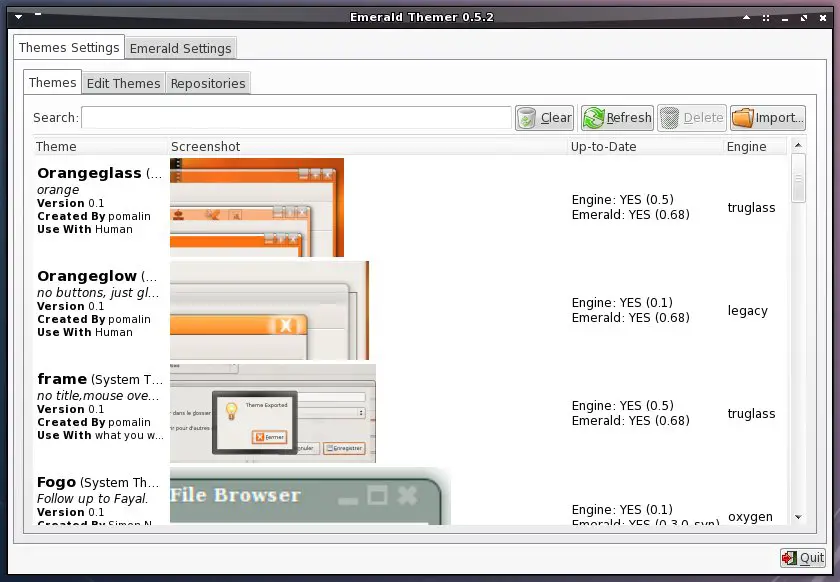
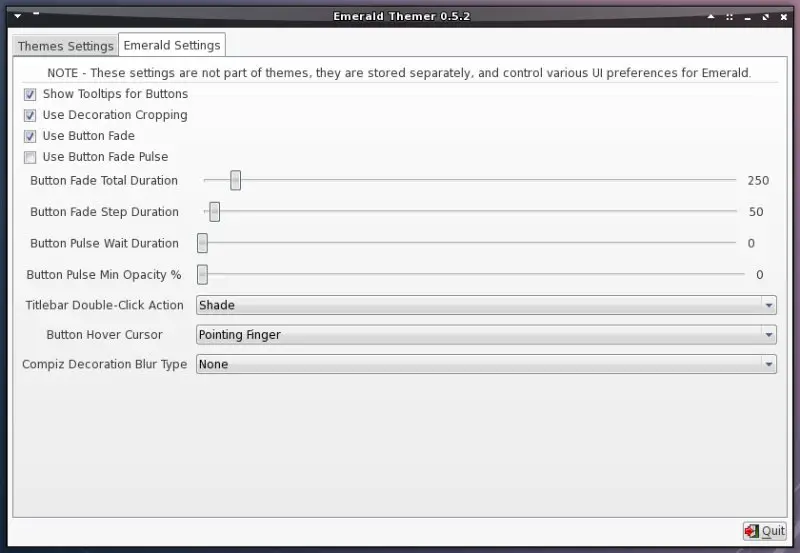
This window contains the main configuration that is independent from the window decorations.
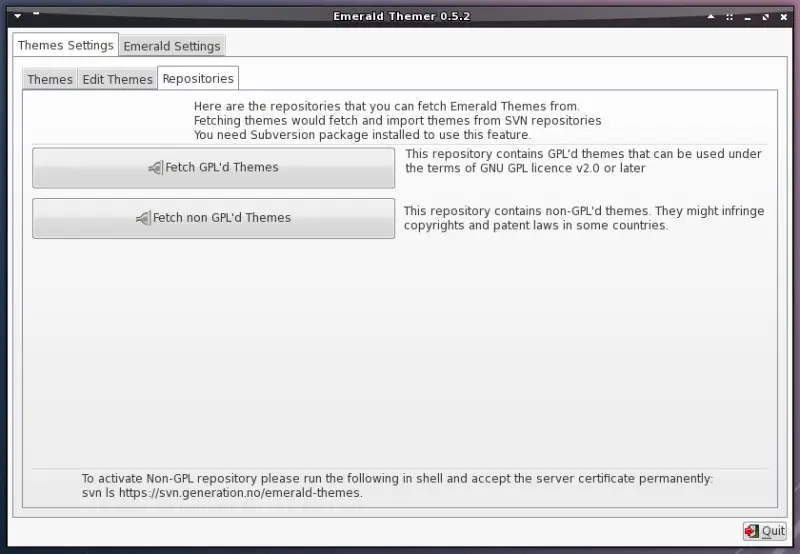
Click on the two buttons on the repository-tab to get all available window decorations.
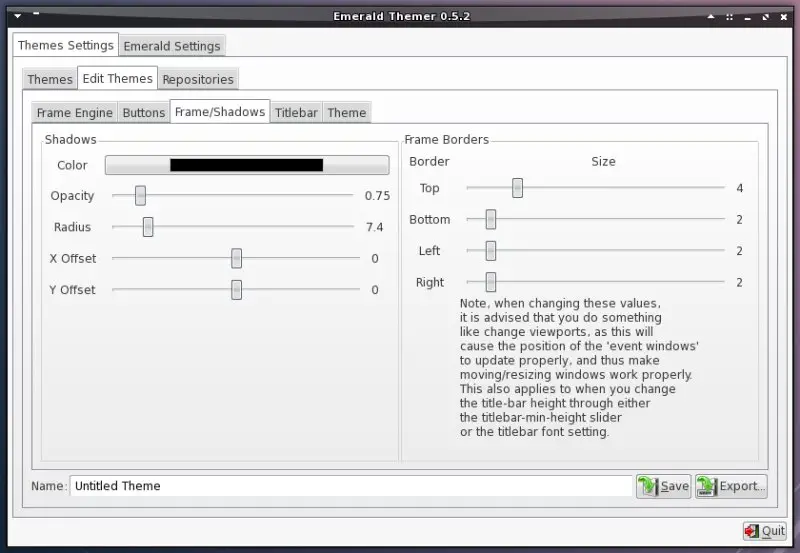
You can edit every window decoration as you like.
Additional themes can be found on http://compiz-themes.org/.
8.2 Gtk2/Metacity Themes
Gtk2 and metacity themes can be used with or without emerald - as against emerald this themes will also affect the look of the gnome panels. Gtk2 and metacity themes can be found on many web pages like http://www.gnome-look.org/. When you have downloaded and unpacked a gtk2/metacity-theme you have to copy it (the folder with gtk-2.0 and/or metacity) to the themes-folder. Open a terminal, become root and switch to the folder where you unpacked the theme.
cp -R %theme_folder% /usr/share/themes/
That's all - now the new theme is available in the gnome-settings.
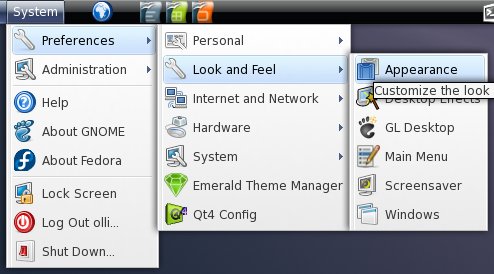
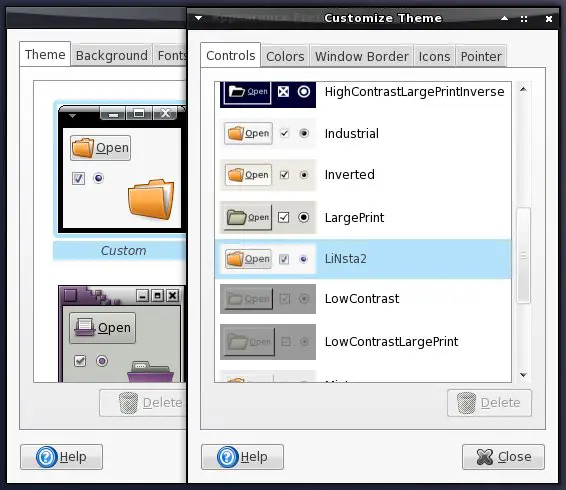
Select an existing theme and customize it.
8.3 Icons
Icon-sets can be found on many web pages like http://www.gnome-look.org/. When you have downloaded and unpacked an icon-set you have to copy it to the icons-folder. Open a terminal, become root and switch to the folder where you unpacked the icon-set.
cp -R %icon-set% /usr/share/icons/
Now the icons are available in the gnome-settings. Have a look at step 8.2 .
My Configuration:
GTK2-Theme: Linsta2 from http://www.gnome-look.org/
Emerald-Theme: Scaled_Black_Mod
Icon Theme: Dropline Neu! 0.6PR3 from http://www.silvestre.com.ar/





