
Installation Guide: Fedora 8 Desktop (a.k.a. The Perfect Desktop) - Page 4
This tutorial exists for these OS versions
On this page
5 Yum Extender
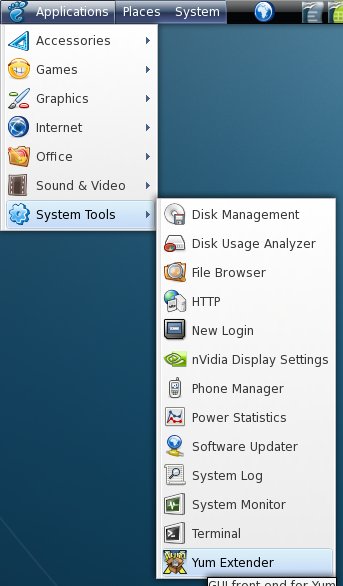
The yum extender (a.k.a. yumex) is a easy to use gui for the yum package manager. With yumex you can install, deinstall or update packages - it's available in the gnome applications menu.
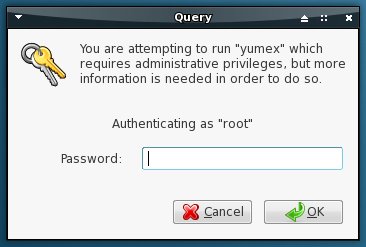
Enter the root-password.
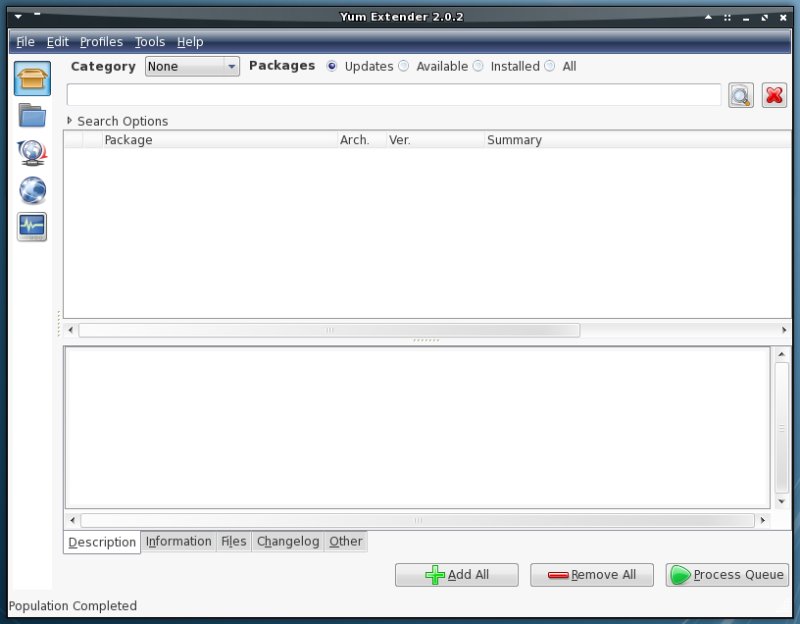
Yumex appears - make familar with the gui.
5.1 Deinstall Packages
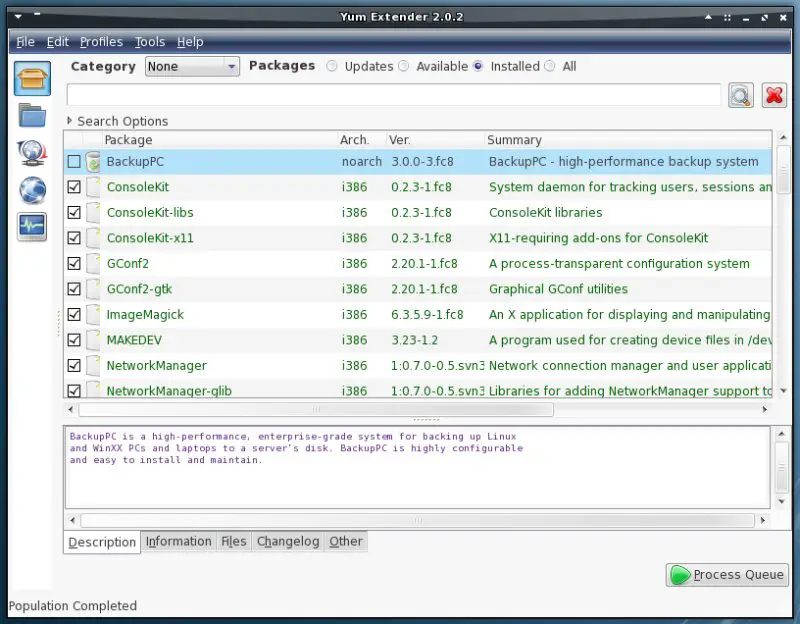
Select the radio-button "Installed" - now you'll see all installed packages. Browse the list or enter a search term in the corresponding field to find a package.
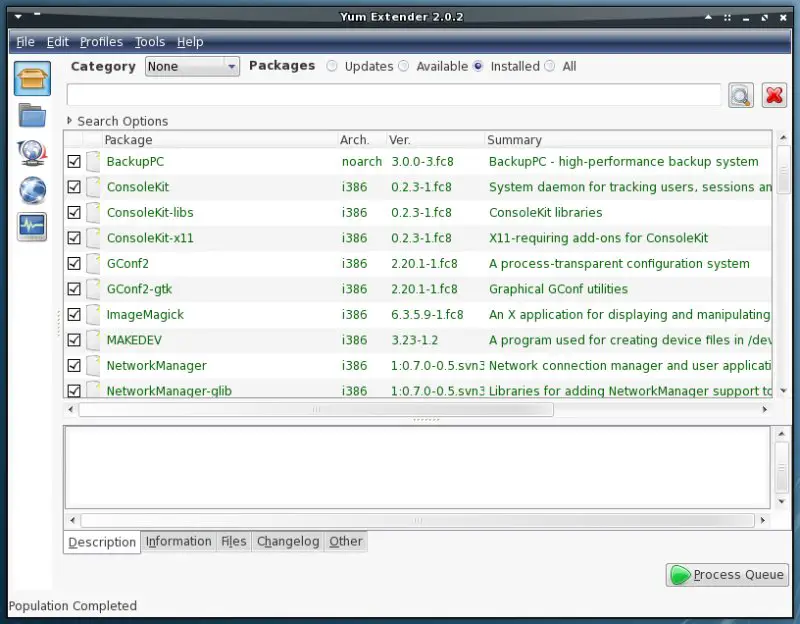
If you found a package that you want to remove simply unmark its checkbox.
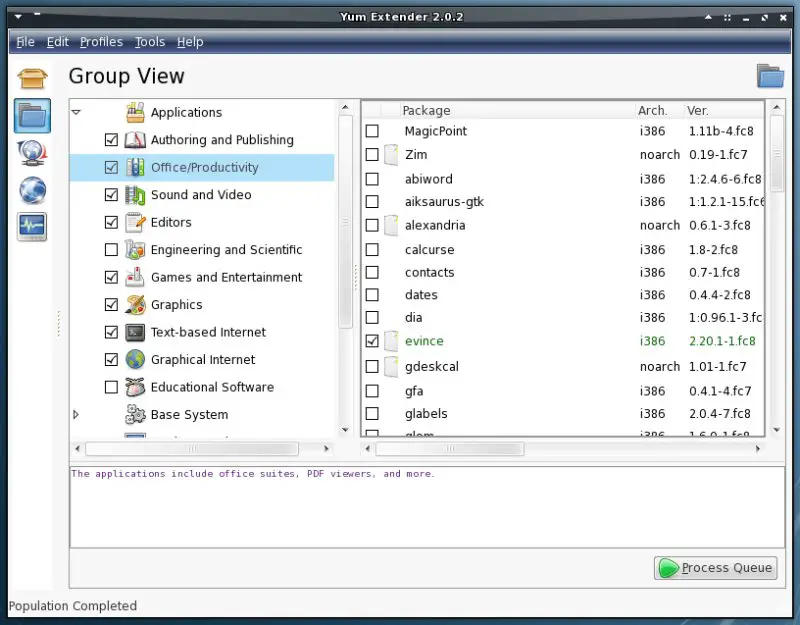
Alternativ you can use the group view.
This is the package queue - here you can see all the packages that you selected for deinstallation. If you made a mistake you can remove one or more packages from this list.
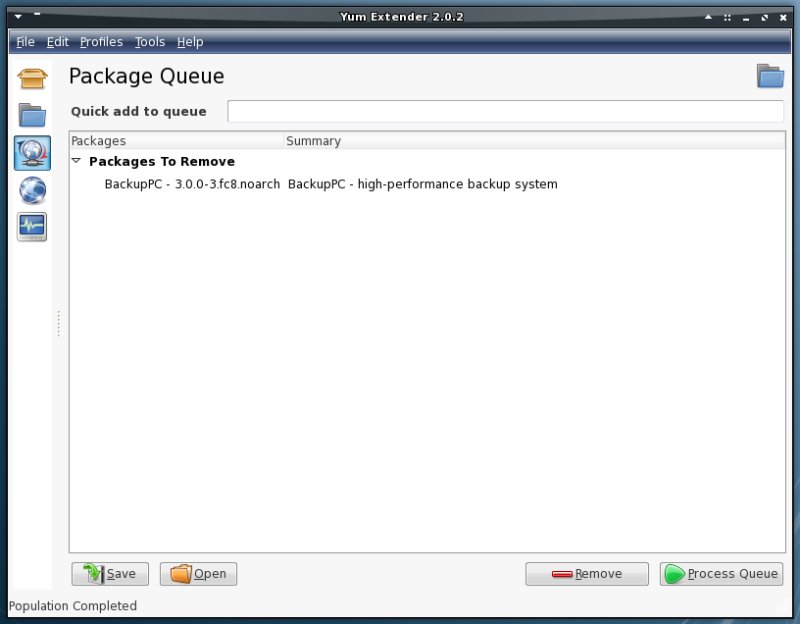
If you agree to your selection click on "Process Queue" in the bottom right corner.
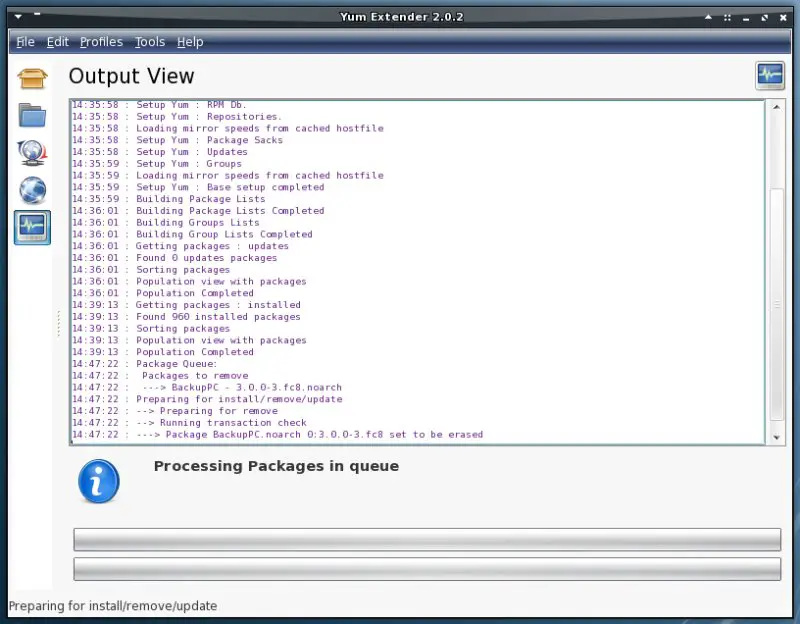
If the packages that you want to deinstall have dependencies, they'll also be marked for deinstallation. Proceed if you agree.
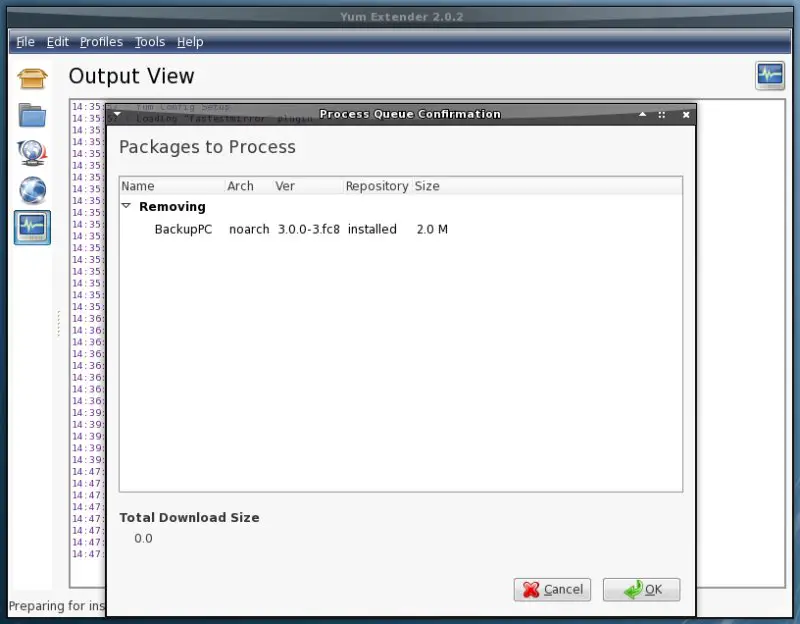
The packages are beeing deinstalled.
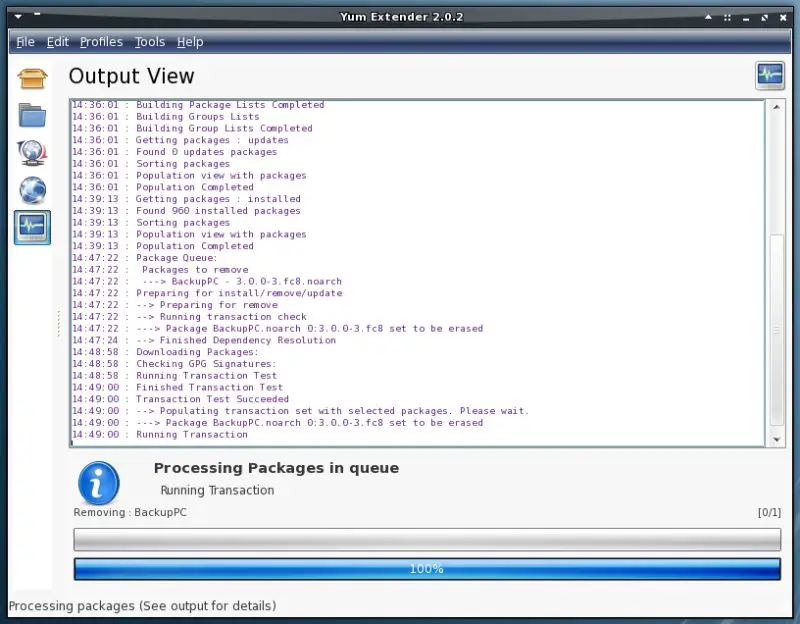
Deinstallation finished. Quit yumex or proceed to reload yumex.
5.2 Install Packages
Select the radio-button "Available" - now you'll see all installed packages. Browse the list or enter a search term in the corresponding field to find a package. If you found a package that you want to install simply mark its checkbox.
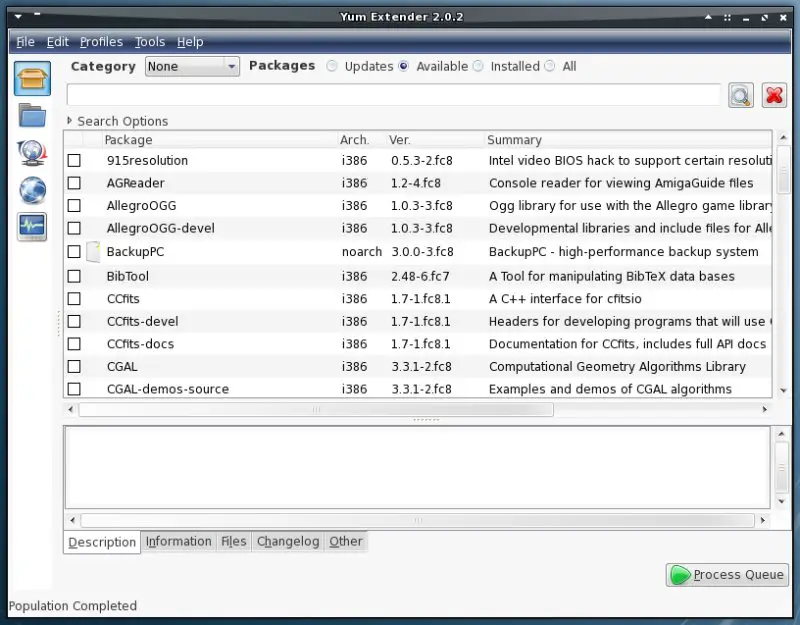
Alternativ you can use the group view.
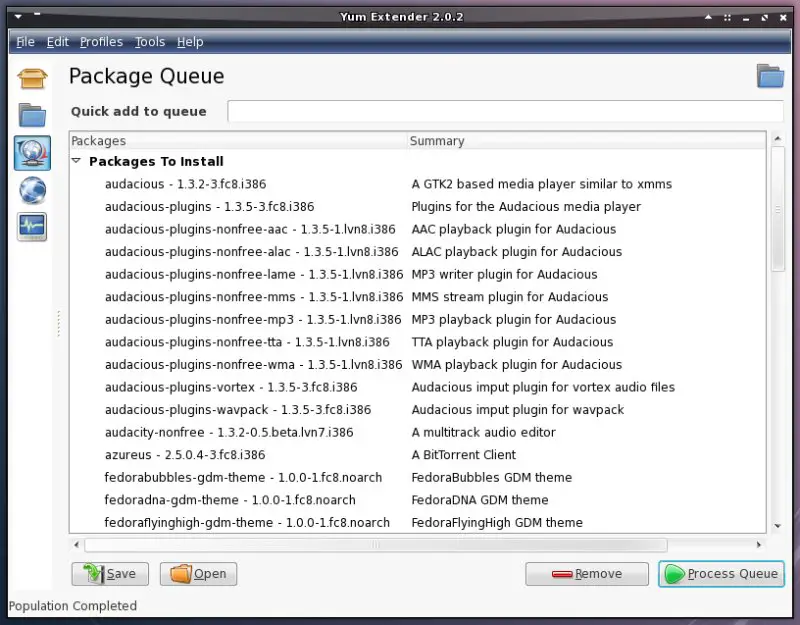
The package queue contains all packages that you selected for installation. If you made a mistake you can remove one or more packages from this list.
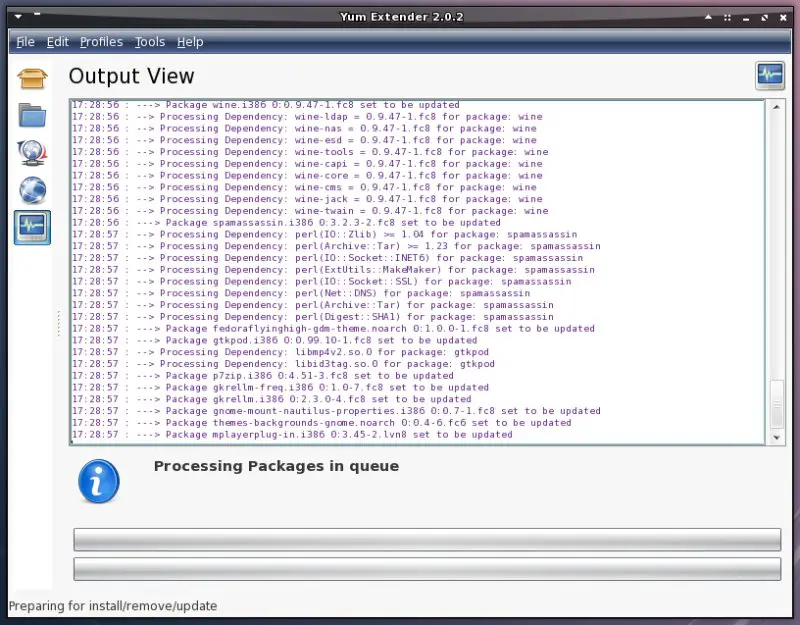
The dependencies are beeing resolved, they'll also be marked for installation.
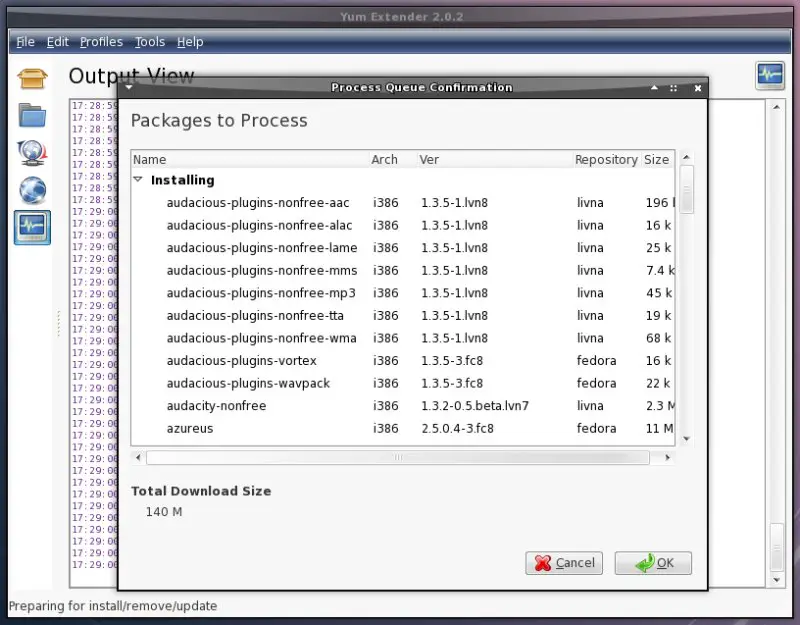
Proceed if you agree.
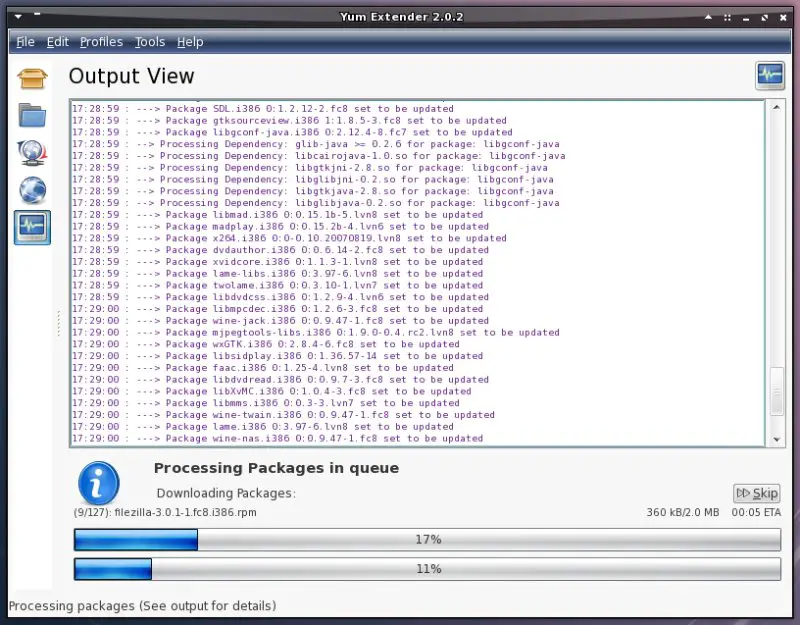
The packages are beeing downloaded...
...checked...
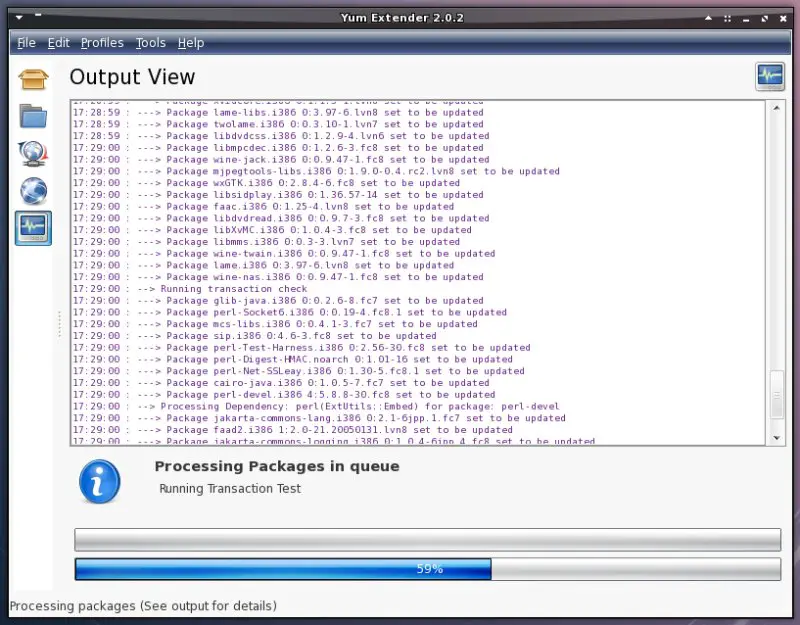
...and installed.
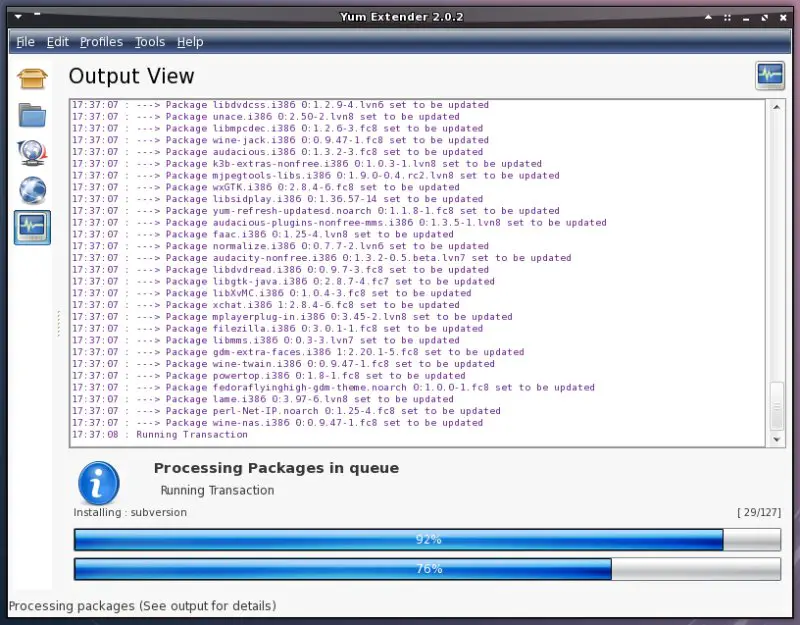
Deinstallation finished. Quit yumex or proceed to reload yumex.
6 ATI & Nvidia Graphics Card Drivers
Note: The drivers in step 6.1 and 6.2 are depending on the livna-repository (step 4.3).
6.1 Nvidia
There are three different drivers available for nvidia graphics cards. Install the packages that match to your graphics card model. If you don't know which kernel is installed on your system open a terminal and enter:
uname -r
The last driver (http://www.nvidia.com/object/IO_18897.html) for up-to-date models:
- kmod-nvidia
- kmod-nvidia-%kernel_version%
The driver (http://www.nvidia.com/object/IO_32667.html - 1.0-96xx) for older models:
- kmod-nvidia-96xx
- kmod-nvidia-96xx-%kernel_version%
The driver (http://www.nvidia.com/object/IO_32667.html - 1.0-71xx) for old models:
- kmod-nvidia-legacy
- kmod-nvidia-legacy-%kernel_version%
The legacy driver doesn't provide AIXGL support - so you can't use desktop-effects.
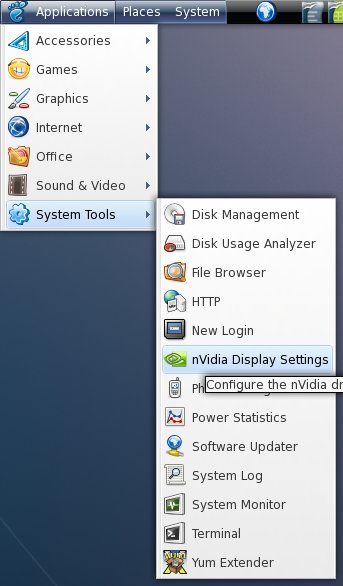
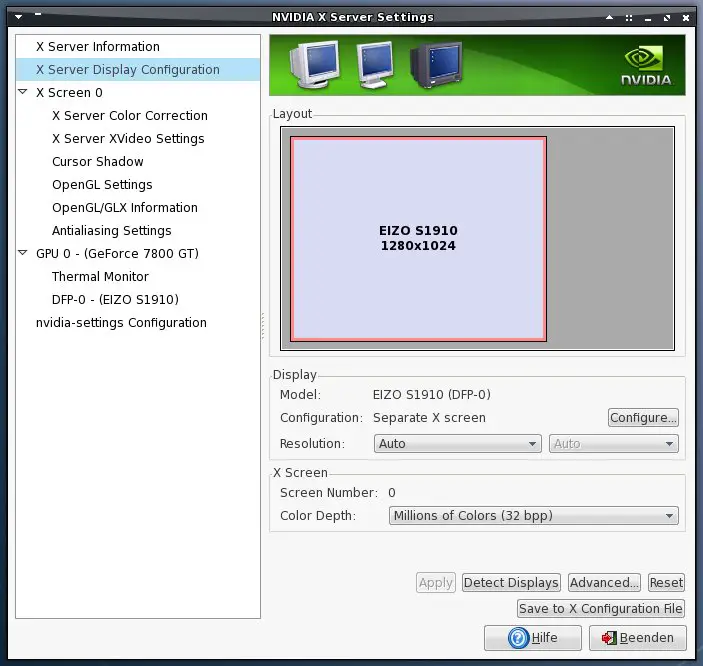
You have to log out and in again to activate the driver. Afterwards the driver-configuration is available in the gnome applications menu.
6.2 ATI
Install the following packages. If you don't know which kernel is installed on your system open a terminal and enter:
uname -r
- kmod-fglrx
- kmod-fglrx-%kernel_version%
You have to log out and in again to activate the driver.





