
The Perfect Desktop - PCLinuxOS 2007 - Page 4
6 Installing Additional Software
Now, still in Synaptic, we can install additional software:
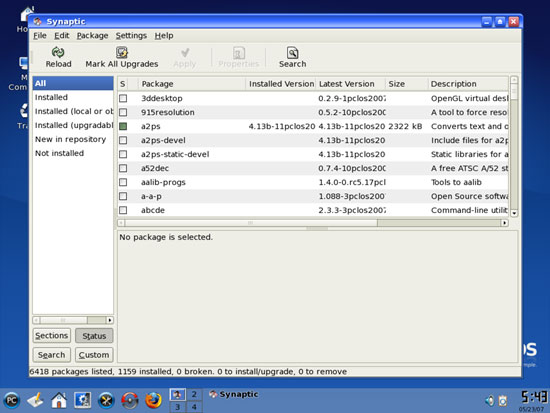
We are going to install the following packages:
- f-spot
- picasa
- opera
- gftp
- evolution
- amule
- bittorrent-gui
- skype
- googleearth
- gnucash
- gnucash-hbci
- gnucash-ofx
- scribus
- audacity
- banshee
- banshee-ipod
- rhythmbox
- gtkpod
- xmms*
- dvdrip
- kino
- sound-juicer
- vlc*
- RealPlayer
- RealPlayer-rpnp
- win32-codecs
- totem*
- xine-ui
- gnomebaker
- nvu
- bluefish
- kdewebdev-suite
- webcore-fonts
- ntfs-config
- perl-devel (needed by VMware)
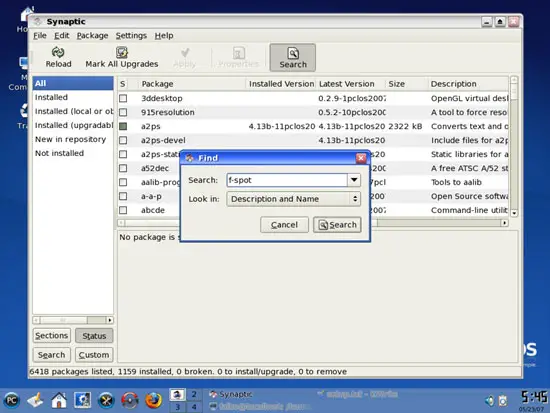
You can use Synaptic's Search function to search for the packages:
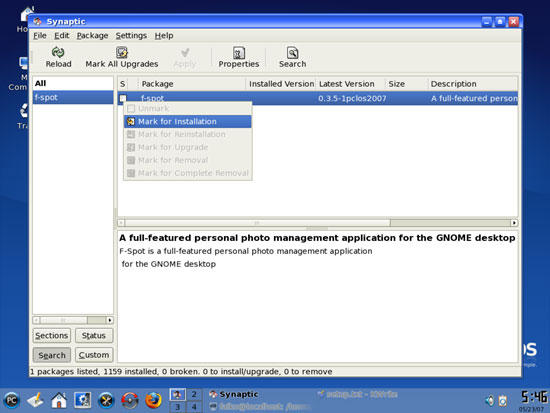
To select a package for installation, click on the checkbox in front of it and select Mark for Installation from the menu that comes up:
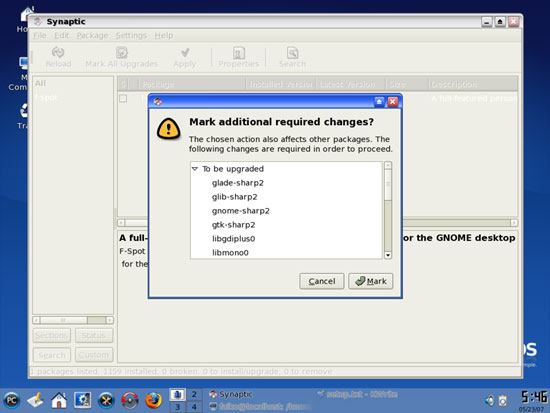
If a package has a dependency that needs to be satisfied, a window will pop up. Accept the dependencies by clicking on Mark:
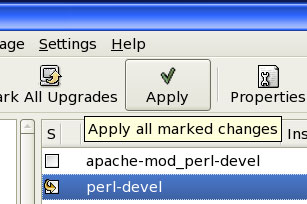
After you've selected the desired packages, click on the Apply button:
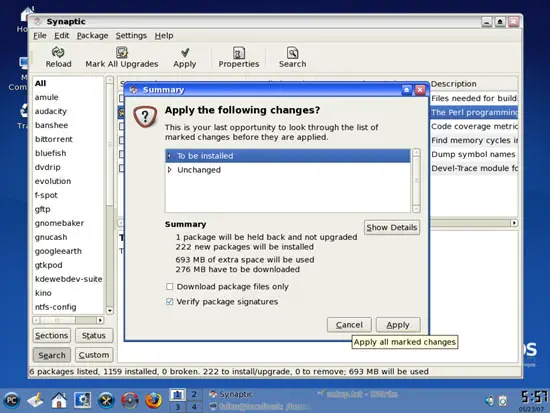
Confirm your selection by clicking on Apply:
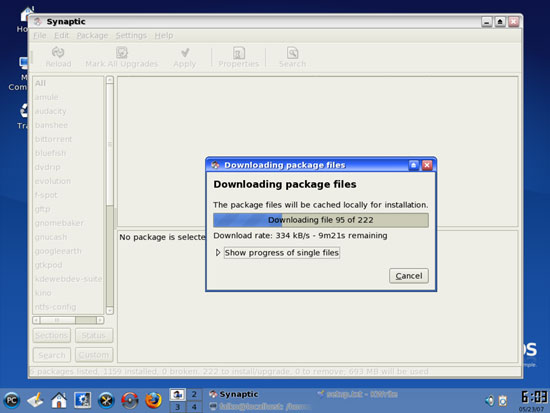
The packages are now being downloaded from the repositories and installed. This can take a few minutes, so please be patient:
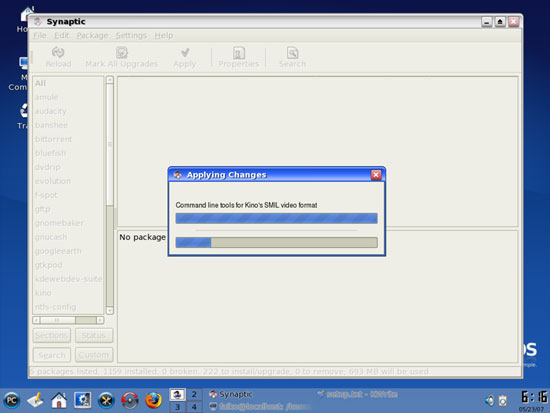
After the installation, a window will pop up with a message from the webcore-fonts package. It's no error message, it just tells you where to find more information about this package. Click on the Close button:
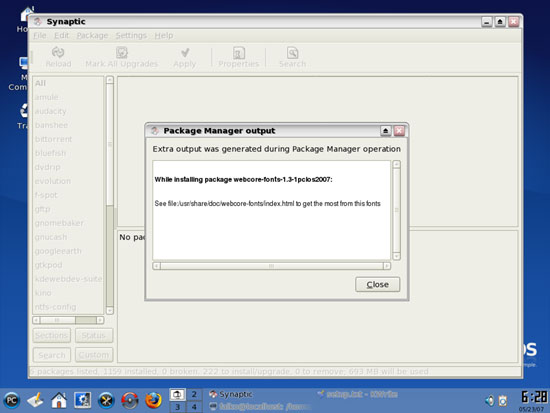
Afterwards, you can close the Synaptic Package Manager.
7 Inventory (II)
Now let's check again what we have so far by browsing the menus again. Our inventory should now look like this:
Graphics:
[x] The GIMP
[x] F-Spot
[x] Picasa
Internet:
[x] Firefox
[x] Opera
[x] Flash Player
[x] gFTP
[x] Thunderbird
[x] Evolution
[x] aMule
[x] Bittorrent
[ ] Azureus
[x] Kopete
[x] Skype
[x] Google Earth
[x] Xchat IRC
Office:
[x] OpenOffice Writer
[x] OpenOffice Calc
[ ] Adobe Reader
[x] GnuCash
[x] Scribus
Sound & Video:
[x] Amarok
[x] Audacity
[x] Banshee
[x] MPlayer
[x] Rhythmbox Music Player
[x] gtkPod
[x] XMMS
[x] dvd::rip
[x] Kino
[x] Sound Juicer CD Extractor
[x] VLC Media Player
[x] Real Player
[x] Totem
[x] Xine
[x] GnomeBaker
[x] K3B
[x] Multimedia-Codecs
Programming:
[x] Nvu
[x] Bluefish
[x] Quanta Plus
Other:
[ ] VMware Server
[x] True Type fonts
[x] Java
[x] Read/Write Support for NTFS partitions
So only Azureus, Adobe Reader, and VMware Server are missing...
8 Adobe Reader
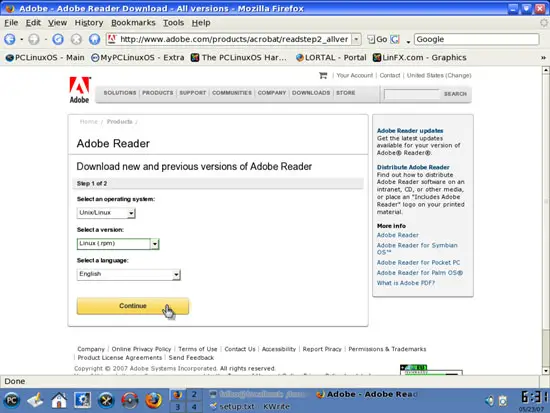
To download Adobe Reader, go to http://www.adobe.com/products/acrobat/readstep2_allversions.html and select the following:
Operating system: Unix/Linux
Version: Linux (.rpm)
Your language
Then click on Continue:
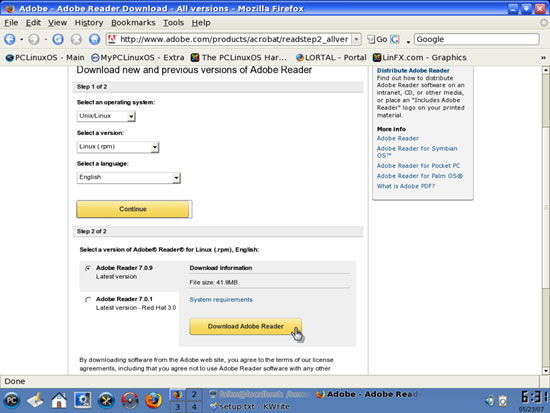
Then click on the Download Adobe Reader:
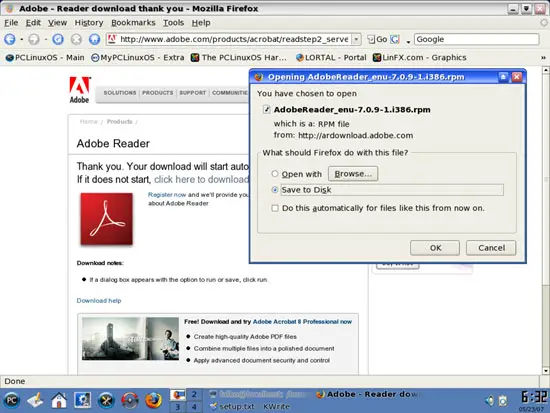
Save the file to the hard disk (e.g. the desktop, which is /home/falko/Desktop in this example):
After the download has finished, open a terminal (e.g. System > Terminals > Konsole) and type in
su
to become root.
Then go to the directory where you saved the Adobe Reader .rpm file (e.g. /home/falko/Desktop) and install it like this:
cd /home/falko/Desktop/
rpm -ivh AdobeReader_enu-7.0.9-1.i386.rpm
Adobe Reader is now being installed. If you see this message:
error: failed to stat /proc/bus/usb: No such file or directory
you can ignore it.
Afterwards, delete the Adobe Reader .rpm file:
rm -f AdobeReader_enu-7.0.9-1.i386.rpm
9 Azureus
To install Azureus, we must still be logged in as root on the shell. We can download the Azureus .rpm file from this address: ftp://ftp.pbone.net/mirror/www.pclinuxos.com/apt/pclinuxos/2007/RPMS.testing/
wget ftp://ftp.pbone.net/mirror/www.pclinuxos.com/apt/pclinuxos/2007/RPMS.testing/azureus-2.5.0.4-2pclos2007.i586.rpm
Afterwards, we install it like this:
rpm -ivh azureus-2.5.0.4-2pclos2007.i586.rpm
If you see this message:
error: failed to stat /proc/bus/usb: No such file or directory
you can ignore it.
Then we delete the Azureus .rpm file:
rm -f azureus-2.5.0.4-2pclos2007.i586.rpm





