
The Perfect Desktop - PCLinuxOS 2007 - Page 5
On this page
10 VMware Server
With VMware Server you can let your old Windows desktop (that you previously converted into a VMware virtual machine with VMware Converter, as described in this tutorial: https://www.howtoforge.com/vmware_converter_windows_linux) run under your PCLinuxOS desktop. This can be useful if you depend on some applications that exist for Windows only, or if you want to switch to Linux slowly.
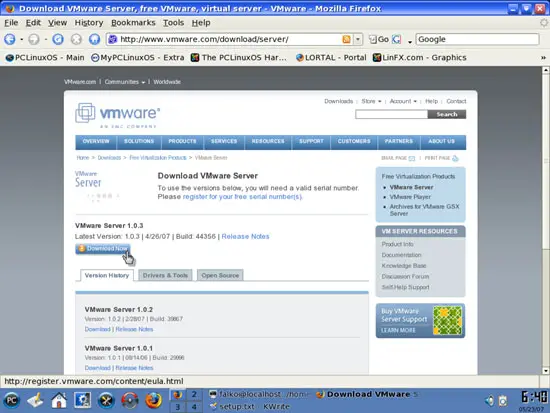
To download VMware Server, go to http://www.vmware.com/download/server/ and click on Download Now:
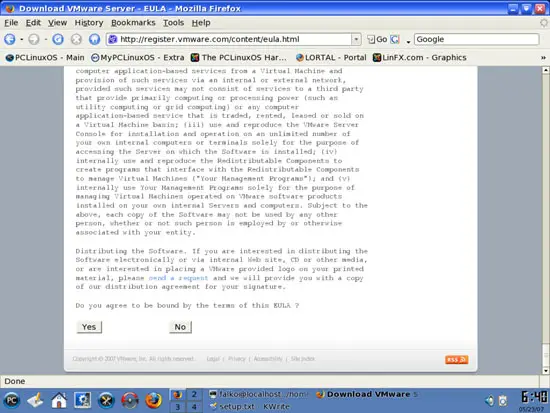
Accept the license agreement by clicking on Yes:
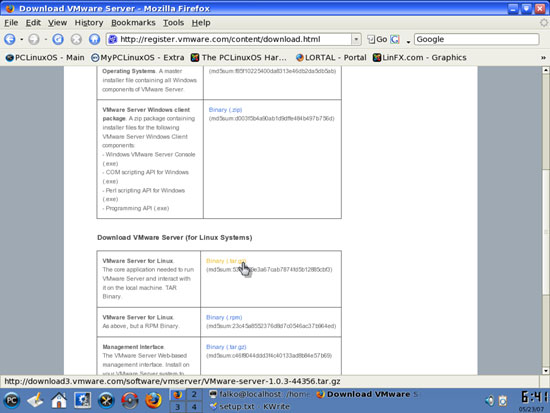
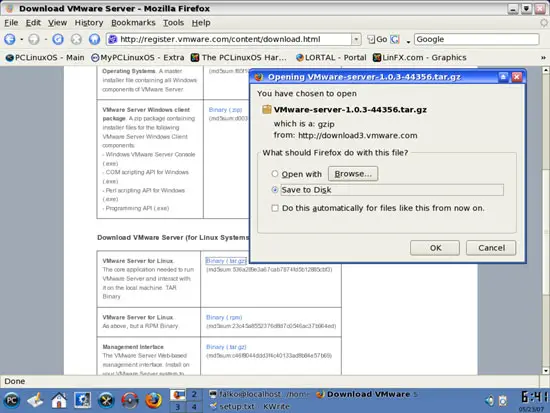
Then download the VMware Server for Linux .tar.gz file (not the rpm file!) to your desktop (e.g. to /home/falko/Desktop):
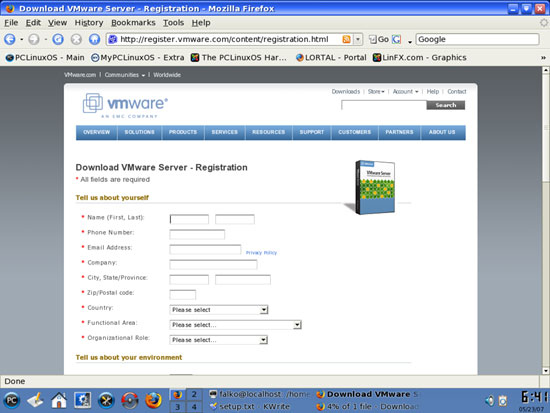
To get the serial number you need to run VMware Server, go to http://register.vmware.com/content/registration.html. Fill in your personal details. Afterwards you will get a page with a serial number for VMware Server. Write it down or print it out:
To install VMware Server, open a terminal and become root:
su
Then go to the location where you saved the VMware Server .tar.gz file, e.g. /home/falko/Desktop (replace falko with your own username!):
cd /home/falko/Desktop
Unpack the VMware Server .tar.gz file and run the installer:
tar xvfz VMware-server-*.tar.gz
cd vmware-server-distrib
./vmware-install.pl
The installer will ask you a lot of questions. You can always accept the default values simply by hitting <ENTER>. When it asks you
In which directory do you want to keep your virtual machine files?
[/var/lib/vmware/Virtual Machines]
you can either accept the default value or specify a location that has enough free space to store your virtual machines.
At the end of the installation, you will be asked to enter a serial number:
Please enter your 20-character serial number.
Type XXXXX-XXXXX-XXXXX-XXXXX or 'Enter' to cancel:
Fill in your serial number for VMware Server.
After the successful installation, you can delete the VMware Server download file and the installation directory:
cd ../
rm -f VMware-server*
rm -fr vmware-server-distrib/
Now we have to create a menu entry for VMware Server. Right-click on the PC icon:

and select Menu Editor.
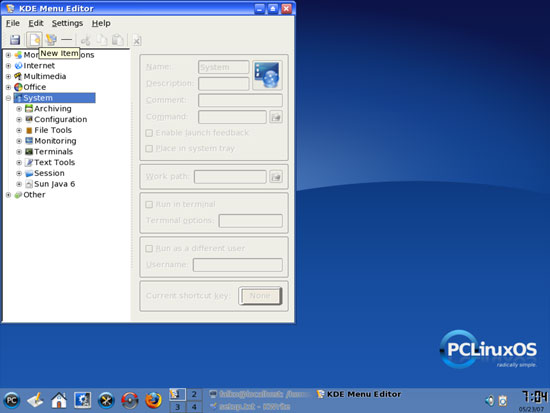
I'd like to have the VMware Server menu entry in the System submenu, so I mark System and click on the New Item button:
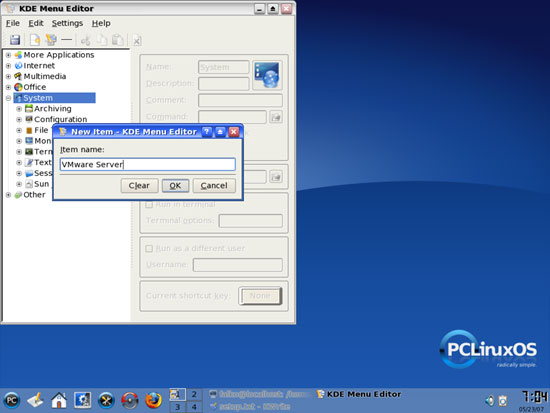
As Item name, I fill in VMware Server:
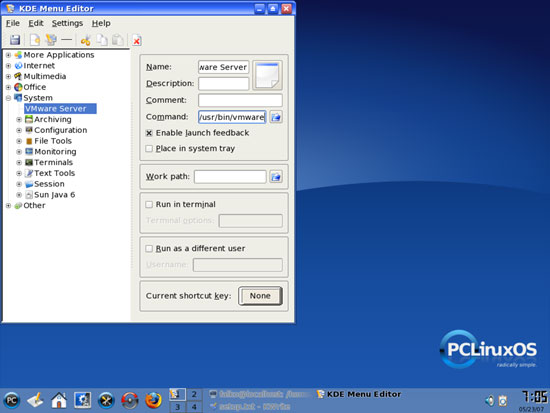
In the Command field, I type in /usr/bin/vmware:
Then I click on the Icon button:
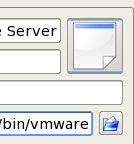
and select the VMware icon:
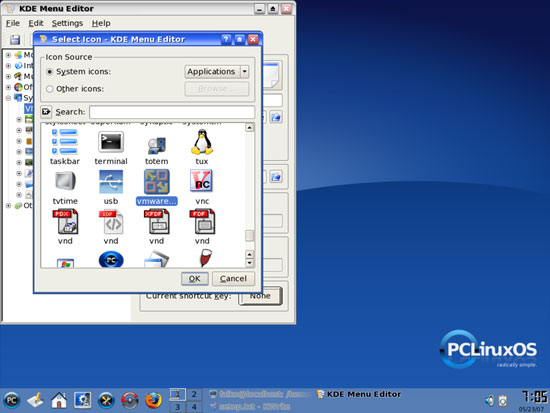
Afterwards we can close the KDE Menu Editor window. When you do it, you will be asked if you want to save your changes. Click on Save:
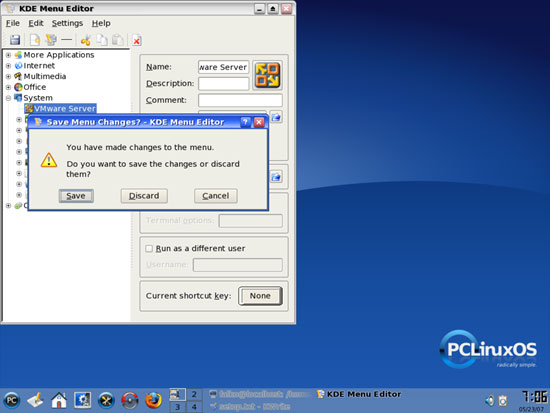
You will now find VMware Server in the System submenu.
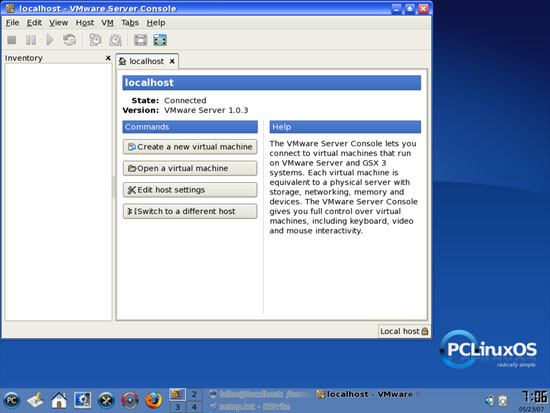
When you start it, select Local host:
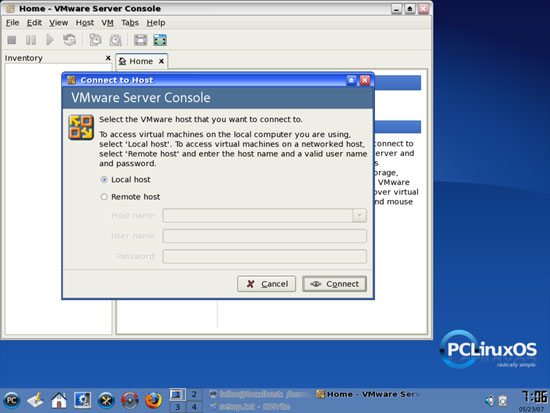
Afterwards, you can create virtual machines (or import your virtual Windows machine that you created with VMware Converter):
11 Inventory (III)
We have now all wanted applications installed:
Graphics:
[x] The GIMP
[x] F-Spot
[x] Picasa
Internet:
[x] Firefox
[x] Opera
[x] Flash Player
[x] gFTP
[x] Thunderbird
[x] Evolution
[x] aMule
[x] Bittorrent
[x] Azureus
[x] Kopete
[x] Skype
[x] Google Earth
[x] Xchat IRC
Office:
[x] OpenOffice Writer
[x] OpenOffice Calc
[x] Adobe Reader
[x] GnuCash
[x] Scribus
Sound & Video:
[x] Amarok
[x] Audacity
[x] Banshee
[x] MPlayer
[x] Rhythmbox Music Player
[x] gtkPod
[x] XMMS
[x] dvd::rip
[x] Kino
[x] Sound Juicer CD Extractor
[x] VLC Media Player
[x] Real Player
[x] Totem
[x] Xine
[x] GnomeBaker
[x] K3B
[x] Multimedia-Codecs
Programming:
[x] Nvu
[x] Bluefish
[x] Quanta Plus
Other:
[x] VMware Server
[x] True Type fonts
[x] Java
[x] Read/Write Support for NTFS partitions
12 Links
- PCLinuxOS: http://www.pclinuxos.com





