Make Your Linux Desktop Look Like A Mac - Mac4Lin Project Documentation - Page 2
4 Applying Cursors
GNOME 2.20
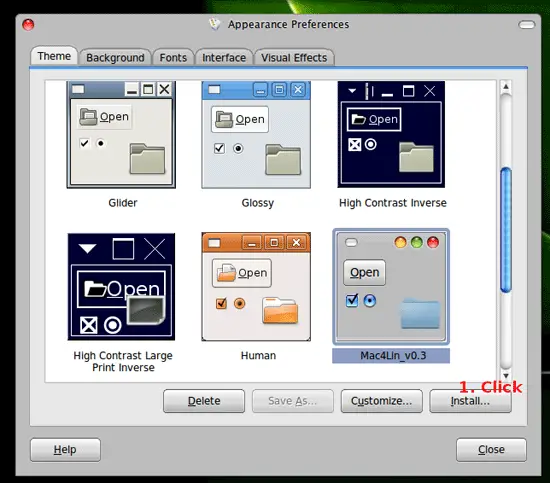
Goto System > Preferences > Appearance. Click Install. Browse and choose the Mac4Lin Cursor Theme .tar.gz file (wherever it is extracted).
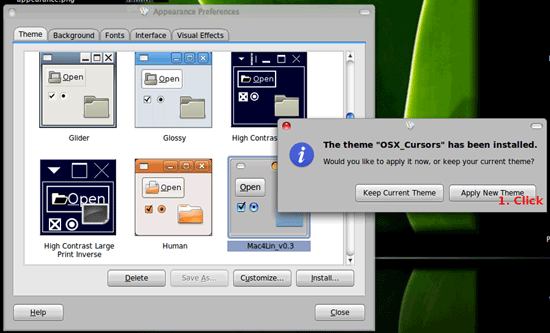
After the installation is confirmed click on 'Apply new theme'.
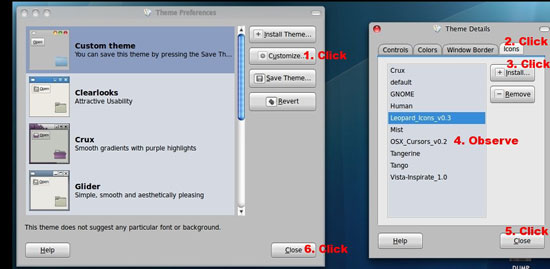
GNOME 2.18
To install, go to System > Preferences > Theme > Customize > Icons. Click Install. Choose Mac4Lin Cursors Theme .tar.gz file where ever its extracted. Observe that the OS X Cursors package is now added under icons. Do NOT select it. Close it now. Screenshot is as shown:
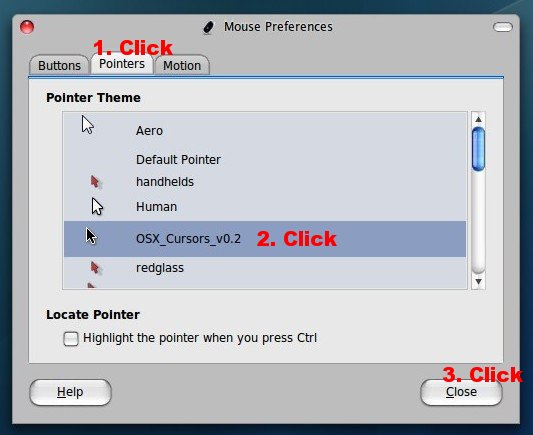
To apply, Goto System > Preferences > Mouse > Pointers Tab, Select OSX_Cursors then click Apply. Restart X (Log off and Log back in) for the changes to take place.
5 GDM/Login Window Theme
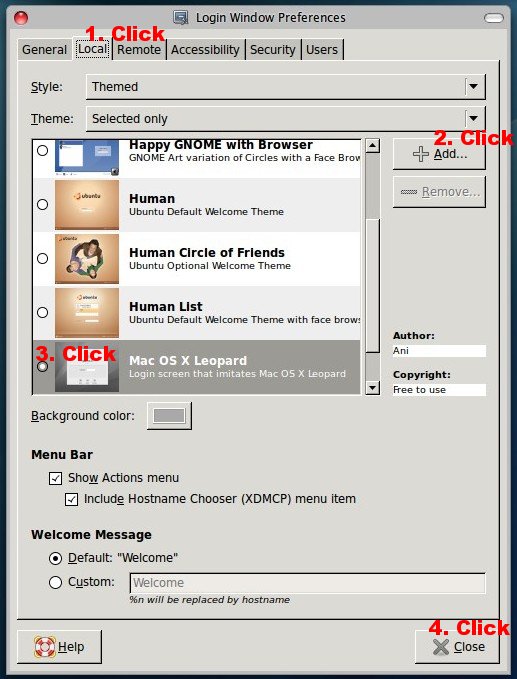
Goto System > Administration > Login Window > Local Tab. Enter the Admin password when asked. Now add the included GDM themes by clicking Add and seleting the bundled themes.
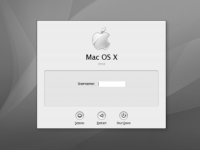
After adding, a preview of the theme will be shown (Leopard). To apply, click on the radio button next to preview.
Screenshot of the GDM theme:
6 GTK Splash
Applying splash screen is easiest with GtweakUI. Install the package relevant to your distro. Homepage: http://sourceforge.net/projects/gtweakui
For Debian based distros, in a terminal window type:
sudo apt-get install gtweakui
Other RPM based distros may have it in the repos. If not then download. The source tarballs are always available for compiling if binary package is not available. After installation, copy all splash images files from /GTK Splash to /usr/share/pixmaps/splash/ as root.
Now go to System > Preferences > gtweakui-session. Click on the image. Select the file you want to set as splash from the folder mentioned above to apply.
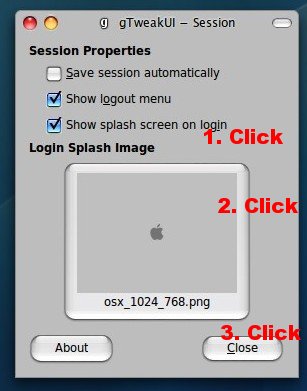
One of the GTK Splash screens:

7 Usplash Screen (Boot splash)
The easiest way of installing bootspash screen is to install the package: Startup Manager. Some distros may have it in the repos. If not the download from below mentioned link. Prebuilt packages for Debian and source tarballs are always available. Startup manager Homepage: https://sourceforge.net/projects/startup-manager/
After installation, copy all the .so files from /Usplash to /usr/lib/usplash as root.
IMPORTANT: Before changing the bootsplash screen backup the Grub menu list!!! Goto a terminal window and type:
sudo cp /boot/grub/menu.lst /boot/grub.menu.lst.copy
(or whatever is the Grub menu list file in your distro). This is important as many a times the Startup manager package will remove Windows entry in the Grub menu in a dual boot scenario. If this happens then after installation boot into Linux and type:
sudo gedit /boot/grub/menu.lst /boot/grub/menu.lst.copy
Now look for the Windows entry in the menu.lst.copy file and copy those lines in your menu.lst file to get the Windows entry back.
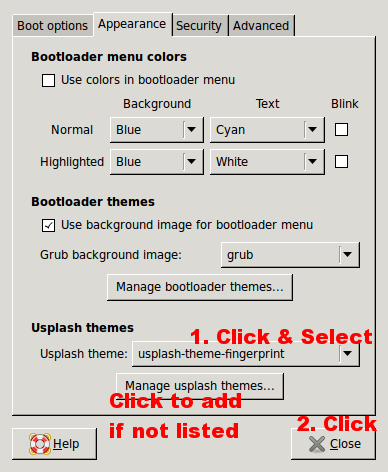
To set the screen, goto System > Administration > Startup-Manager Enter Admin password. In the 'Boot options' page, Check the 'Show bootsplash' option. Now goto 'Appearance' page.
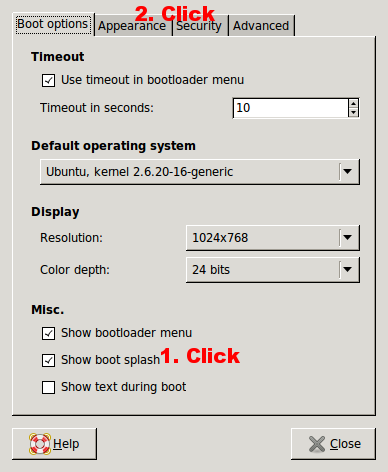
Click on Usplash theme dropdown menu and select one you like. If the themes don't show up then click on 'Manage usplash themes', browse to where the .so files have been placed, select them and add them.
One of the bootsplash screens: