
Make Your Linux Desktop Look Like A Mac - Mac4Lin Project Documentation

Do you like HowtoForge? Please consider supporting us by becoming a subscriber.
Submitted by infra_red_dude (Contact Author) (Forums) on Sun, 2007-10-28 18:18. :: Linux | Desktop

Make Your Linux Desktop Look Like A Mac - Mac4Lin Project Documentation

Revision 1.1
1 November, 2007
Mac4Lin Guide Copyright Anirudh, 2007
Developer: Anirudh (infra_red_dude)
Website: http://sourceforge.net/projects/mac4lin

Do you want to give your desktop a dash of Mac OS X? Do you want to change your GNOME desktop from the default look to something like this?
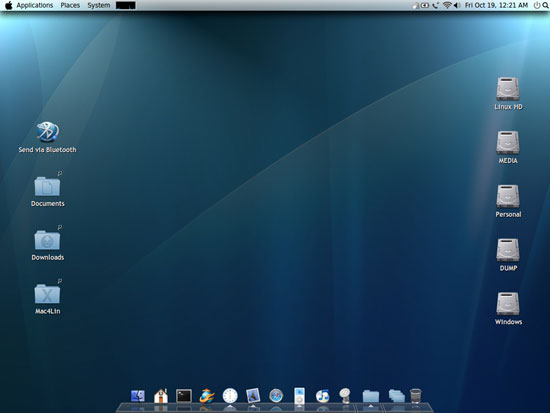
Then read on.....

The goal of this project is to bring the look and feel of Mac OS X (latest being 10.5, Leopard) on *nix GTK based systems. This document will present the procedure to install Mac4Lin pack & tweak certain things to get that almost perfect Mac OS X like desktop.

NOTE: Backup all files before deleting/replacing the original ones. Nobody can be held responsible for any loss of data that may occur when installing and/or during usage. This guide holds good for all versions of Mac4Lin. For version specific information please see the README file for each component (if any). Also see the changelog file for changes in that version. Compiz in this guide refers to Compiz-Fusion. Unless explicitly specified, the installation procedures apply to all versions of GNOME.

Download all the Mac4Lin .tar.gz files from the latest release & except the Icon themes extract all other files to a temporary folder .


1 Applying GTK Metacity Theme

GNOME 2.20

Goto System > Preferences > Appearance. Click Install. Browse and choose the Mac4Lin GTK Metacity Theme .tar.gz file (wherever it is extracted).
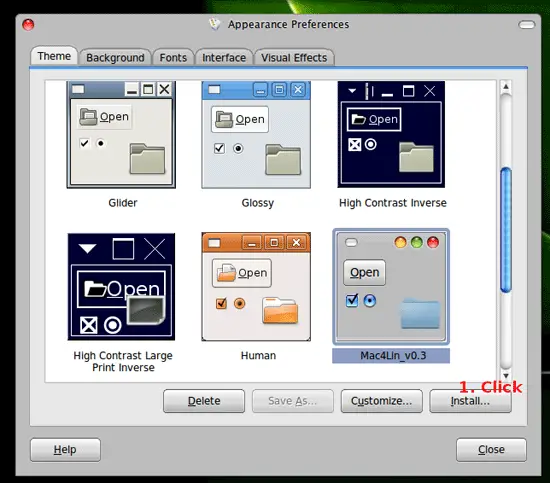
After the installation is confirmed click on 'Apply new theme'.
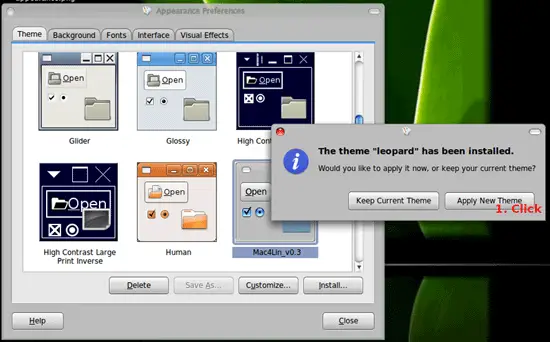
 

GNOME 2.18

Goto System > Preferences > Theme > Customize > Control. Click Install. Browse and choose the Mac4Lin GTK Metacity Theme .tar.gz file (wherever it is extracted). Select to Apply.

Also make sure that the Window border is set to the Mac4Lin theme. Click on the Window border and select the Mac4Lin GTK theme.
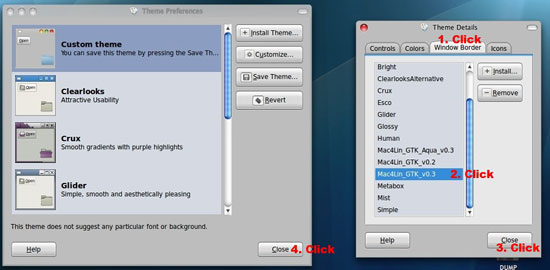
 

For both GNOME 2.18 & 2.20

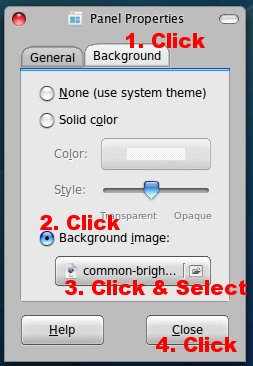
To set Leopard like GNOME panel background right click on an empty area on the top panel and select Properties. Now goto the Background tab and click on the Background image radio button. Navigate to /home/<user name>/.themes/<Mac4Lin GTK theme folder>/gtk-2.0/Panel and select the image you like, to be set as background for the GNOME panel.
The following is only for those who do not use Emerald theme manager:

To shift the traffic lights (close,min,max buttons) to the left of the title bar goto a terminal windows and type:

gconf-editor

and press Enter. Now navigate to: apps>metacity>general. On the right double click 'button_layout'. Delete that & type: 'close,minimize,maxmize:menu' (without quotes). Press OK and then quit. The buttons will now be on the left side of titlebar.

To restore the original layout, just replace the string by 'menu:minimize,maximize,close'.


2 Applying GTK Icon Theme

GNOME 2.20

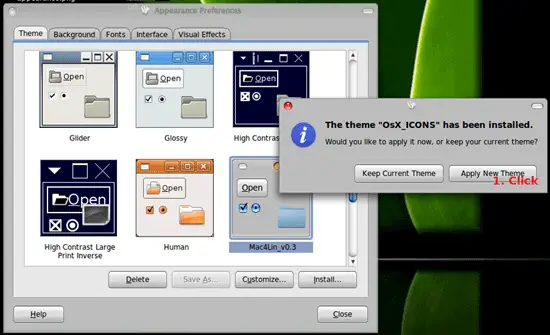
Goto System > Preferences > Appearance. Click Install. Browse and choose the Mac4Lin Icon Theme .tar.gz file (wherever it is extracted). Be sure to select the correct icon theme, the GNOME 2.20 ONLY version.

After the installation is confirmed click on 'Apply new theme'.
 

GNOME 2.18

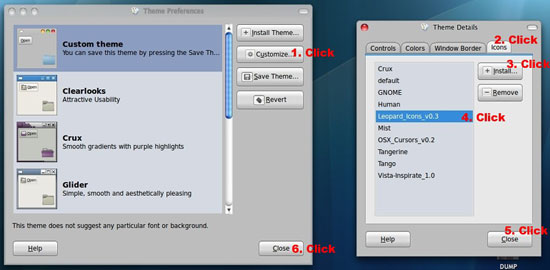
Goto System > Preferences > Theme > Customize > Icons. Click Install. Choose the Mac4Lin GTK Icon Theme .tar.gz file (wherever its extracted). Select to Apply.
 

For both GNOME 2.18 & 2.20

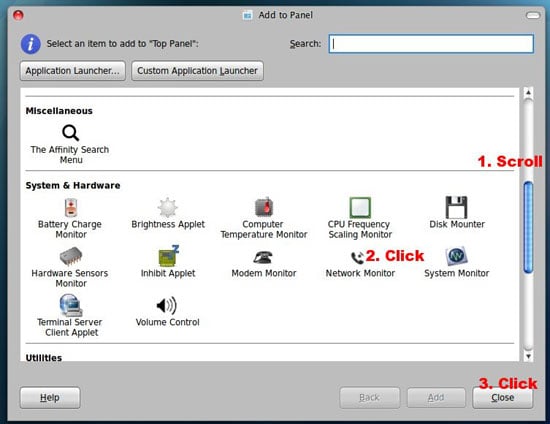
For the Search/Network/Wi-Fi icon to work correctly, you need to add the applets: "Search for files.." and "Network Monitor" to the GNOME Panel. Right click on an empty are on the panel and click "Add to panel" now scroll down and select "Search for files" applet. Now again do that, this time select the "Network Monitor" Applet. Look at the main screenshots for their placement on the panel.
This theme also contains lot of extra icons. Find them at ~/.icons/<Mac4Lin Icon folder>/EXTRAS. These are some of the icons in the pack:


3 Emerald Theme For Beryl & Compiz

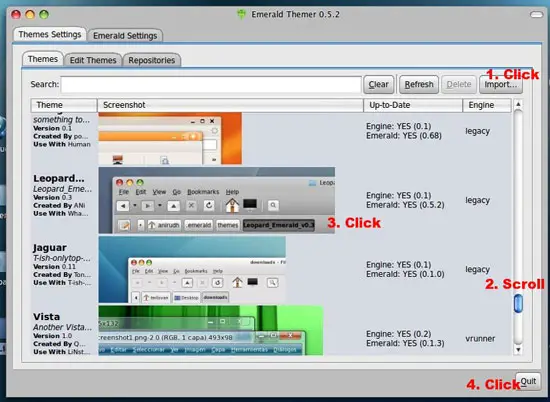
You will need to install Beryl/Compiz and Emerald theme manager first. To install: Goto System > Preferences > Emerald Theme Manager. Click on 'Import...' button. Now browse to the folder where this pack was extracted and select the .emerald file from the Emerald folder. Click 'Open'. Now scroll and select the Mac4Lin Emerald theme to apply.

Please do not use the comment function to ask for help! If you need help, please use our forum.
Comments will be published after administrator approval.
Submitted by Bruno Braga (not registered) on Fri, 2009-10-30 18:36.

I think there are a lot of changes on the new Ubuntu releases, difficult to follow up.

 I got passed the first steps of the install script by creating the missing directories myself.

mkdir ~/.icons

mkdir ~/.themes

However, the setup does not happen autmaticaly You can just right click the desktop > change background > themes > and choose the mac4lin option saved there.

Submitted by ricardo (not registered) on Thu, 2009-11-05 04:55.
guys i dont understand y you are having problems because im using ubuntu 9.10 and i was able to pretty much get everything working. :)
Submitted by dfavor (registered user) on Wed, 2009-08-19 18:55.
The first step of this process crashes latest gnome.
Submitted by Anonymous (not registered) on Thu, 2009-09-10 19:40.
Excuse me, but ubuntu 9.10 is not released yet. It's beta, maybe...
Submitted by LJ Dellar (not registered) on Fri, 2009-10-30 14:50.

It is now.  The guide is two years old and following it did not work on version 9.04.


There is a newer guide here http://maketecheasier.com/turn-your-ubuntu-hardy-to-mac-osx-leopard/2008/07/23 

but it is still a year old and really for 8.10.

Submitted by Ian MacGregor (not registered) on Tue, 2009-08-18 19:24.
I've been using Mac4Lin for a while on Ubuntu and I still love it!
Submitted by technoeunuch (not registered) on Tue, 2009-08-11 18:51.
can this one be updated for gnome 2.26?
Submitted by Jude Pereira (not registered) on Thu, 2009-08-06 18:33.
Can you please send me a link to the wallpaper in your first image? The nice bluish one? Please. Thank you in advance!!!
Submitted by Anonymous (not registered) on Sat, 2009-06-13 23:27.

Some other Firefox themes that may suit Mac4Lin:

https://addons.mozilla.org/en-US/firefox/addon/7172 (works well on ff 3.5b4)

https://addons.mozilla.org/en-US/firefox/addon/11227 (works quite ok on ff 3.5b4)

https://addons.mozilla.org/en-US/firefox/addon/11164 (works quite ok on ff 3.5b4)

Submitted by Anonymous (not registered) on Sat, 2009-05-02 09:06.
Has anyone tried this for Ubuntu 9.04 (Jaunty Jackalope) yet?
Submitted by darchstar (not registered) on Sat, 2009-07-18 17:55.
I just installed this and the newest version comes with an install script that automates the whole process for you
Submitted by Anonymous (not registered) on Sun, 2009-07-12 18:51.
Yes. I couldn't get past step one.
Submitted by Anonymous (not registered) on Tue, 2009-06-16 13:45.
yeah I have, but however I couldnt install the MacMenu.. or AWM...
Submitted by Anonymous (not registered) on Wed, 2009-05-20 03:59.
yes.  It worked great except for the apple icon in the upper left corner...
Submitted by Hozey (not registered) on Sat, 2009-05-09 23:44.
Yes and got lost.  It's a same this tutorial hasn't been updated in almost a year and a half.  With the release of 9.04 and for the benefit of us newbies who want to use linux but remain tied to the Mac desktop, somebody please update this and the Mac4Lin project as well.
Submitted by Hozey (not registered) on Sun, 2009-05-03 05:47.
I did.  But being a newbie to Ubuntu and Linux I got lost due to some of the commands and screen shots being different in Jaunty.  An update would certainly be appreciated.
Submitted by Fletchinho (not registered) on Wed, 2009-05-13 19:24.
There is a new version of Mac4lin available with documentation on their official site.
Submitted by Methanoid (not registered) on Thu, 2009-06-18 10:50.

Yes, new version but with a manual that is too much... Contrast to the same sort of things for making Ubuntu look like XP. A simple script you run and it does it all.

The guide isnt accurate. If I run the script I get no output at all but things do happen. Was I supposed to run it in Terminal or Open/Run it? It doesnt do the GTK stuff. You have to do manually.

Great idea but definitely NOT noob friendly.

Submitted by Matt (not registered) on Wed, 2009-03-18 19:06.
Hey, this is a fantastic project, but has anyone tried it for Mandriva 2009 yet? Is it guaranteed to work? Do you need GNOME or will it work on KDE?
Submitted by Zakir Khan (not registered) on Sat, 2009-01-03 17:16.
CAN YOU PROVIDE ME WITH LATEST UPDATES FOR MAC OS.
Submitted by Quentin (not registered) on Wed, 2008-12-24 09:02.

- The provided Firefox themes are not compatible with the current version (3.0.5).

- Usplash doesn't work on widescreen. Even the default Ubuntu Usplash is deformed and off-centered.

- Some of the icons still look ugly. Where can I post a screenshot ?

Thanks!


Submitted by Christian Müller (not registered) on Sun, 2008-12-14 01:15.

Hi

I have a big problem to find the whole software apps, on which site i can download all files i need for this !

Best Regards

Christian Müller

Submitted by RayJ (not registered) on Sat, 2008-11-22 04:10.

Flawless execution! I always like the clean look of MacOSX and now I have it!

--RayJ

Submitted by Chris Voeltz (not registered) on Thu, 2008-11-20 01:10.

wow, im amazed at this guide! love it! mind if i put it on my website with a link to the original source and anything else you would like me to include... email me: chris.voeltz@gmail.com

and also, i dont have the "Theme Preferences" option... please help me... where and how do i get it?

thanks!! :D

http://www.truegamestudios.com/index.php

Chris.Voeltz@gmail.com

Submitted by vinitd (not registered) on Thu, 2008-11-06 07:18.
Has anybody tried this on latest ubuntu (8.10)??
Submitted by Anonymous (not registered) on Sat, 2009-04-11 13:41.
works fine, better than 8.04 or 7.10
Submitted by Anonymous (not registered) on Mon, 2008-11-10 01:07.
i tried it on ubuntu 8.10 it works fine
Submitted by Anonymous (not registered) on Fri, 2008-10-03 03:57.
When I go to my add to panel in this proccess it don't look like the screen shot above. Can someone help me??? I can e-mail anyone a screen shot of what mine looks like if you want to help.
Submitted by Hozey (not registered) on Tue, 2009-04-28 14:38.
Any chance you'll be updating this for 9.04 any time soon?  It's sorely needed for us novices.  Thanks.
Submitted by Anonymous (not registered) on Wed, 2008-10-01 03:24.
hey, can anyone tell me, if you do this, is it easy to change back if you want to? Thanks
Submitted by darkbobg (registered user) on Sun, 2008-01-06 15:28.

Thank you for the excellent guide, but I wanted to let you know that there is a slight error in the text that may cause users problems.

During the portion of the tutorial on the first page where you are utilizing gconfig-editor to change the orientation of the window operations buttons, you mispelled maximize in your first use.

Delete that & type: 'close,minimize,maxmize:menu'

Without the correct spelling of 'maximize' a user will only see the close and minimize buttons.

Again, thank you for your work!

Submitted by rschu68 (registered user) on Thu, 2007-11-01 13:21.

wget http://download.tuxfamily.org/syzygy42/reacocard.asc
sudo apt-key add reacocard.asc
rm reacocard.asc
sudo apt-get update

I changed my GPG key, so you have to switch to this one. Also, the guide on the wiki is sorely out-of-date, use this one instead: http://ubuntuforums.org/showthread.php?t=385981
That thread is the ONLY method of using my repo that I keep up-to-date, and therefore the only one that can be expected to be up-to-date.

(http://www.planetblur.org/hosted/awnforum/index.php?shard=forum&action=g_reply&ID=1122&page=1&sl=0&isLive=true#last)

Submitted by Anonymous (not registered) on Sun, 2009-06-07 02:00.

I'm trying to down the Mac4lin.tar.gz file, but the site: sourceforge.net is down...read-only site DB @ 17:17 UTC and the server/site DB went out at 18:38 UTC

note:
13:00 = 1pm
14:00 = 2pm
15:00 = 3pm
16:00 = 4pm
17:00 = 5pm
18:00 = 6pm
19:00 = 7pm
20:00 = 8pm
21:00 = 9pm
22:00 = 10pm
23:00 = 11pm

This is not good...

Sponsored Links: Unified Communications: Thoughts, Strategies and Predictions
Join the discussion.
www.seamlessenterprise.com

IP Convergence
Integrate your wireless and wireline networks.
Learn how from the experts at Sprint.
www.seamlessenterprise.com

Wireless & Wireline Integration
Thoughts, strategies and solutions: join the discussion
www.seamlessenterprise.com

Unified Communications 2009
Join the Discussion. Now.
www.seamlessenterprise.com
