
Installing Webmin On Ubuntu Feisty Fawn (7.04) - Page 4
This tutorial exists for these OS versions
- Ubuntu 24.04 (Noble Numbat)
- Ubuntu 22.04 (Jammy Jellyfish)
- Ubuntu 20.04 (Focal Fossa)
- Ubuntu 15.04 (Vivid Vervet)
- Ubuntu 7.04 (Feisty Fawn)
On this page
What Next?
After logging in you get the following welcome screen.
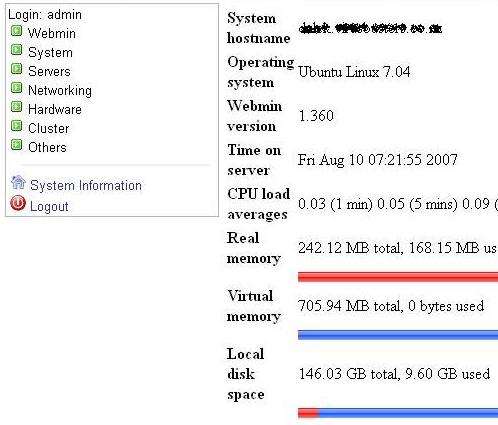
The main functions are self explanatory. If you need help with webmin there are documents to be found at:
- The webmin site: http://www.webmin.com/docs.html
- The webmin wiki: http://doxfer.com/Webmin
Some Other Quick Tips
After the installation if you want to access webmin from any machine in your network edit the /etc/webmin/miniserv.conf file.
sudo vim /etc/webmin/miniserv.conf
Change the "allow" option:
[...]
allow=127.0.0.1
[...]
to
[...]
allow=0.0.0.0
[...]
If you want to restrict webmin access to your network or a particular computer, you can also do that here. After changing the setting you will need to restart webmin.
sudo /etc/init.d/webmin restart
Final Note
Some people prefer not to use webmin as they feel it adds extra overhead and takes up too much memory. The average modern server is unlikely to notice webmin but as it does not need to run continuously. If you need it it is a handy tool to have but after you have used it you can always shut it down when it is not needed.
sudo /etc/init.d/webmin stop
And when you need it again ....
sudo /etc/init.d/webmin start
This ensures it doesn't use any extra processor cycles or memory if your server is running hard already.
Enjoy!





