How To Install VMware Server 2 On An Ubuntu 8.04 Desktop

Do you like HowtoForge? Please consider to support us by becoming a subscriber.
Submitted by falko (Contact Author) (Forums) on Sun, 2008-09-28 17:24. :: Ubuntu | Desktop | Virtualization

How To Install VMware Server 2 On An Ubuntu 8.04 Desktop

Version 1.0
Author: Falko Timme <ft [at] falkotimme [dot] com>
Last edited 09/26/2008

This tutorial provides step-by-step instructions on how to install VMware Server 2 on an Ubuntu 8.04 desktop system. With VMware Server you can create and run guest operating systems ("virtual machines") such as Linux, Windows, FreeBSD, etc. under a host operating system. This has the benefit that you can run multiple operating systems on the same hardware which saves a lot of money, and you can move virtual machines from one VMware Server to the next one (or to a system that has the VMware Player which is also free).

Also, with VMware Server you can let your old Windows desktop (that you previously converted into a VMware virtual machine with VMware Converter, as described in this tutorial: http://www.howtoforge.com/vmware_converter_windows_linux) run under your Ubuntu desktop. This can be useful if you depend on some applications that exist for Windows only, or if you want to switch to Linux slowly.

I want to say first that this is not the only way of setting up such a system. There are many ways of achieving this goal but this is the way I take. I do not issue any guarantee that this will work for you!


1 Preliminary Note

I'm using the user name falko with the home directory /home/falko here - please adjust this appropriately.


2 Installing VMware Server

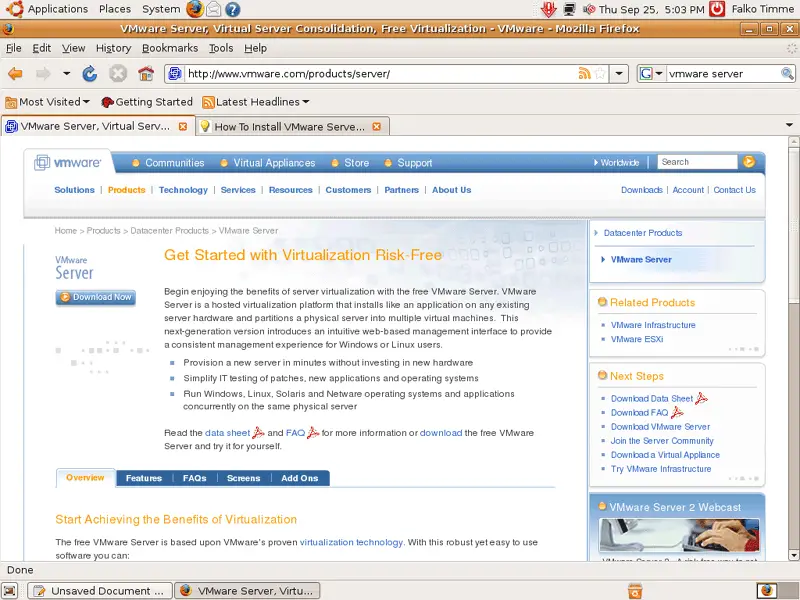
To download VMware Server, go to http://www.vmware.com/products/server/ and click on Download Now:
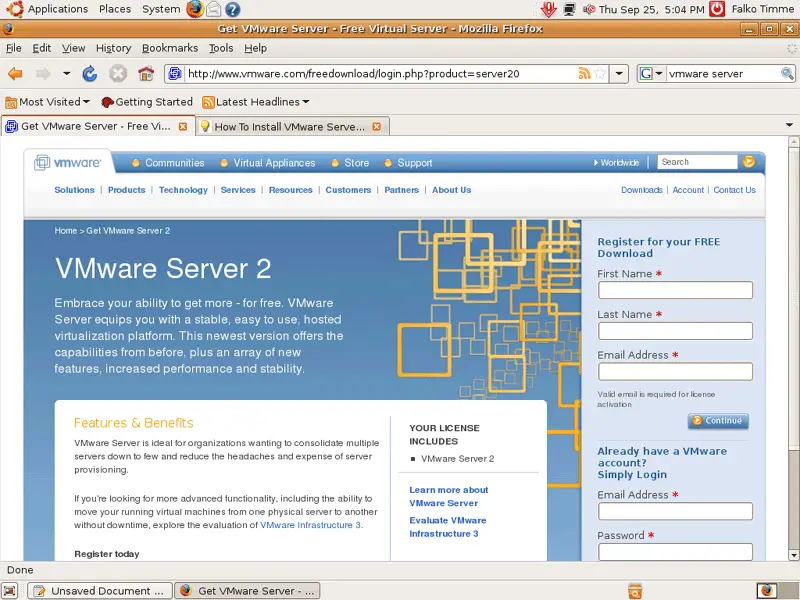
On the next page, log in with your existing VMware account or create a new one:
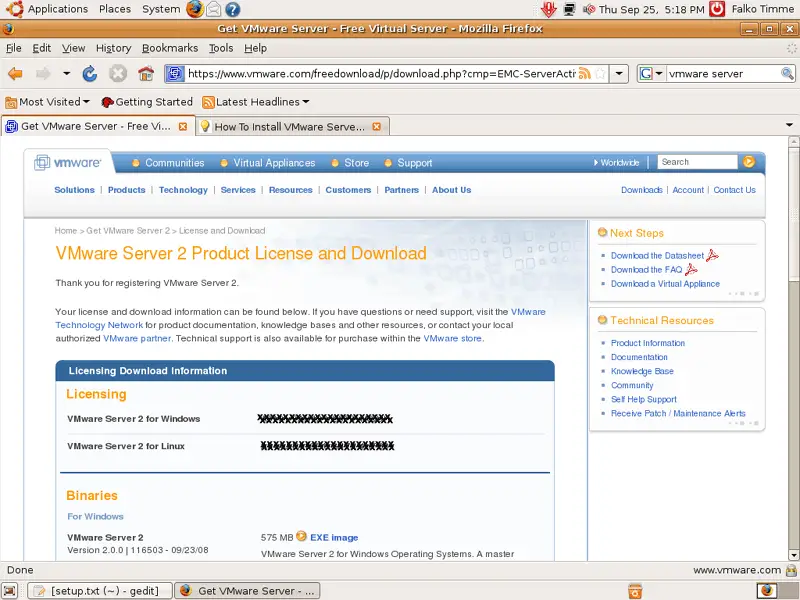
Follow the on-screen instructions. At the end, you should receive an email with a link to your download page. On the download page, you should see two license numbers, one for Windows and one for Linux. Write down or save the one for Linux and scroll down.
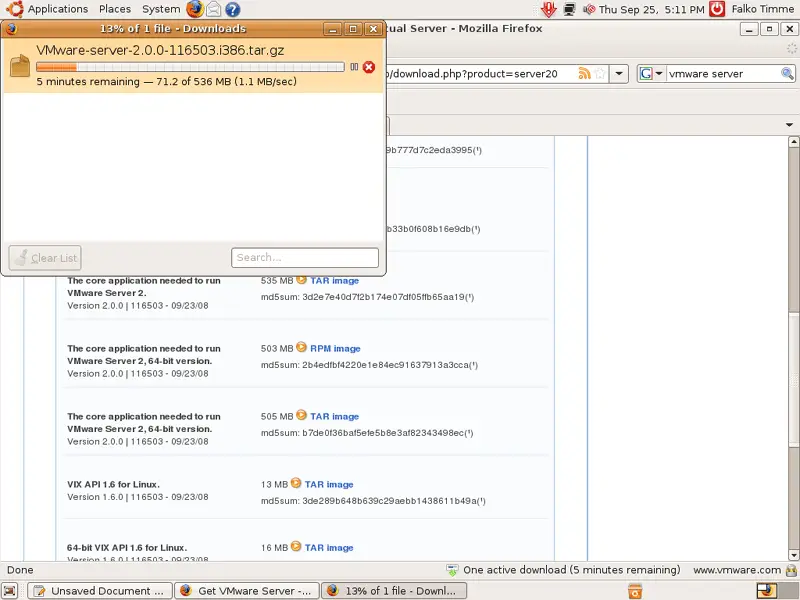
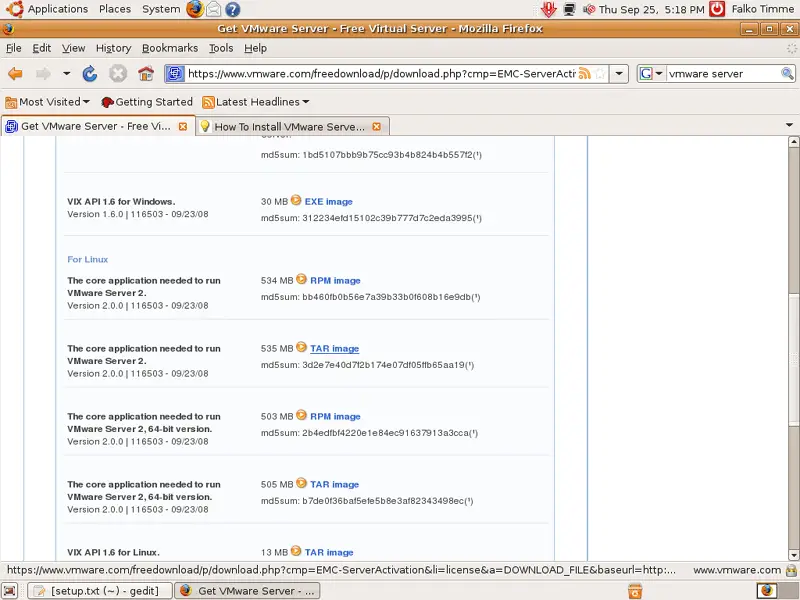
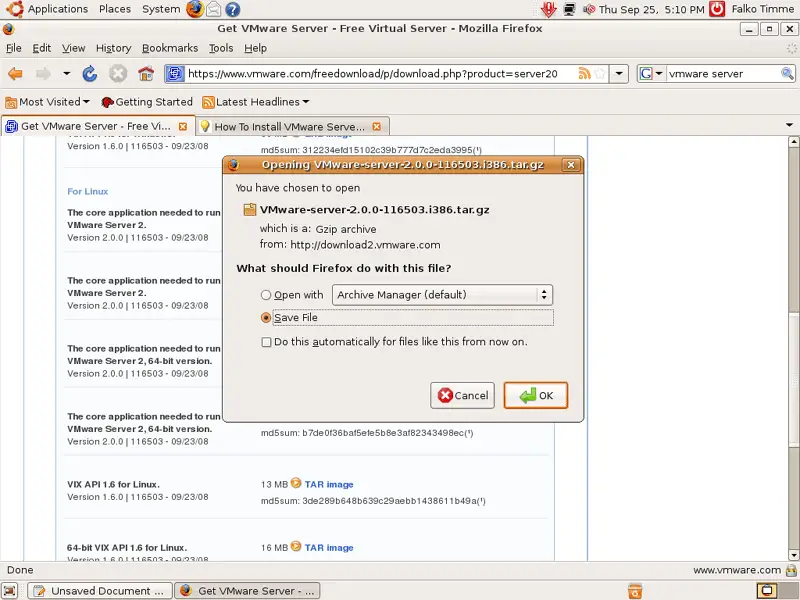
Then download the VMware Server for Linux TAR image (not the RPM image!) to your desktop (e.g. to /home/falko/Desktop):
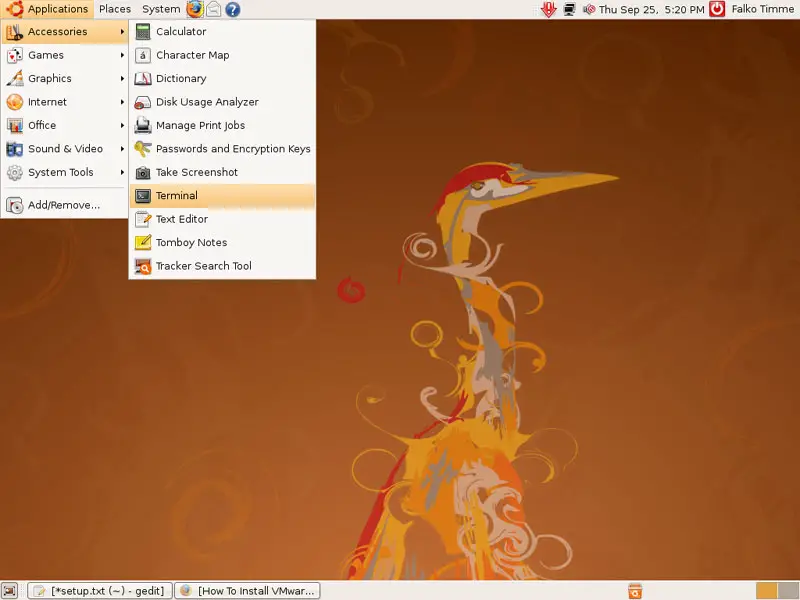
Then open a terminal (Applications > Accessories > Terminal):
Run the following command to install some necessary packages:

sudo apt-get install linux-headers-`uname -r` build-essential xinetd

Then go to the location where you saved the VMware Server .tar.gz file, e.g. /home/falko/Desktop (replace falko with your own username!):

cd /home/falko/Desktop

Unpack the VMware Server .tar.gz file and run the installer:

tar xvfz VMware-server-*.tar.gz
cd vmware-server-distrib
sudo ./vmware-install.pl

The installer will ask you a lot of questions. You can always accept the default values simply by hitting <ENTER>.

When the installer asks you

In which directory do you want to keep your virtual machine files?
[/var/lib/vmware/Virtual Machines]

you can either accept the default value or specify a location that has enough free space to store your virtual machines.

At the end of the installation, you will be asked to enter a serial number:

Please enter your 20-character serial number.

Type XXXXX-XXXXX-XXXXX-XXXXX or 'Enter' to cancel:

Fill in your serial number for VMware Server.

After the successful installation, you can delete the VMware Server download file and the installation directory:

cd /home/falko/Desktop
rm -f VMware-server*
rm -fr vmware-server-distrib/

If you have accepted all default values during the installation, root is now the VMware Server login name. On Ubuntu, root has no password by default, therefore we create a password now:

sudo passwd root

VMware Server 2 does not have a desktop application for managing virtual machines - this is now done through a browser (e.g. Firefox). You can access the management interface over HTTPS (https://<IP ADDRESS>:8333) or HTTP (http://<IP ADDRESS>:8222); the management interface can be accessed locally and also remotely. If you want to access it from the same machine, type https://127.0.0.1:8333 or http://127.0.0.1:8222 into the browser's address bar.

If you're using Firefox 3 and use HTTPS, Firefox will complain about the self-signed certificate, therefore you must tell Firefox to accept the certificate.

Afterwards, you will see the VMware Server login form. Type in root and the password you've just created:
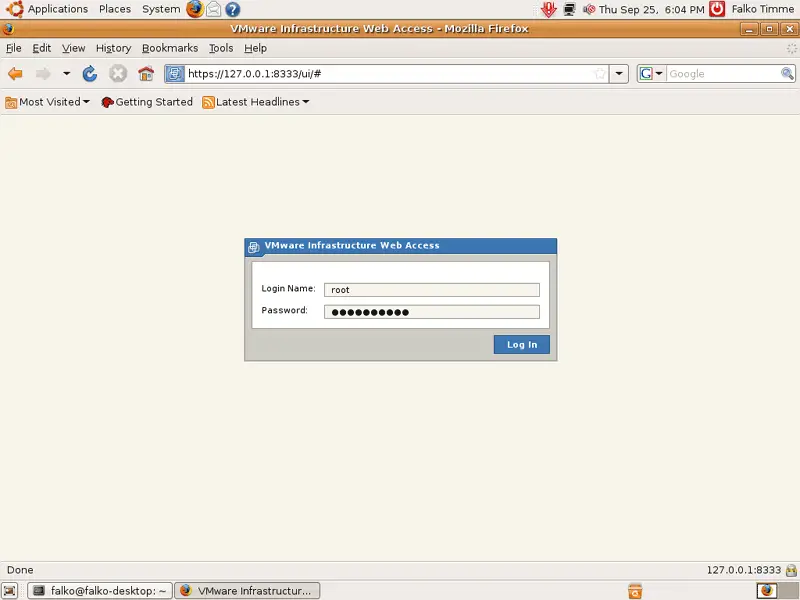
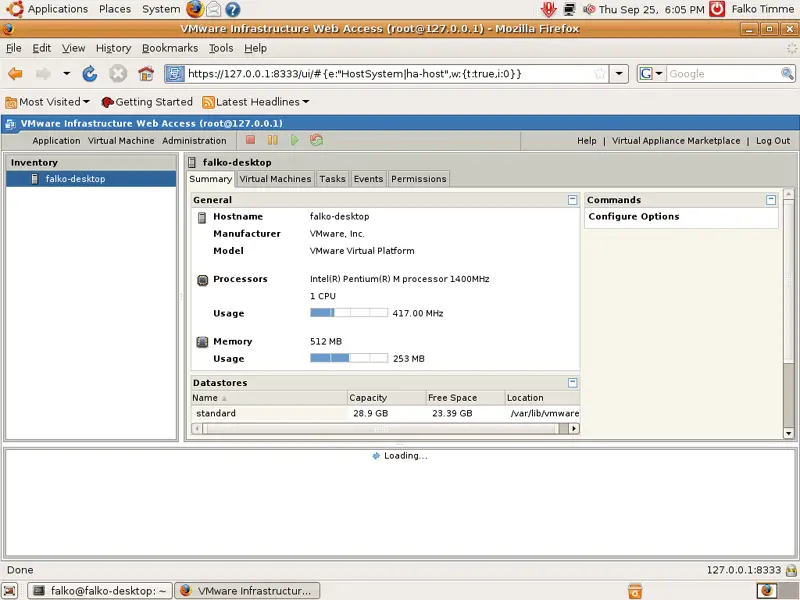
This is how the VMware Server web interface looks. The structure is similar to the old VMware Server 1 desktop application, so the usage of the web interface is pretty straightforward.
 

3 Links


Please do not use the comment function to ask for help! If you need help, please use our forum.
Comments will be published after administrator approval.
Submitted by Gil Hale (not registered) on Fri, 2009-04-24 05:07.
I found the step-by-step guidance to be excellent.  Sure saved my arse from a lot of grief!
Submitted by Anonymous (not registered) on Thu, 2009-02-26 11:58.
I found that linux-headers-'uname -r' didn't work on my server but linux-headers-$(uname -r) did.
Submitted by admin (registered user) on Fri, 2009-02-27 00:05.

It's

linux-headers-`uname -r`

not

linux-headers-'uname -r'

Submitted by crazyfrog (not registered) on Fri, 2009-01-30 15:14.
Hi ! I have create Virtual machine, but cannot enter to its console and there isn't shortcut to VMware on Ubuntu desktop and menues. What can I do ?
Submitted by Roberto Mason (not registered) on Fri, 2009-01-02 21:03.

I'm trying a slightly different approach. I'm testing out VMware with several distributions. I've installed it on a Centos 5.2 machine with no problem, but where I've come across a problem is with Ubuntu 8.04 server. I've downloaded the tar, extracted it and run the vmware-installer. At a certain point it runs the vmware-config and it tells me the following

None of the pre-built vmmon modules for VMware Server is suitable for your
running kernel.  Do you want this program to try to build the vmmon module for
your system (you need to have a C compiler installed on your system)? [no] yes

Using compiler "/usr/bin/gcc". Use environment variable CC to override.

Your kernel was built with "gcc" version "4.2.3", while you are trying to use
"/usr/bin/gcc" version "4.2.4". This configuration is not recommended and
VMware Server may crash if you'll continue. Please try to use exactly same
compiler as one used for building your kernel. Do you want to go with compiler
"/usr/bin/gcc" version "4.2.4" anyway? [no]

With an earlier installation I said yes. It compiled properly, but when I created a vm of CENTOS 5.2, the installation went flawlessly, but when it rebooted, it go stuck running udev on the boot up. I let it run all night (it was late and I figured it might just be slow), it remained stuck.


When I installed on Centos 5.2, I had no problem, created various vm's, Window xp, Windows Vista, Centos and Ubuntu, and all installed and ran perfectly.


My system is a 64 quad, and I installed ubuntu 8.04 64bit along with Vmware 2 64 bit 


Submitted by Prometeo Lucifer (not registered) on Mon, 2008-11-24 19:26.

Por si os interesa tengo el manual de “Instalación de VMware Server 2 en Ubuntu 8.10 Intrepid Ibex”, es similar a este y aunque trae un detalle adicional.
http://www.elleonplateadodeojosrojos.es/blog/vmware-server-2

Hasta Siempre
Submitted by Anthony (not registered) on Thu, 2008-10-23 07:25.

Despite some of the negative comments posted, I would like to say thanks for the current and helpful howto. As a Windows administrator looking to broaden my horizons it is really good to see excellent content such as this to assist with the transition.

Many Thanks and keep up the great work :)

Submitted by Shane (not registered) on Thu, 2008-10-16 22:16.
If you don't want a root password like the Ubuntu default, you can run sudo vmware-config.pl and just specify your username as the administrator when it gets to that part
Submitted by Leszek (registered user) on Sun, 2008-10-12 22:21.
I'm very glad that there are people like that,who can share their knowledge with others for nothing. I think that they deserve to earn money for commercial support and adds (hope they don't get to commercial tho). I'd like to thank You all for the big help You are giving others. Thanks to You Linux is getting more popular and stronger by the minute.
Submitted by davourak (not registered) on Tue, 2008-10-07 14:02.

Thanks so much for these instructions. I was struggling to get this new VMware Server 2 working, but I followed the instructions here and it worked. Keep up the good work!

And to those who say that how-to pages are wasted, just remember, everyone needs to learn how to do something. Just imagine if your parents had never taught you how to do a poo.

Submitted by scott (not registered) on Wed, 2008-10-01 22:41.

you said VMware Server 2 does not have a desktop application for managing virtual machines.

did you know you can use  VMWare Infrastructure Client to connect to your vmware web server?

 thats what I am doing.


Submitted by Anonymous (not registered) on Tue, 2008-12-02 16:45.
yes just use als host Server-IP:8333 then it works with the Infrastructure Client 2.5 --> this is downloadable on every Server 2.0 installation via this link https://Server-IP:8333/client/VMware-viclient.exe
Submitted by Anonymous (not registered) on Tue, 2008-09-30 20:55.
I'm so tired of these howtos that show people how to bastardize their freedom-granting operating system with proprietary bits. Get a clue please
Submitted by Anonymous (not registered) on Fri, 2009-03-20 17:16.
Guess what....some us use the VM's to run other Linux distros or new versions of distros! Imagine that I am using it to test out Debian 5.0, Linux KMint Felicia, CentOS.... Some times you have to bite the bullet and understand that some companies will never ever create a linux version till there is a single linux distro they can say is Linux, just like another OS.
Submitted by stwalker (not registered) on Thu, 2008-10-02 13:29.
In fact, thanks to vmware server, people who wants to work with open source OS but has to work with propietary OS like Windows can do it now without having to renounce to their loved free system. I don't see the problem in using a propietary application if you have to run a propietary system anyway.
Submitted by Anonymous (not registered) on Wed, 2008-10-01 14:33.
No, It's people like you that need to grow up.  Cracks me up that people go to their job, complain that they don't make enough then complain that other proprietary company's shouldn't charge for their software.  Try working for free and see how you like it.
Submitted by Guilherme (not registered) on Thu, 2008-10-02 21:02.

Actually these guys, that work with Linux, make pretty good money. Where do you usually do your salary research? I guess you have old sources only.

 And, please, if you don't like Linux, don't come to this great source of information.


Best regards,

Gui

Submitted by gsequeira (not registered) on Wed, 2008-10-08 22:26.

Hi, don`t pay attention to that comments, these people are fanatics that do more harm to opensource than help, that kind of agressive attitude scare potential new user, that kind of attitude make that companies like adobe don`t port their app like CS 2 to linux, offensive and unobjetive comments, that is what this fanatics do, and they are the responsibles that linux is relegated to advanced users only.

I would like to see these fanatics working for free? and do go telling people to stop using linux.

Opensource can and must work hand to hand with commercial software.


Excellent how to, keep going

Submitted by Rex (not registered) on Sun, 2008-09-28 22:53.

Did anyone read the EULA that they make you agree to before you can download Vmware Server 2.0? ... Guess not.

-- The "license key" has an expiration date.

--  It is for an "evaluation license".

That alone is reason to use VirtualBox instead.

JMHO, YMMV, VWToP


Submitted by trlkly (not registered) on Mon, 2008-12-01 23:53.

But, Virtualbox is hecka slow. At least with a Windows 98 client. Which is why I'm glad this guide is here.


Submitted by lucs (registered user) on Mon, 2008-09-29 12:30.

The license key is limited in time only for the beta/RC releases ! No problem with the GA version.

I use vmware server 2 since beta2,  and I never had any license problem. You just need to upgrade after each new release and everything is fine.


Submitted by crazyfrog (not registered) on Fri, 2009-01-30 13:23.
Hi ! I have installed VMWare server on Ubuntu 8.04 and I have created a Virtual Machine but I cannot see no console, no VMWare button, button 'play' above doesn't work ... what can I do to start Virtual machine ?