
How To Install VMware Server On A Mandriva Free 2007 Desktop
Version 1.0
Author: Falko Timme
This tutorial provides step-by-step instructions on how to install VMware Server on a Mandriva Free 2007 desktop system. With VMware Server you can create and run guest operating systems ("virtual machines") such as Linux, Windows, FreeBSD, etc. under a host operating system. This has the benefit that you can run multiple operating systems on the same hardware which saves a lot of money, and you can move virtual machines from one VMware Server to the next one (or to a system that has the VMware Player which is also free).
Also, with VMware Server you can let your old Windows desktop (that you previously converted into a VMware virtual machine with VMware Converter, as described in this tutorial: https://www.howtoforge.com/vmware_converter_windows_linux) run under your Mandriva desktop. This can be useful if you depend on some applications that exist for Windows only, or if you want to switch to Linux slowly.
I want to say first that this is not the only way of setting up such a system. There are many ways of achieving this goal but this is the way I take. I do not issue any guarantee that this will work for you!
1 Find Out Your Kernel Version
Before we go on and install additional software, it's a good idea to find out about your kernel version because in chapter 2 we will install the package kernel-source which is needed by VMware Server. There are multiple kernel-source packages available, and to select the right one you need to know your kernel version.
To find out about your kernel version, open a terminal (Applications > Accessories > Terminal) and become root:
su
Then run
uname -r
The output should look like this:
[root@localhost Desktop]# uname -r
2.6.17-5mdv
which means you have kernel 2.6.17-5mdv installled.
2 Installing Required Packages
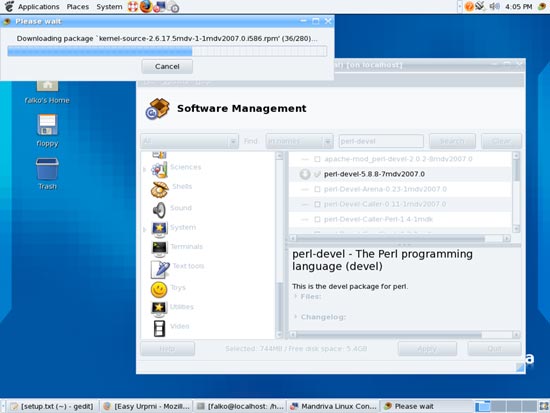
Before we install VMware Server, we must install some prerequisites. To install them, go to Control Center > Software Management > Look at installable software and install software packages. Browse the applications on the left and mark the following packages for installation:
- autoconf
- automake
- gcc
- gcc-cpp
- kernel-source
- xinetd
- perl-devel
Make sure you select the kernel-source package that suits your installed kernel.
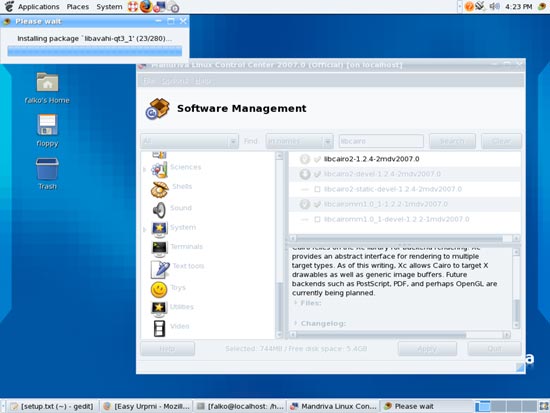
After you've selected the required packages, click on Apply. A new window will open with all packages that are going to be installed. Confirm by clicking on Yes. The packages will then be downloaded and installed:
3 VMware Server
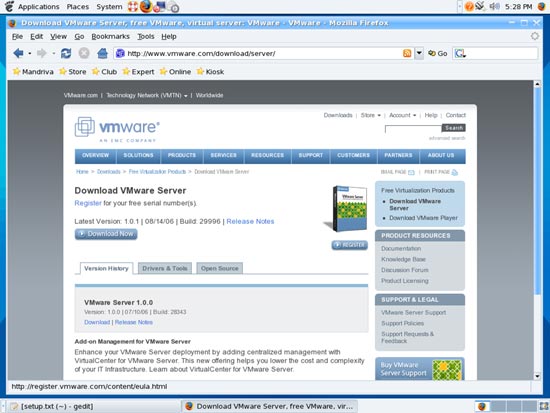
To download VMware Server, go to http://www.vmware.com/download/server/ and click on Download Now:
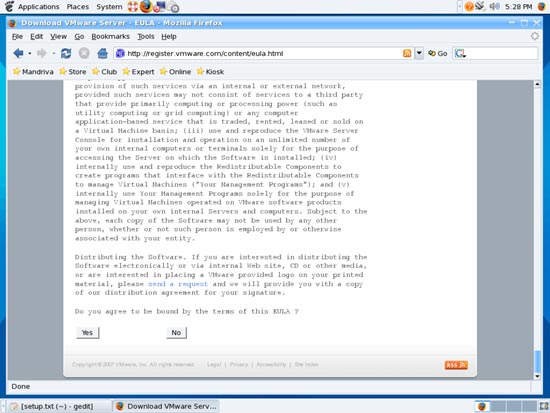
Accept the license agreement by clicking on Yes:
Then download the VMware Server for Linux .tar.gz file (not the rpm file!) to your desktop (e.g. to /home/falko/Desktop):
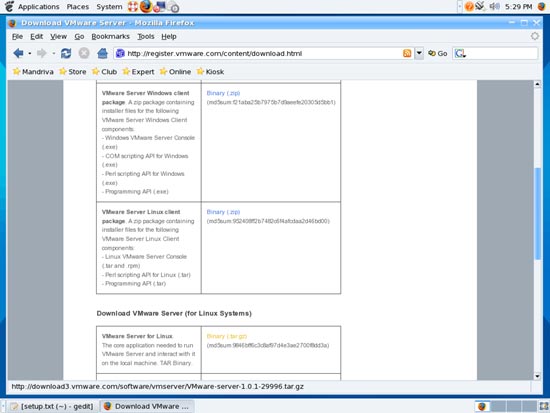
To get the serial number you need to run VMware Server, go to http://www.vmware.com/download/server/ again and click on the Register button. Fill in your personal details. Afterwards you will get a page with a serial number for VMware Server. Write it down or print it out:
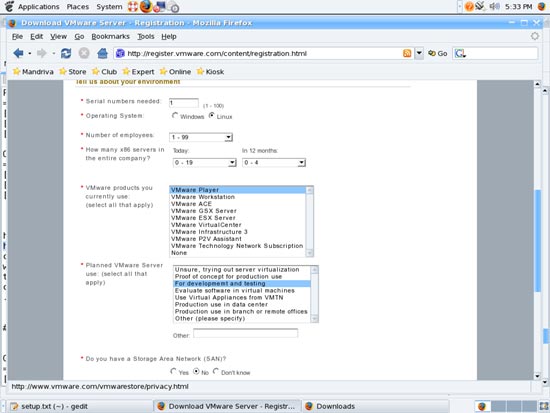
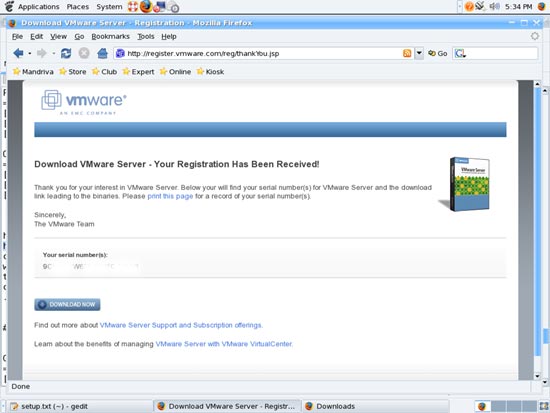
To install VMware Server, open a terminal and become root:
su
Then go to the location where you saved the VMware Server .tar.gz file, e.g. /home/falko/Desktop (replace falko with your own username!):
cd /home/falko/Desktop
Unpack the VMware Server .tar.gz file and run the installer:
tar xvfz VMware-server-*.tar.gz
cd vmware-server-distrib
./vmware-install.pl
The installer will ask you a lot of questions. You can always accept the default values simply by hitting <ENTER>. When it asks you
In which directory do you want to keep your virtual machine files?
[/var/lib/vmware/Virtual Machines]
you can accept the default value, but in Mandriva's default partitioning the biggest partition is the /home partition, so you might want to specify a different location, e.g. like /home/falko/virtual_machines, but this is up to you and not necessary.
At the end of the installation, you will be asked to enter a serial number:
Please enter your 20-character serial number.
Type XXXXX-XXXXX-XXXXX-XXXXX or 'Enter' to cancel:
Fill in your serial number for VMware Server.
After the successful installation, you can delete the VMware Server download file and the installation directory:
cd /home/falko/Desktop
rm -fr vmware-server-distrib
rm -f VMware-server-*.tar.gz
You will now find VMware Server under Applications > System Tools:
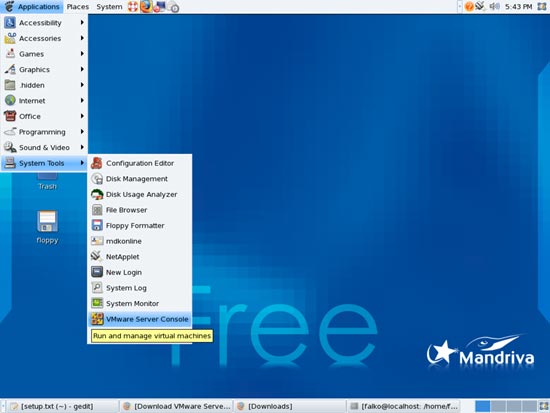
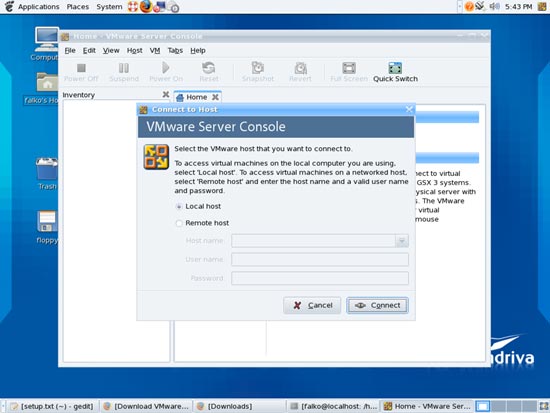
When you start it, select Local host:
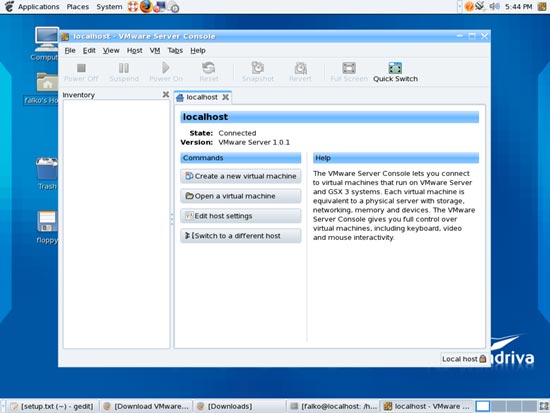
Afterwards, you can create virtual machines (or import your virtual Windows machine that you created with VMware Converter):
4 Links
- Mandriva: http://www.mandriva.com/en/community
- VMware Server: http://www.vmware.com/download/server





