
Virus Protection With avast! Linux Home Edition On Ubuntu Gutsy Gibbon
Version 1.0
Author: Falko Timme
This tutorial shows how you can install and use avast! Linux Home Edition on an Ubuntu Gutsy Gibbon desktop. Although there aren't many Linux viruses out there, this can be useful if you often exchange files with Windows users - it can help you to not pass on any Windows viruses (that don't do any harm to Linux systems) to Windows users. avast! Linux Home Edition is free for private and non-commercial use.
This document comes without warranty of any kind! I do not issue any guarantee that this will work for you!
1 Installing avast! Linux Home Edition
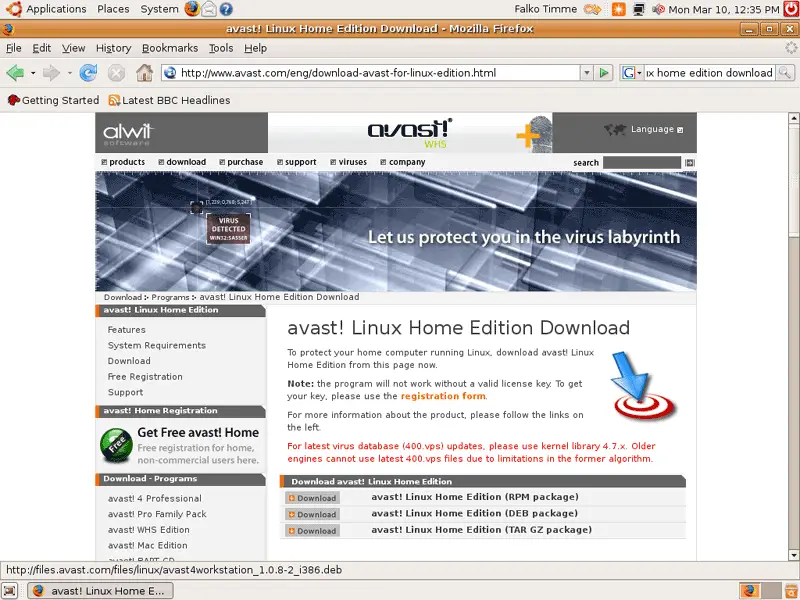
Open a browser and go to http://avast.com/eng/download-avast-for-linux-edition.html. Download the avast! Linux Home Edition (DEB package):
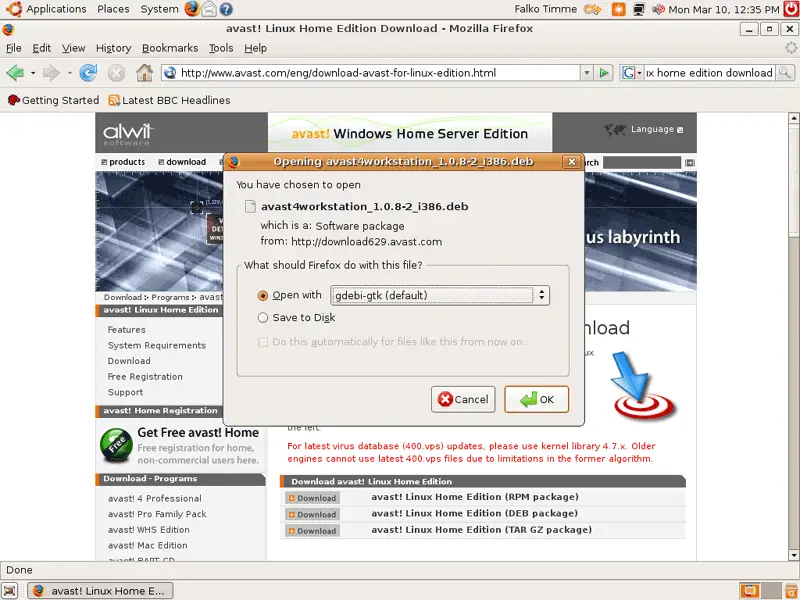
In the Firefox download dialogue, select Open with gdebi-gtk (default):
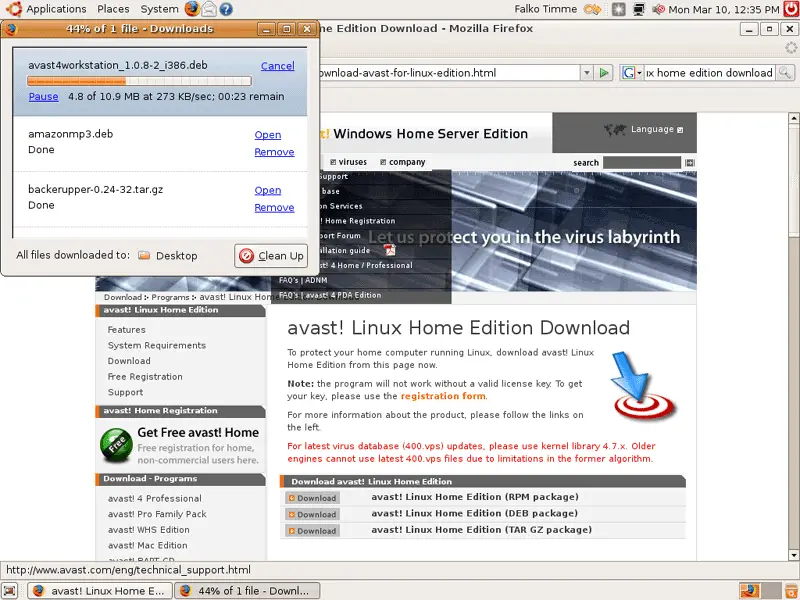
avast! Linux Home Edition is being downloaded:
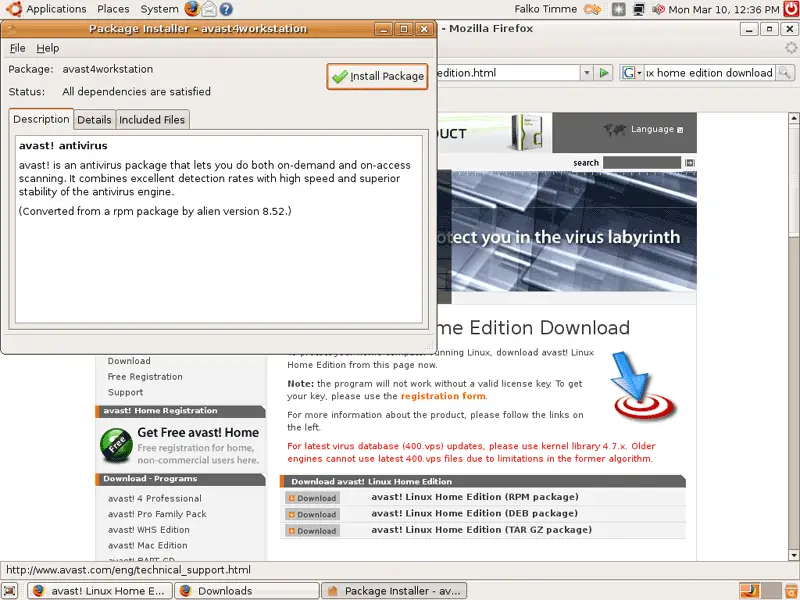
After the download has finished, the Package Installer starts. Click on the Install Package button:
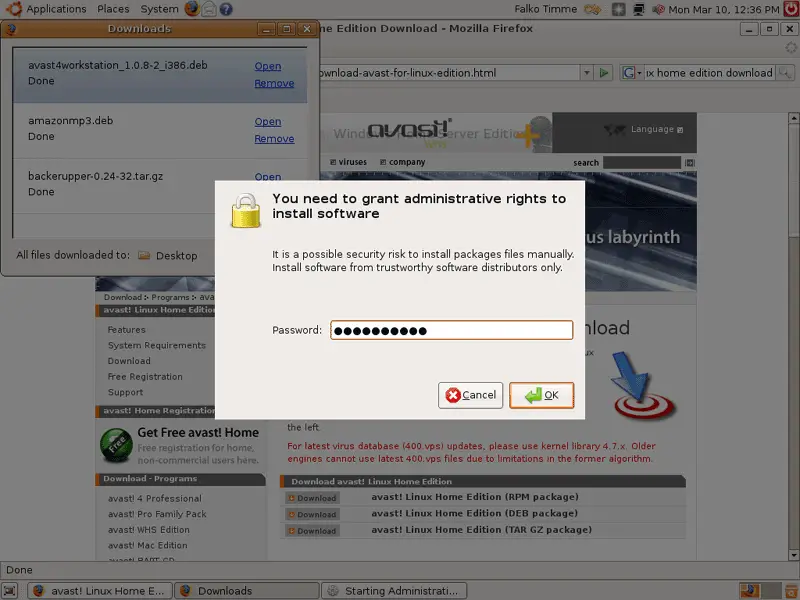
Type in your password:
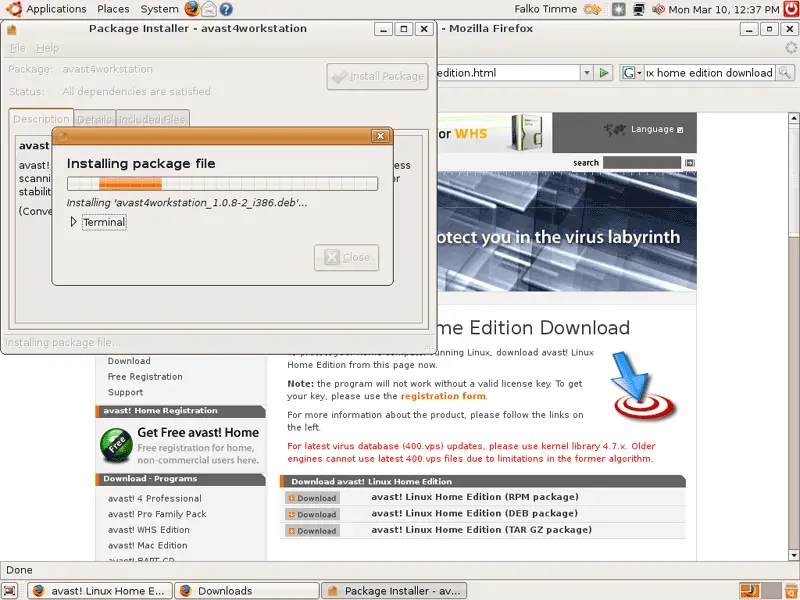
avast! is now being installed:
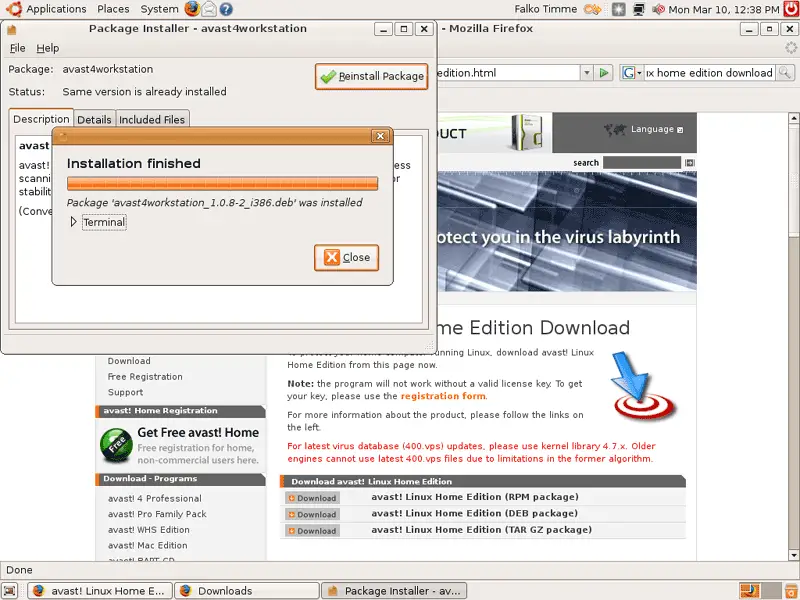
After the installation has finished, click on Close and leave the Package Installer:
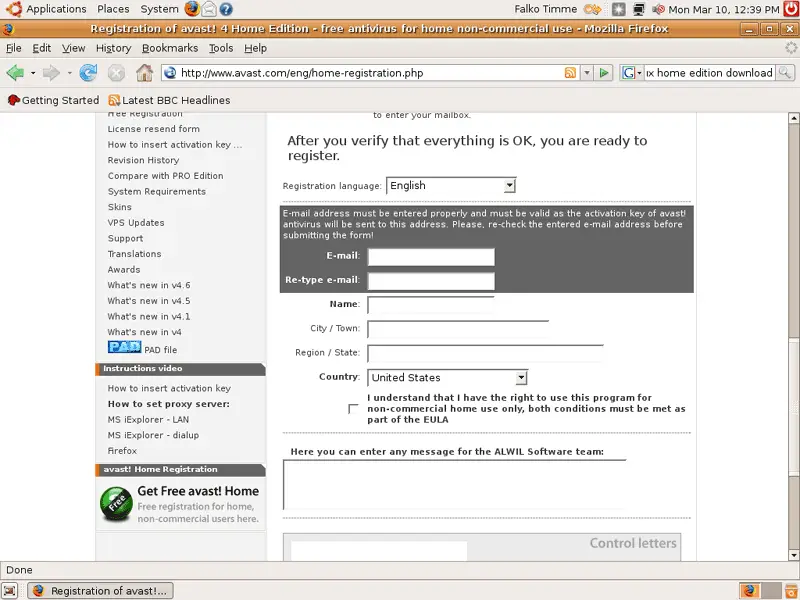
To use avast!, you need a (free) license key. Go to http://avast.com/eng/home-registration.php and fill out the form to have one sent to your email address:
2 Apply The License Key
Check your emails, you should find an email with your free license key for avast!. Now let's start avast! for the first time. Open a terminal (Applications > Accessories > Terminal):
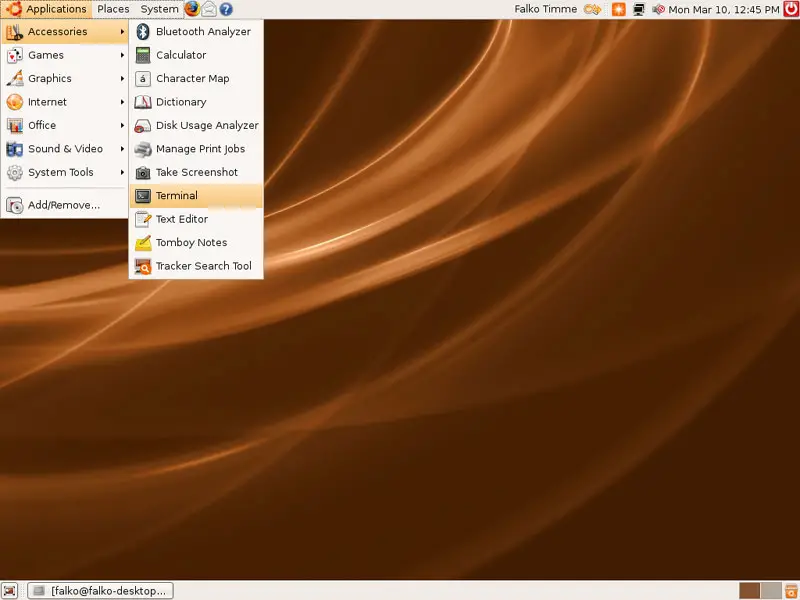
Type in
avast
to start the command line version of avast!. As this is your first run, you are being asked for the license key:
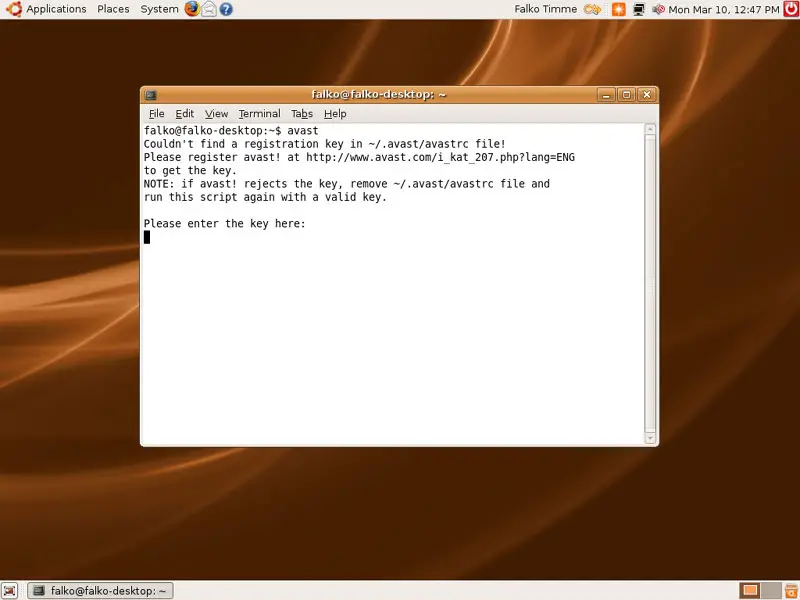
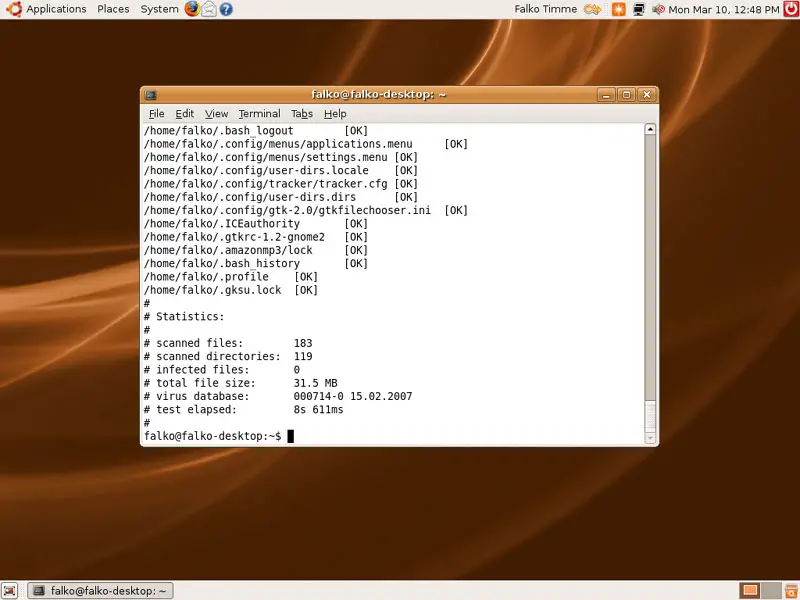
Type it in and press ENTER. avast! will then perform a virus scan on your home directory:
3 Creating A Launcher For avast!
Of course, we don't want to open a terminal each time we want to run avast!. Therefore we create a launcher for it. Right-click on Applications and select Edit Menus:
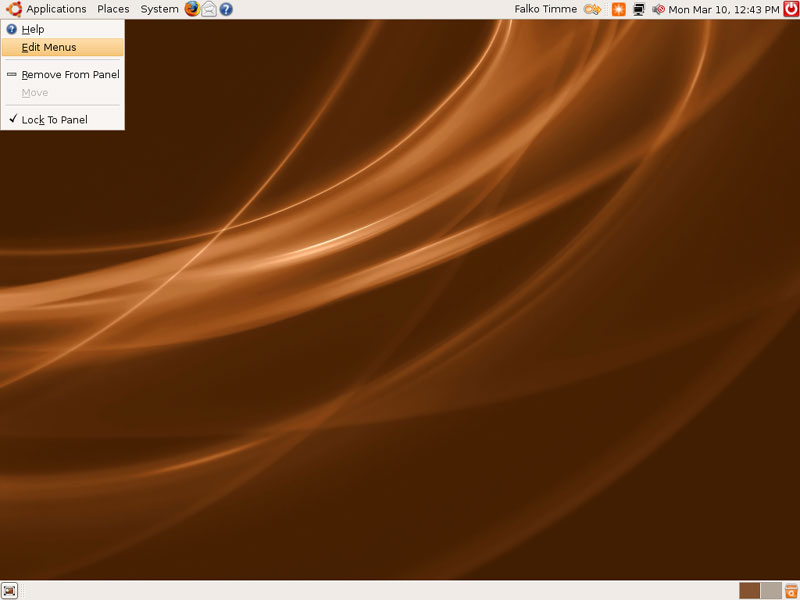
Go to System Tools and click on the New Item button:
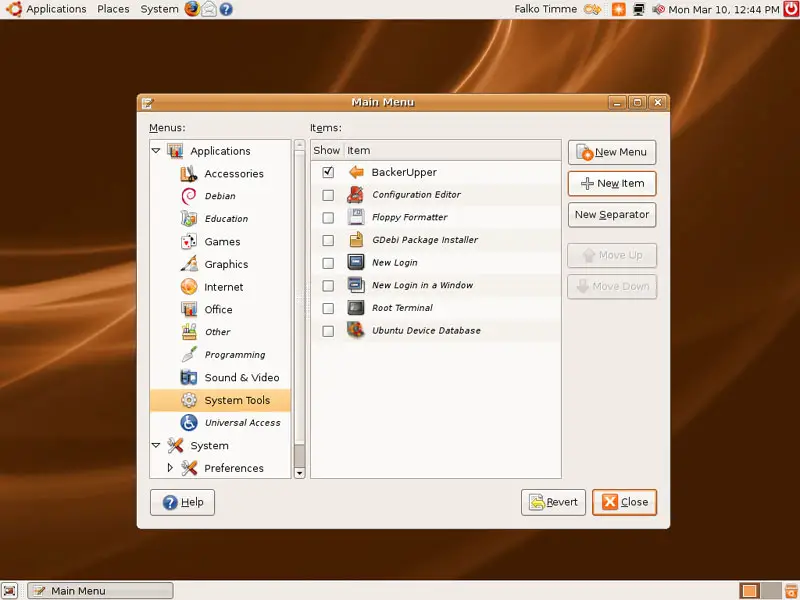
In the Launcher Properties window, type in a name for the application (e.g. Avast Antivirus) and avastgui as the command, then click on Close:
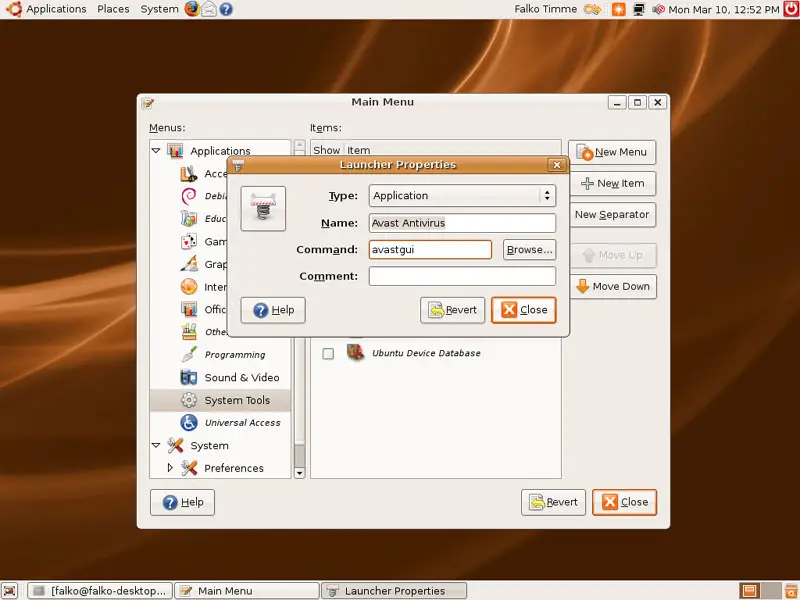
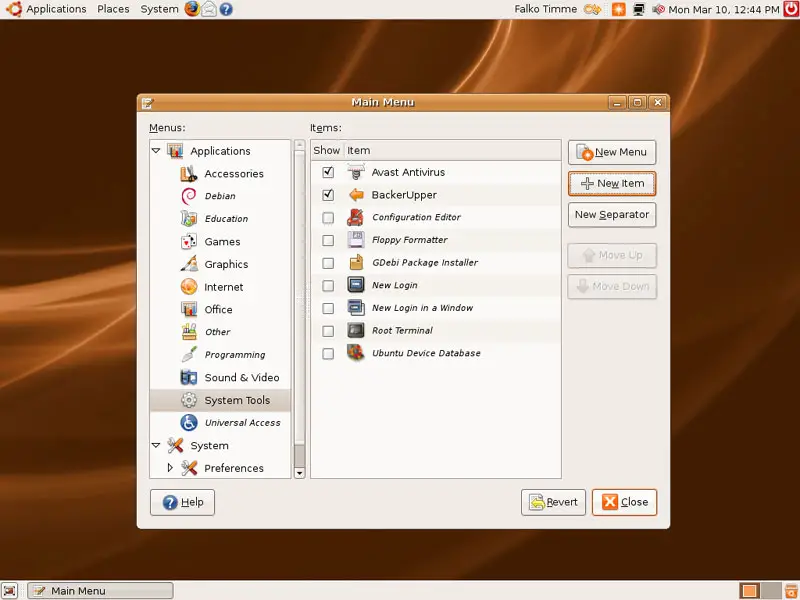
You can now find the new launcher in the Items window. Click on Close to leave the menu editor:
4 Using The avast! GUI
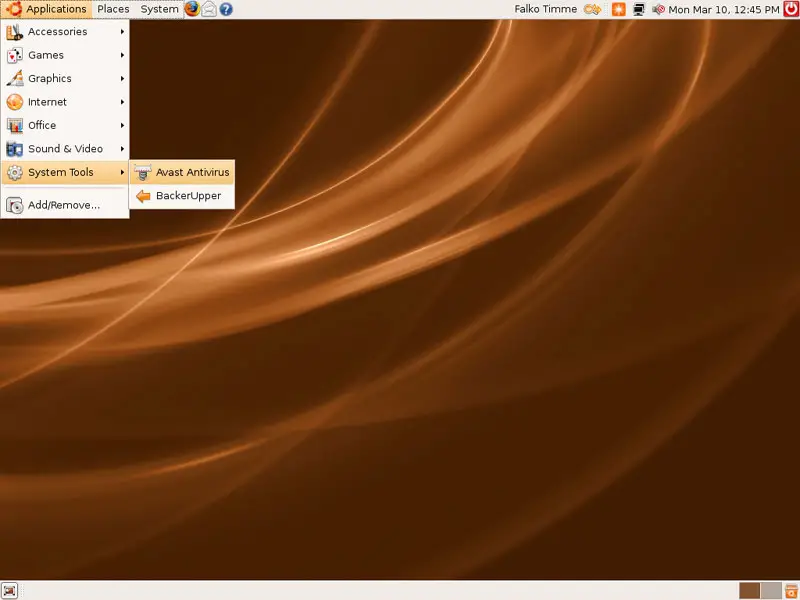
We can now use our new launcher to start the avast! GUI. Go to Applications > System Tools > Avast Antivirus:
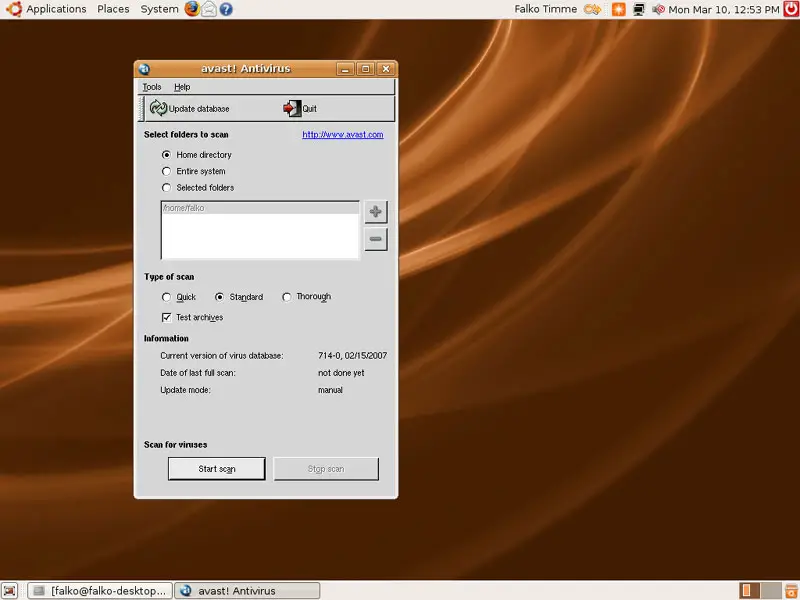
This is how the avast! GUI looks like. To start a virus scan, click on Start scan:
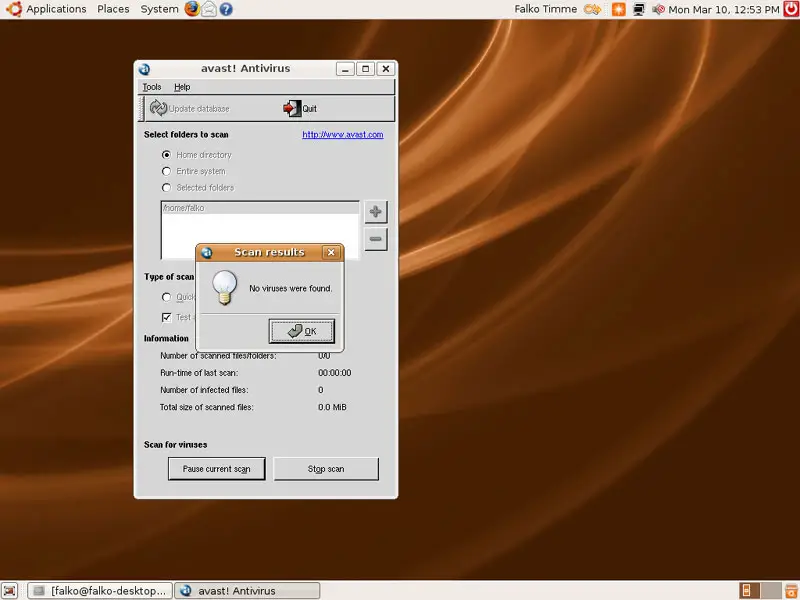
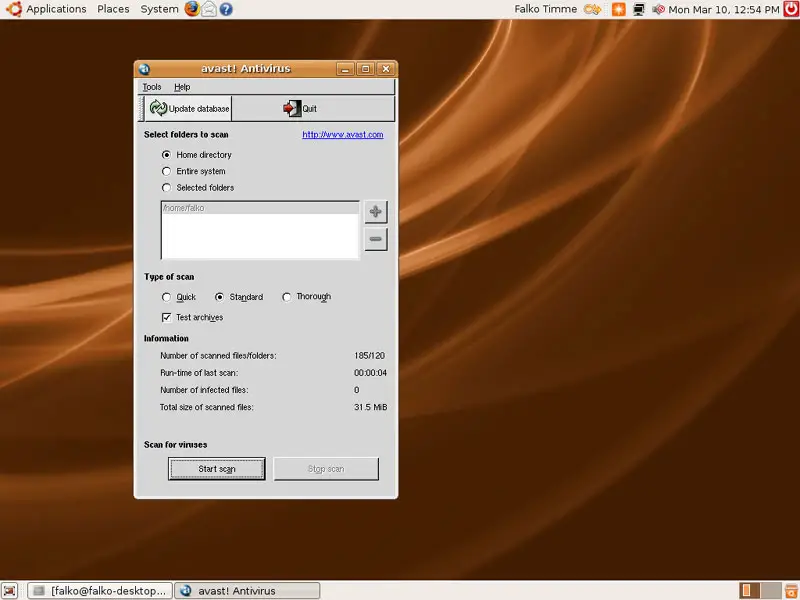
To update the internal database of known viruses, click on the Update database button:
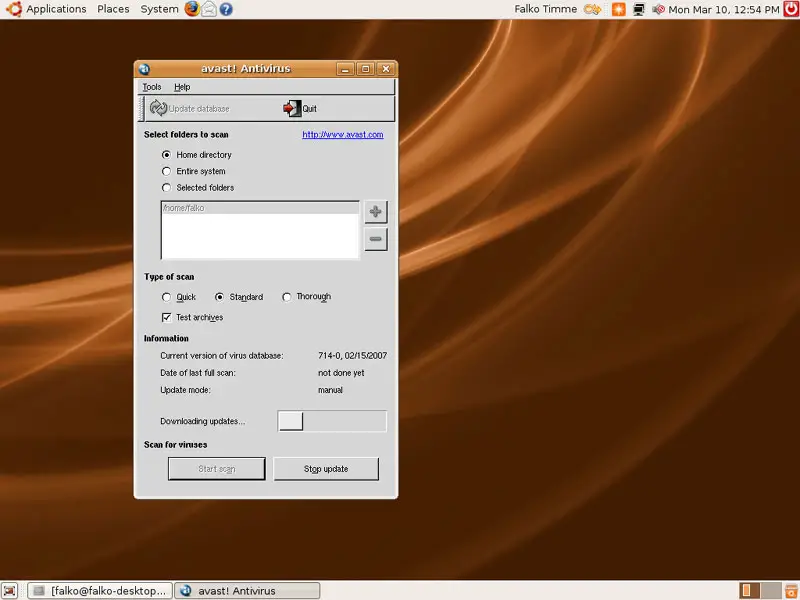
The latest virus signatures are now being downloaded:
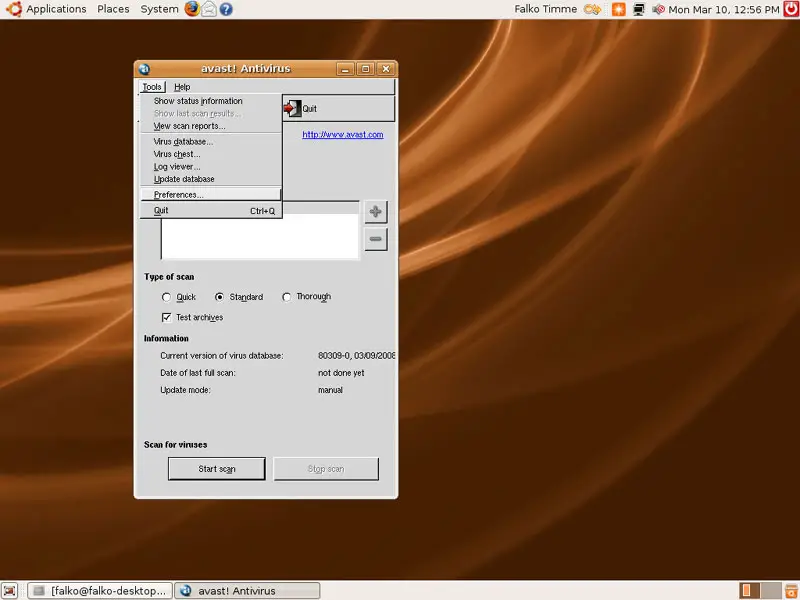
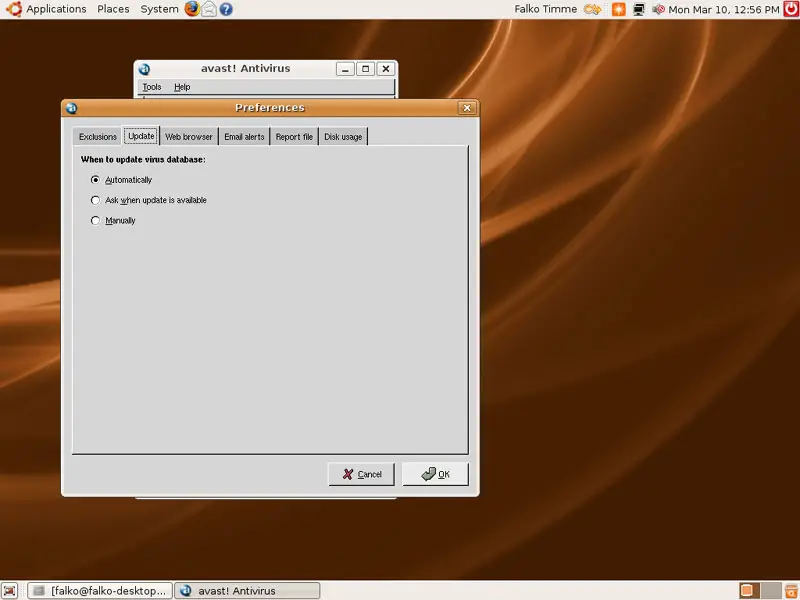
In the Tools menu, you can access some detailed information about avast! and also modify your Preferences, e.g....
... configure avast! to download the latest virus signatures automatically:
5 Links
- avast! Linux Home Edition: http://avast.com/eng/download-avast-for-linux-edition.html
- Ubuntu: http://www.ubuntu.com





