
How To Use NTFS Drives/Partitions Under Ubuntu Edgy Eft
Version 1.1
Author: Falko Timme
Normally Linux systems can only read from Windows NTFS partitions, but not write to them which can be very annoying if you have to work with Linux and Windows systems. This is where ntfs-3g comes into play. ntfs-3g is an open source, freely available NTFS driver for Linux with read and write support. This tutorial shows how to install and use ntfs-3g on a Ubuntu Edgy Eft desktop to read from and write to Windows NTFS drives and partitions. It covers the usage of internal NTFS partitions (e.g. in a dual-boot environment) and of external USB NTFS drives.
I want to say first that this is not the only way of setting up such a system. There are many ways of achieving this goal but this is the way I take. I do not issue any guarantee that this will work for you!
1 Preliminary Note
I have tested this on a Ubuntu Edgy Eft i386 system. If you are on an AMD64 system, have a look here: http://ubuntuforums.org/showthread.php?p=1647295#post1647295
2 External NTFS USB Hard Drive
In chapter two I describe how to use ntfs-3g with an external NTFS USB hard drive.
2.1 Current State
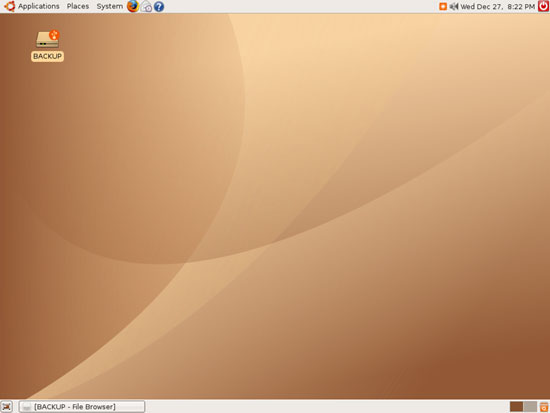
Before we install and use ntfs-3g, we should find out about the current state of our system. Plug in your external NTFS USB drive and switch it on. Your Ubuntu Edgy Eft desktop should auto-mount it, and you should see a new icon for the external drive on your desktop (my external HDD is called BACKUP):
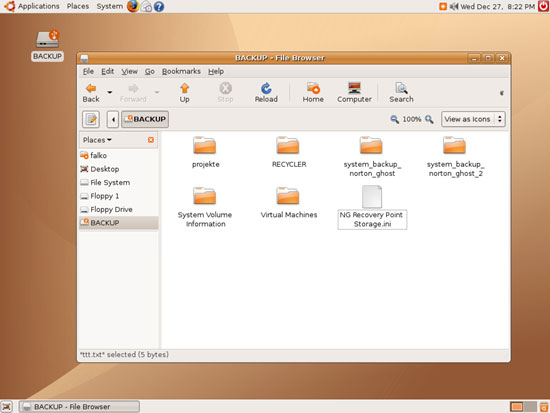
In the file browser you should see the contents of the external HDD:
Now open a command line terminal and run
sudo mount
The output should look like this:
/dev/hda1 on / type ext3 (rw,errors=remount-ro)
proc on /proc type proc (rw,noexec,nosuid,nodev)
/sys on /sys type sysfs (rw,noexec,nosuid,nodev)
varrun on /var/run type tmpfs (rw,noexec,nosuid,nodev,mode=0755)
varlock on /var/lock type tmpfs (rw,noexec,nosuid,nodev,mode=1777)
procbususb on /proc/bus/usb type usbfs (rw)
udev on /dev type tmpfs (rw,mode=0755)
devshm on /dev/shm type tmpfs (rw)
devpts on /dev/pts type devpts (rw,gid=5,mode=620)
lrm on /lib/modules/2.6.17-10-generic/volatile type tmpfs (rw)
binfmt_misc on /proc/sys/fs/binfmt_misc type binfmt_misc (rw)
/dev/sda1 on /media/BACKUP type ntfs (rw,nosuid,nodev,uid=1000,gid=1000,umask=077,iocharset=utf8)
In the last line you see your USB drive, it is of type ntfs and has been mounted to /media/BACKUP. If you try to write to the USB HDD, you should get an error message saying that the drive is read-only.
Now unmount the drive by right-clicking on its desktop icon and choosing Eject from the menu that comes up. After the desktop icon has disappeared, you can switch off the USB HDD. It is important that you choose Eject before switching off/disconnecting the USB HDD because otherwise Ubuntu will copmplain that it cannot mount the drive the next time you plug it in because it was not cleanly unmounted before. Close all applications that are currently accessing the drive (like the file browser) before choosing Eject because otherwise Eject will fail.
2.2 Modify /etc/apt/sources.list
The ntfs-3g packages that we need to install are in an external Ubuntu repository (http://flomertens.keo.in/ubuntu/) therefore we must add deb http://flomertens.keo.in/ubuntu/ edgy main main-all to /etc/apt/sources.list:
sudo vi /etc/apt/sources.list
[...] deb http://flomertens.keo.in/ubuntu/ edgy main main-all [...] |
Afterwards we update our packages database:
sudo apt-get update
2.3 Update pmount
The tool that auto-mounts our USB HDD when we plug it in is called pmount. It uses the normal Linux ntfs driver to mount an NTFS drive, but we want it to use the ntfs-3g driver instead. Therefore we update pmount by installing the pmount package from the repository we've just added to /etc/apt/sources.list:
sudo apt-get install pmount
If you see this, please answer with y:
Reading package lists... Done
Building dependency tree
Reading state information... Done
Suggested packages:
cryptsetup
The following packages will be upgraded:
pmount
1 upgraded, 0 newly installed, 0 to remove and 84 not upgraded.
Need to get 74.0kB of archives.
After unpacking 20.5kB of additional disk space will be used.
WARNING: The following packages cannot be authenticated!
pmount
Install these packages without verification [y/N]? <-- y





