
The Perfect Desktop - Ubuntu Studio 8.10
This tutorial exists for these OS versions
- Ubuntu 12.10 (Quantal Quetzal)
- Ubuntu 12.04 LTS (Precise Pangolin)
- Ubuntu 11.10 (Oneiric Ocelot)
- Ubuntu 11.04 (Natty Narwhal)
- Ubuntu 10.10 (Maverick Meerkat)
- Ubuntu 10.04 (Lucid Lynx)
On this page
This tutorial shows how you can set up an Ubuntu Studio 8.10 desktop that is a full-fledged replacement for a Windows desktop, i.e. that has all the software that people need to do the things they do on their Windows desktops. The advantages are clear: you get a secure system without DRM restrictions that works even on old hardware, and the best thing is: all software comes free of charge.
I want to say first that this is not the only way of setting up such a system. There are many ways of achieving this goal but this is the way I take. I do not issue any guarantee that this will work for you!
1 Preliminary Note
To fully replace a Windows desktop, I want the Ubuntu Studio desktop to have the following software installed:
Graphics:
- The GIMP - free software replacement for Adobe Photoshop
- F-Spot - full-featured personal photo management application for the GNOME desktop
- Google Picasa - application for organizing and editing digital photos
Internet:
- Firefox
- Opera
- Flash Player 10
- FileZilla - multithreaded FTP client
- Thunderbird - email and news client
- Evolution - combines e-mail, calendar, address book, and task list management functions
- aMule - P2P file sharing application
- BitTornado - Bittorrent client
- Azureus/Vuze - Java Bittorrent client
- Pidgin - multi-platform instant messaging client
- Skype
- Google Earth
- Xchat IRC - IRC client
Office:
- OpenOffice Writer - replacement for Microsoft Word
- OpenOffice Calc - replacement for Microsoft Excel
- Adobe Reader
- GnuCash - double-entry book-keeping personal finance system, similar to Quicken
- Scribus - open source desktop publishing (DTP) application
Sound & Video:
- Amarok - audio player
- Audacity - free, open source, cross platform digital audio editor
- Banshee - audio player, can encode/decode various formats and synchronize music with Apple iPods
- MPlayer - media player (video/audio), supports WMA
- Rhythmbox Music Player - audio player, similar to Apple's iTunes, with support for iPods
- gtkPod - software similar to Apple's iTunes, supports iPod, iPod nano, iPod shuffle, iPod photo, and iPod mini
- XMMS - audio player similar to Winamp
- dvd::rip - full featured DVD copy program
- Kino - free digital video editor
- Sound Juicer CD Extractor - CD ripping tool, supports various audio codecs
- VLC Media Player - media player (video/audio)
- Helix Player - media player, similar to the Real Player
- Totem - media player (video/audio)
- Xine - media player, supports various formats; can play DVDs
- Brasero - CD/DVD burning program
- K3B - CD/DVD burning program
- Multimedia Codecs
Programming:
- KompoZer - WYSIWYG HTML editor, similar to Macromedia Dreamweaver, but not as feature-rich (yet)
- Bluefish - text editor, suitable for many programming and markup languages
- Quanta Plus - web development environment, including a WYSIWYG editor
Other:
- VMware Server - lets you run your old Windows desktop as a virtual machine under your Linux desktop, so you don't have to entirely abandon Windows
- TrueType fonts
- Java
- Read-/Write support for NTFS partitions
Lots of our desired applications are available in the Ubuntu repositories, and some of these applications have been contributed by the Ubuntu community.
I will use the username falko in this tutorial. Please replace it with your own username.
2 Installing The Base System
The installation of the base system is easy as 1-2-3 because the Ubuntu Studio installer doesn't offer a lot of options to choose from, so you cannot go wrong.
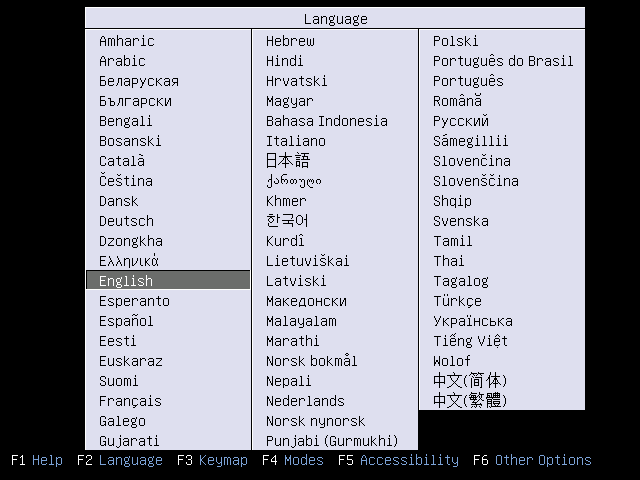
Download the Ubuntu Studio iso image from http://ubuntustudio.org/downloads, burn it onto a DVD, and boot your computer from it. Select your language:
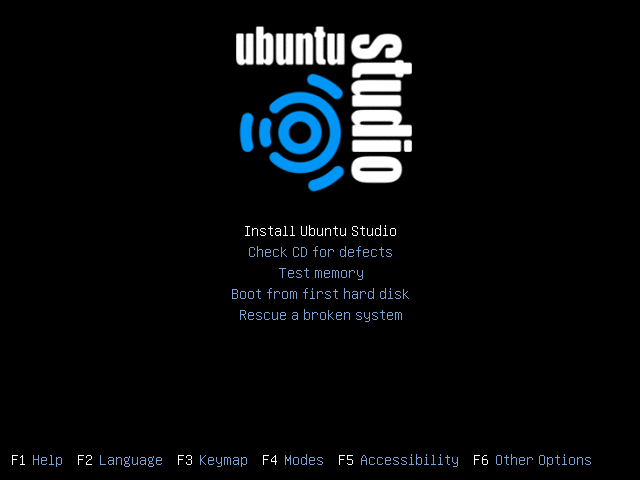
Then select Install Ubuntu Studio:
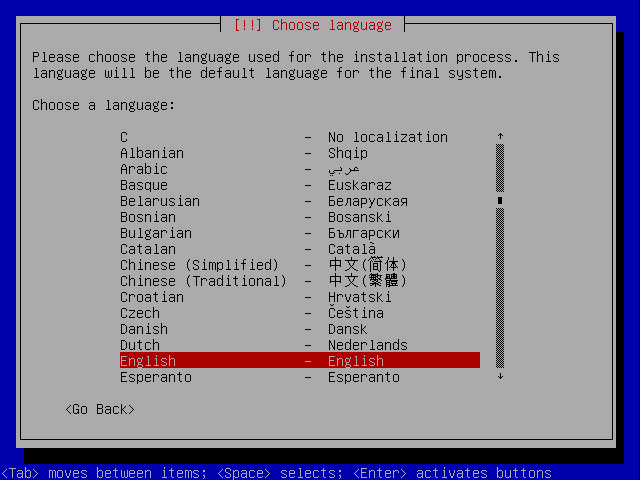
Choose your language again (?):
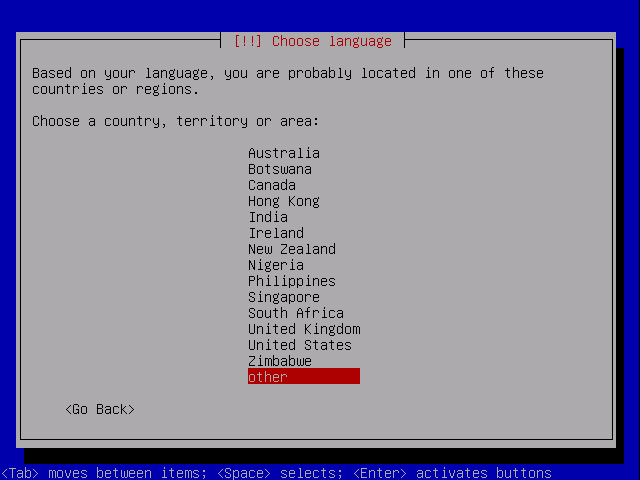
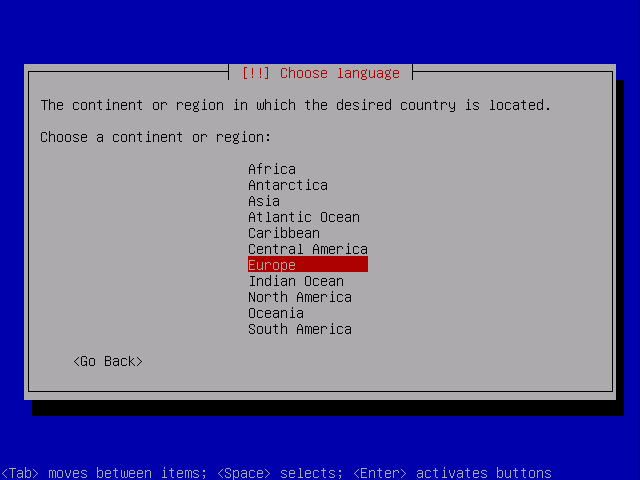
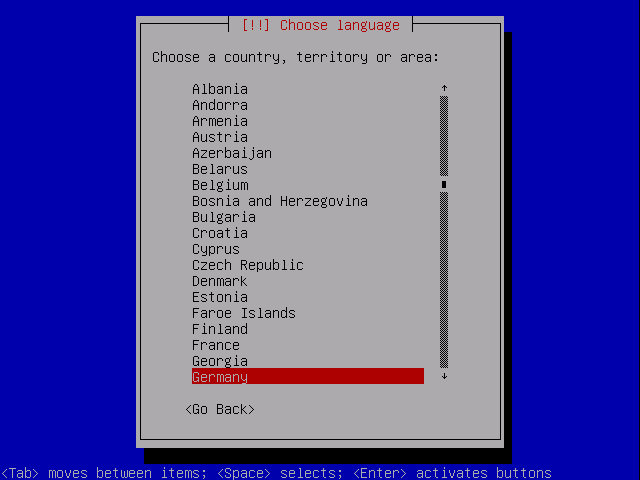
Then select your location:
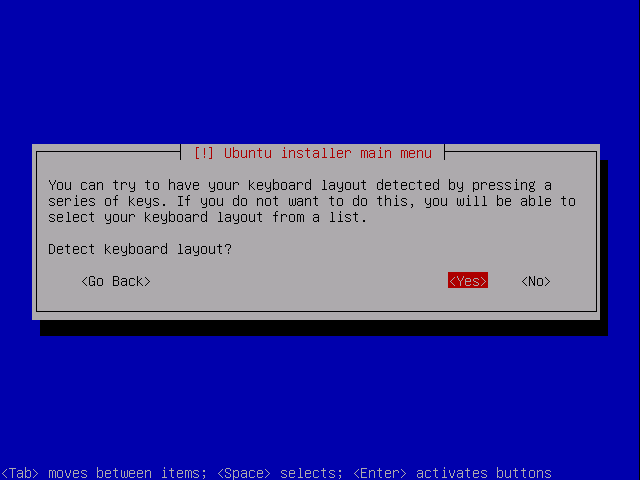
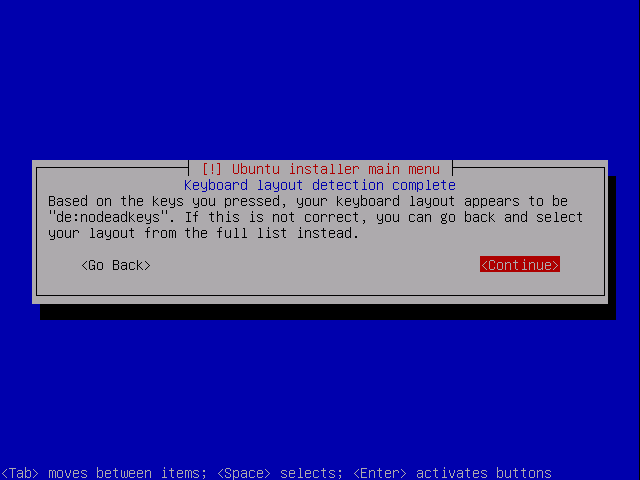
Choose a keyboard layout (you will be asked to press a few keys, and the installer will try to detect your keyboard layout based on the keys you pressed):
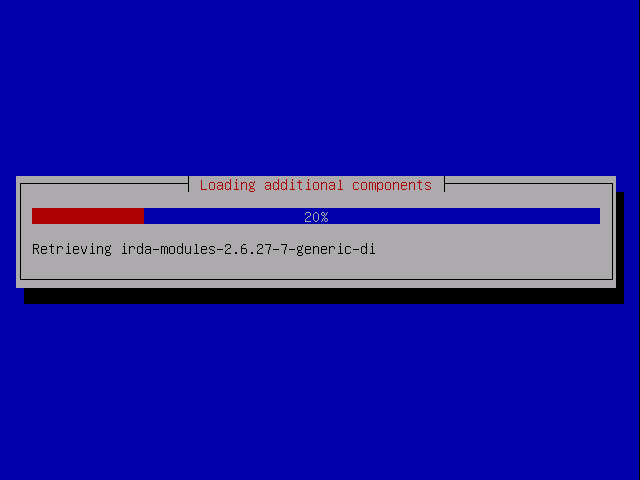
The installer checks the installation CD, your hardware, and configures the network with DHCP if there is a DHCP server in the network:
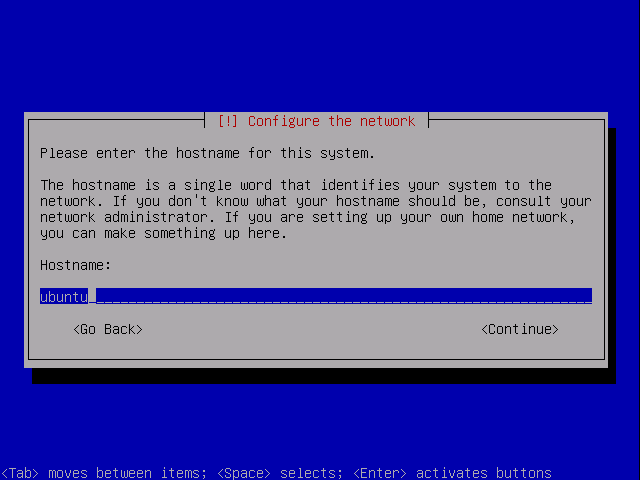
You can accept the default hostname or specify your own one:
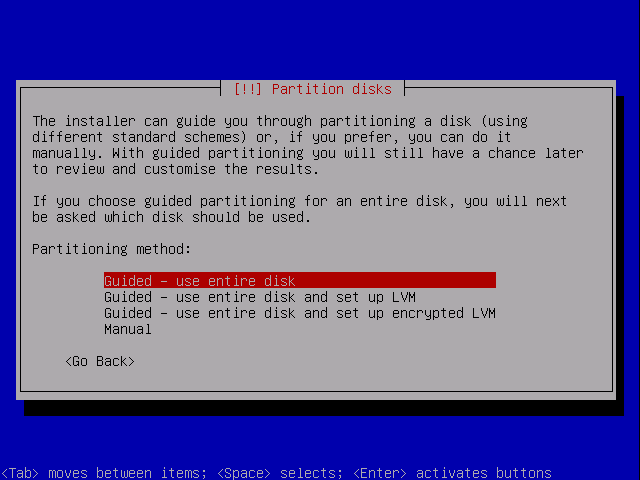
Now you have to partition your hard disk. For simplicity's sake I will create one big partition (with the mount point /) and a little swap partition so I select Guided - use entire disk (of course, the partitioning is totally up to you - if you like, you can create more than just one big partition, and you can also use LVM):
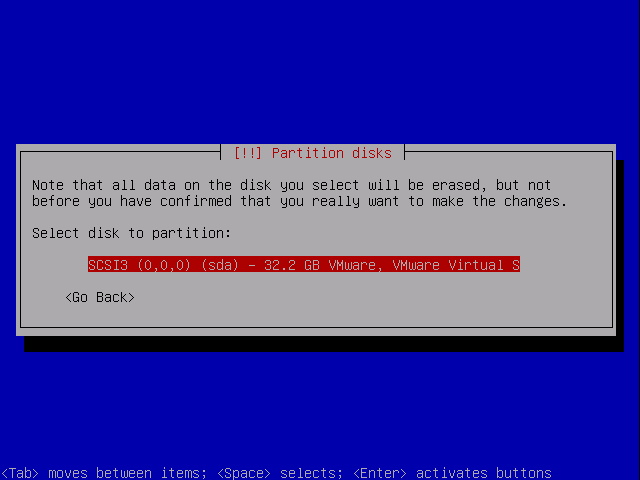
Select the disk that you want to partition:
When you're finished, hit Yes when you're asked Write the changes to disks?:
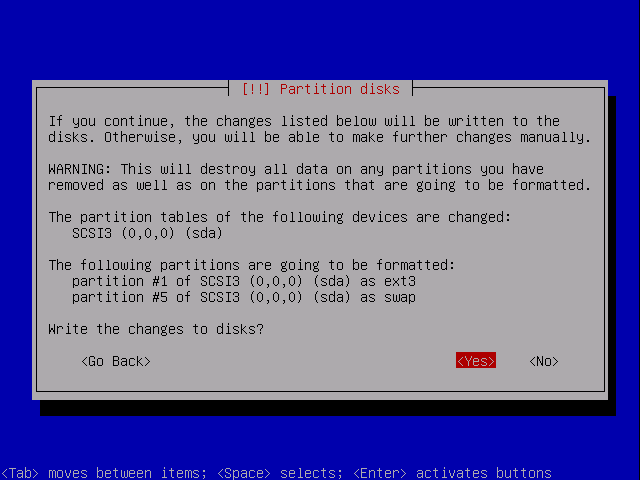
Afterwards, your new partitions are being created and formatted.
Now the base system is being installed:
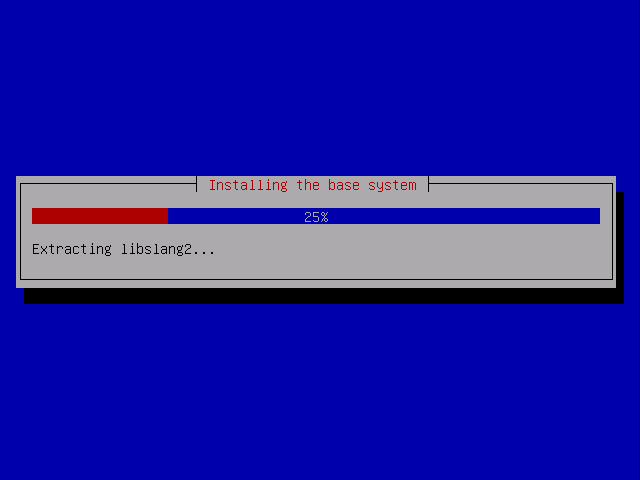
Create a normal user account:
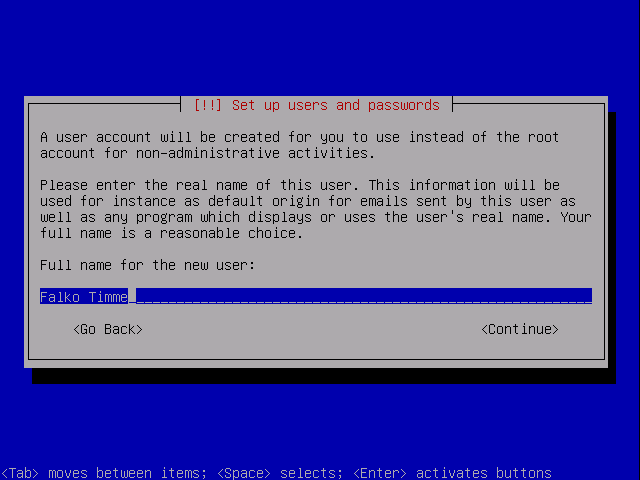
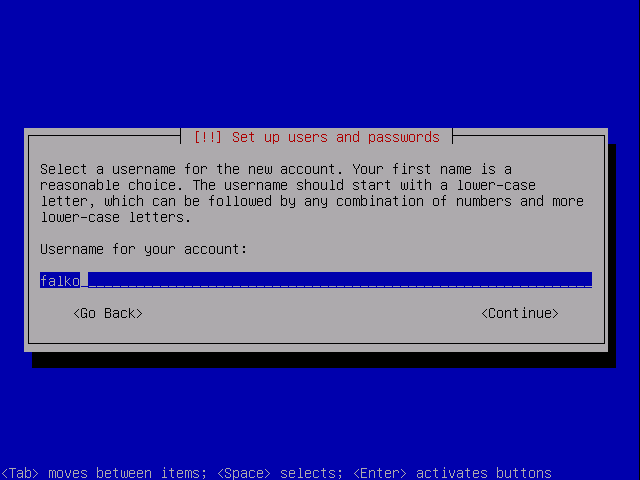
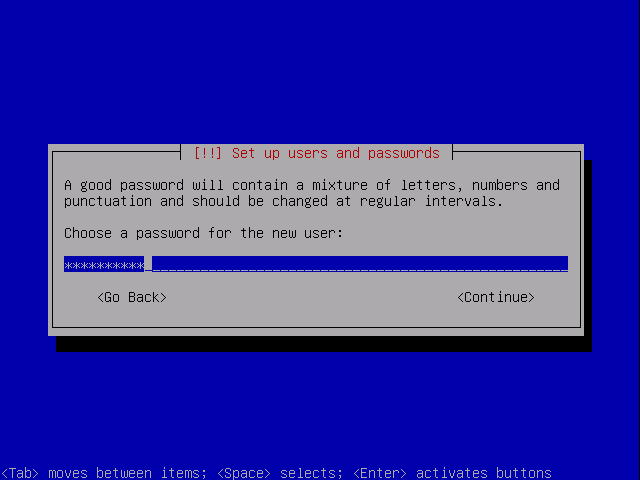
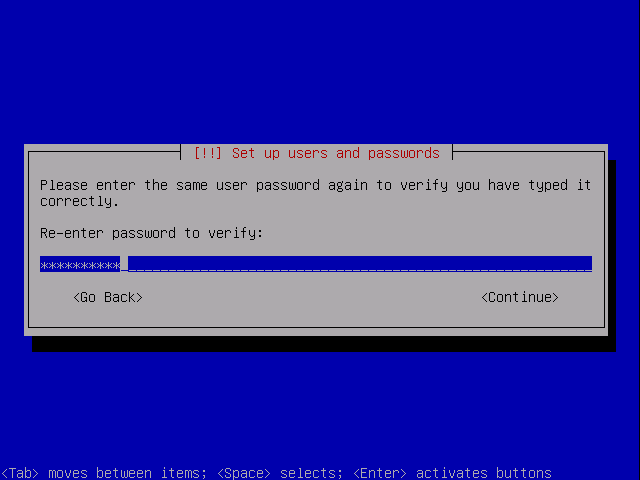
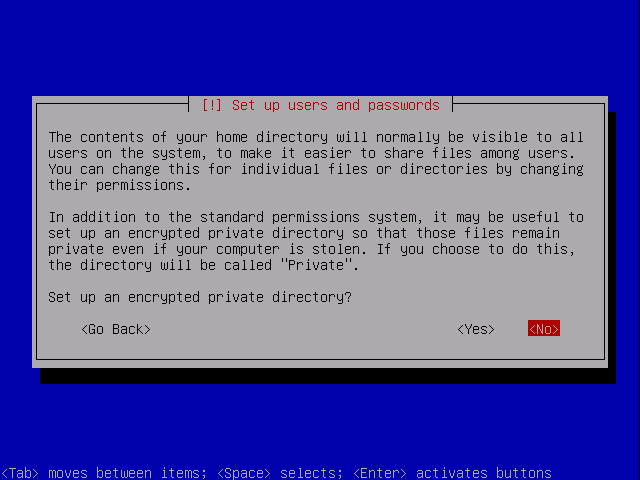
If you like, you can set up an encrypted private directory. The default is to not set this up:
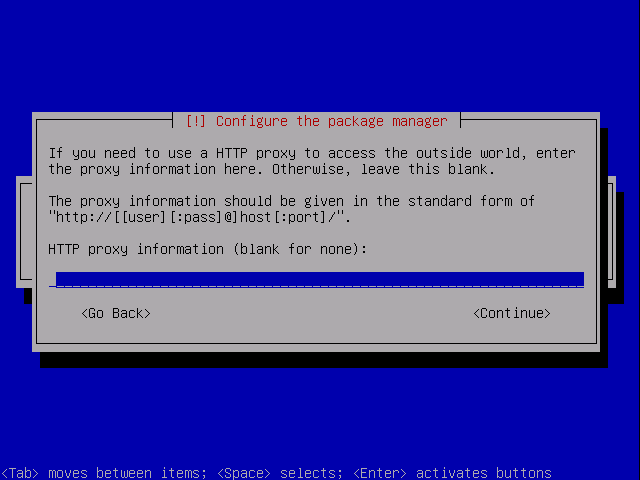
Next the package manager apt gets configured. Leave the HTTP proxy line empty unless you're using a proxy server to connect to the Internet:
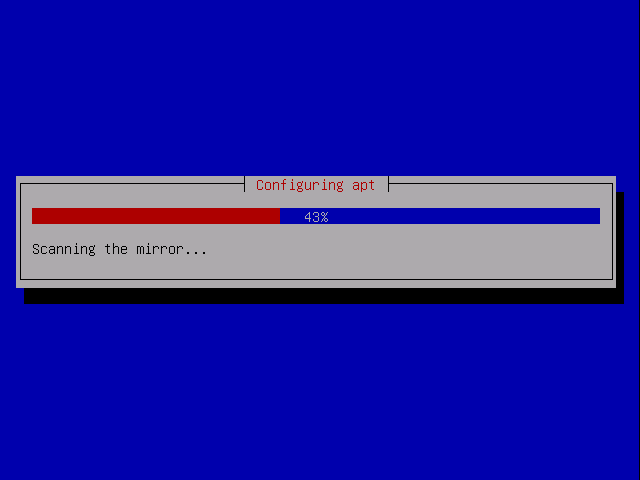
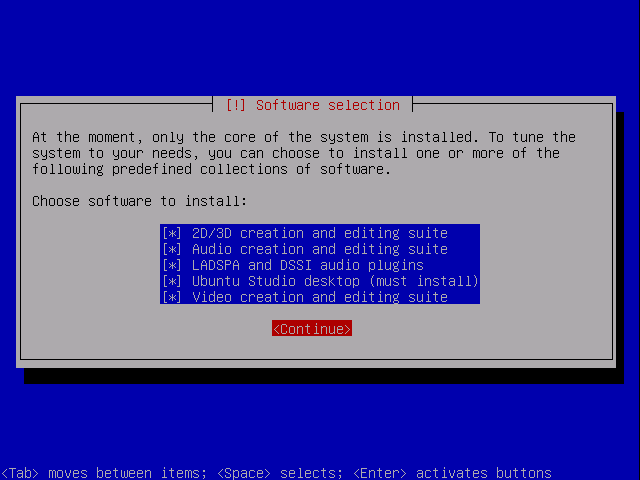
On the Software selection screen, I select all package groups and hit Continue:
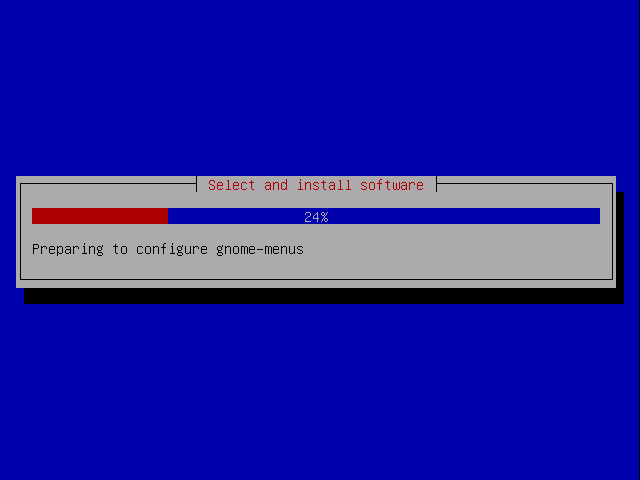
The installation continues:
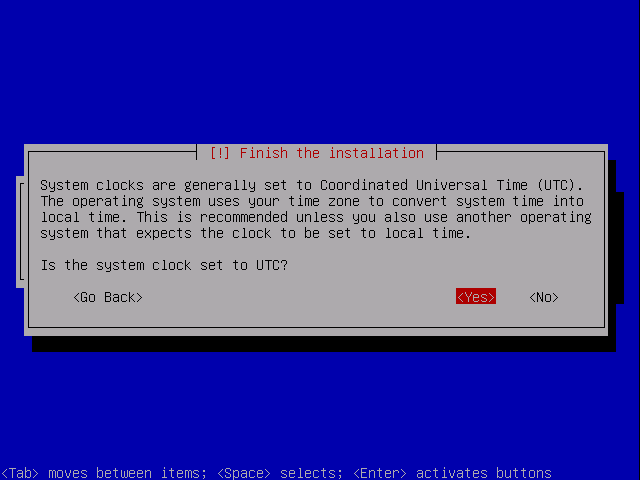
Select UTC unless this is a dual-boot system with other operating systems (such as Windows) that expect the system clock to use local time:
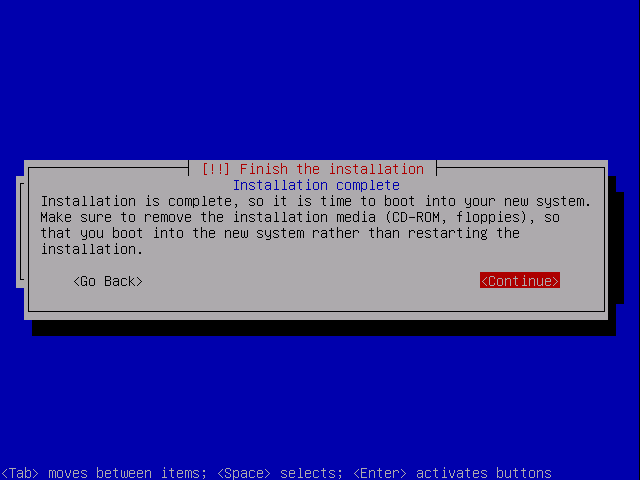
The base system installation is now finished. Remove the installation DVD from the DVD drive and hit Continue to reboot the system:
The new Ubuntu Studio system is booting:
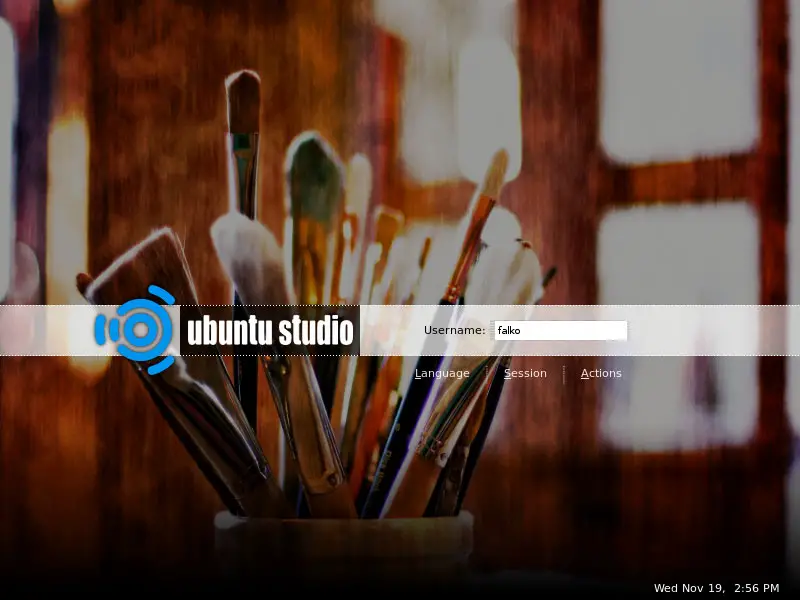
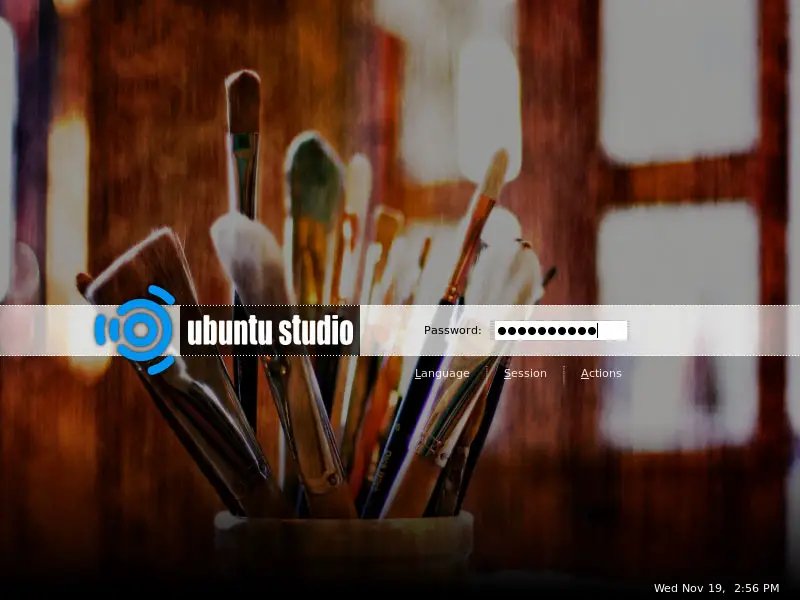
Log in to the desktop with the username and password you provided during the installation:
This is how your new desktop looks:
Now the base system is ready to be used.





