
The Perfect Desktop - gOS 3.0 Gadgets - Page 2
This tutorial exists for these OS versions
On this page
3 Update The System
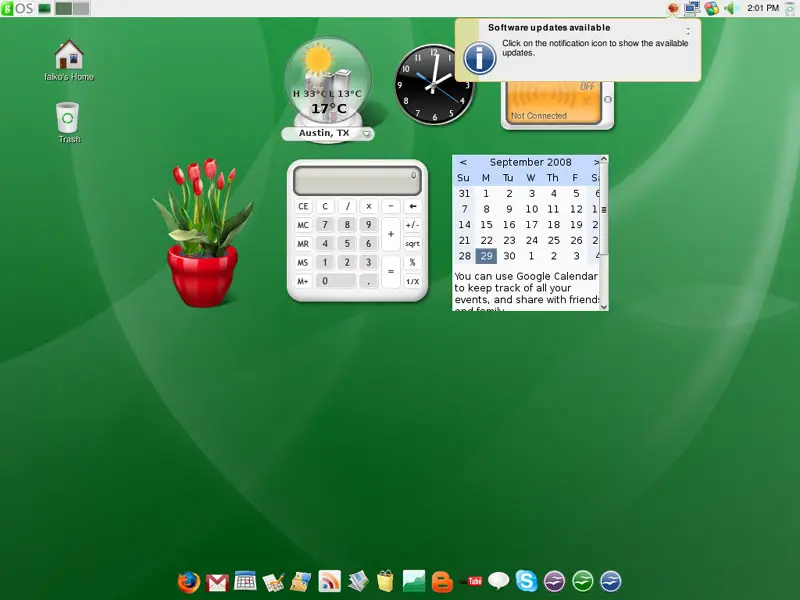
When you log in for the first time, you will most likely see a software update icon in the upper right corner (there should also be a pop-up originating from that icon saying that software updates are available) which means that updates for the installed software are available. To install the updates, click on that icon:
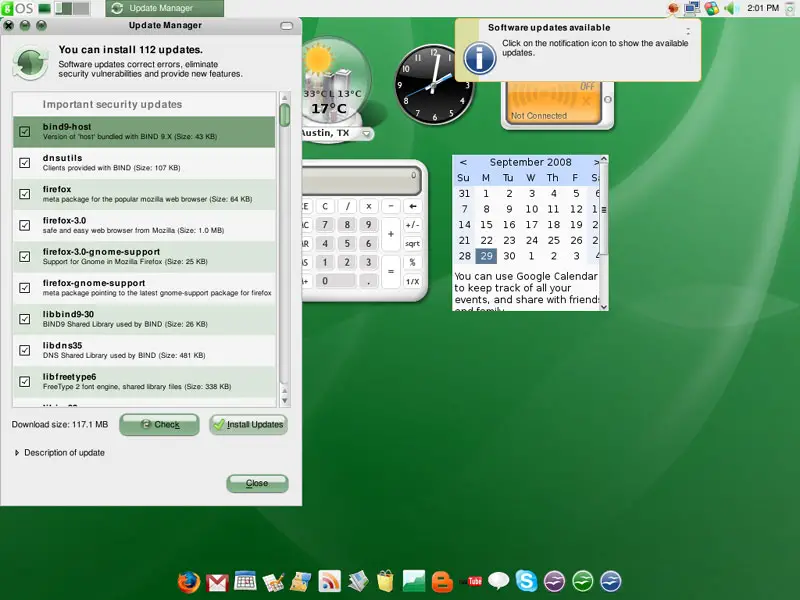
The Update Manager tells you which updates are available. Click on Install Updates to install them:
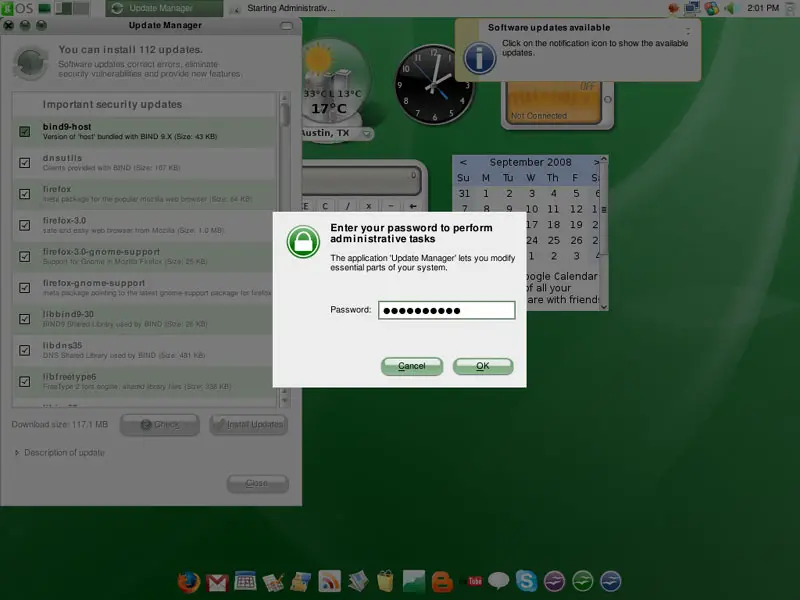
Type in your password:
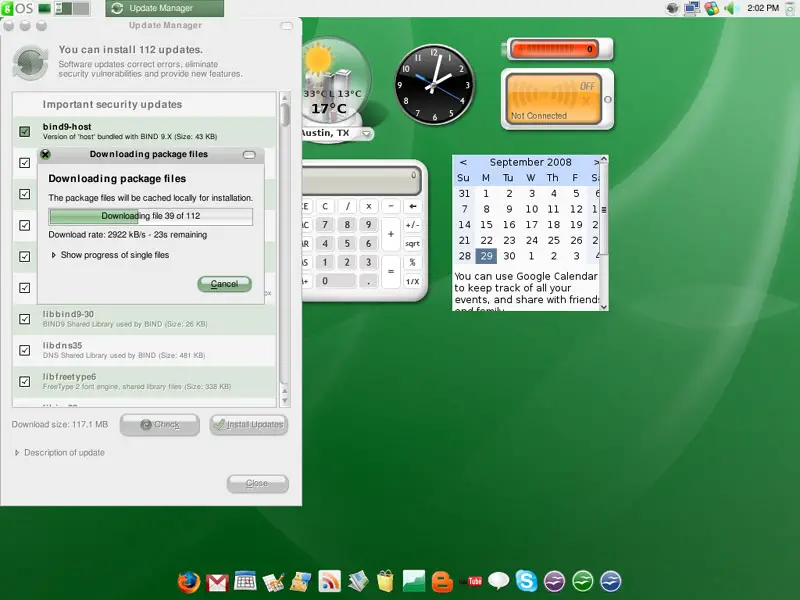
The updates are being downloaded and installed (this can take a few minutes):
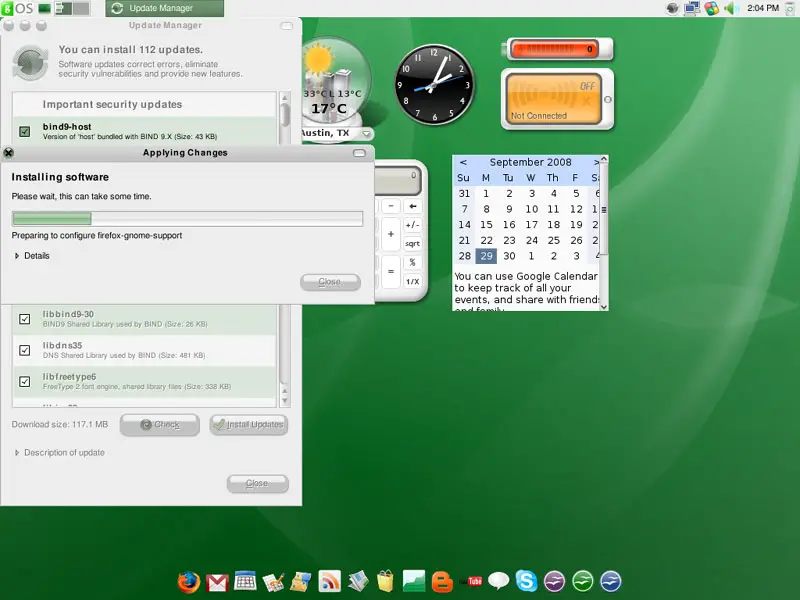
When the update is complete, click on Close:
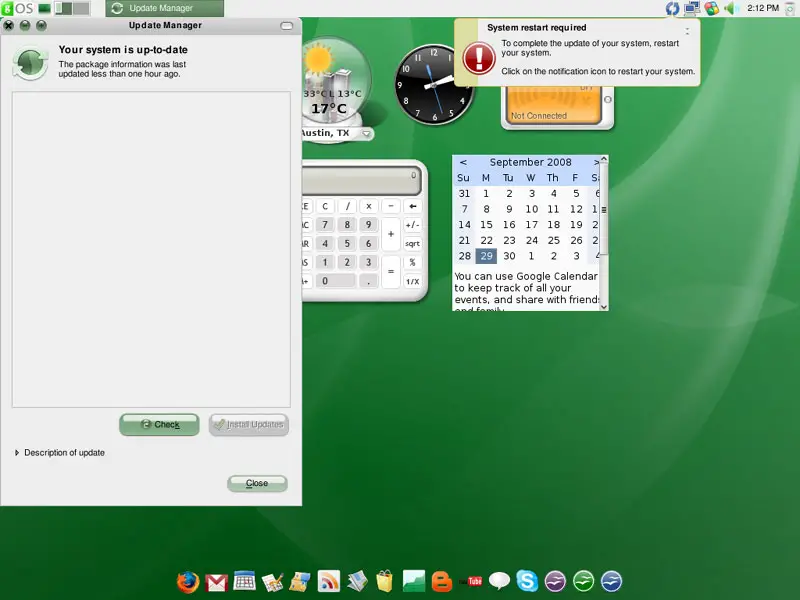
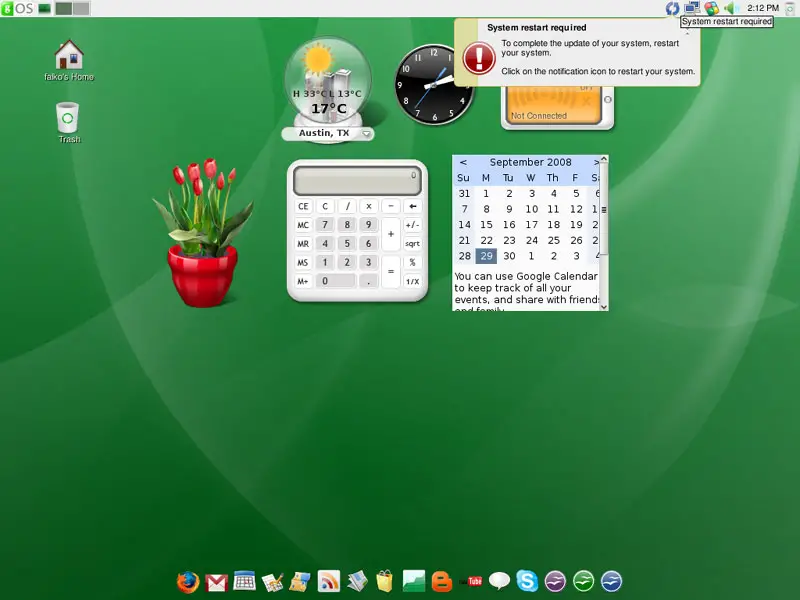
If a new kernel was amongst the updates, a system restart is required to make the changes effective. If this is necessary, you will see a blue reboot icon in the upper right panel. Click on the blue reboot icon to restart the system. Confirm by clicking on Restart Now:
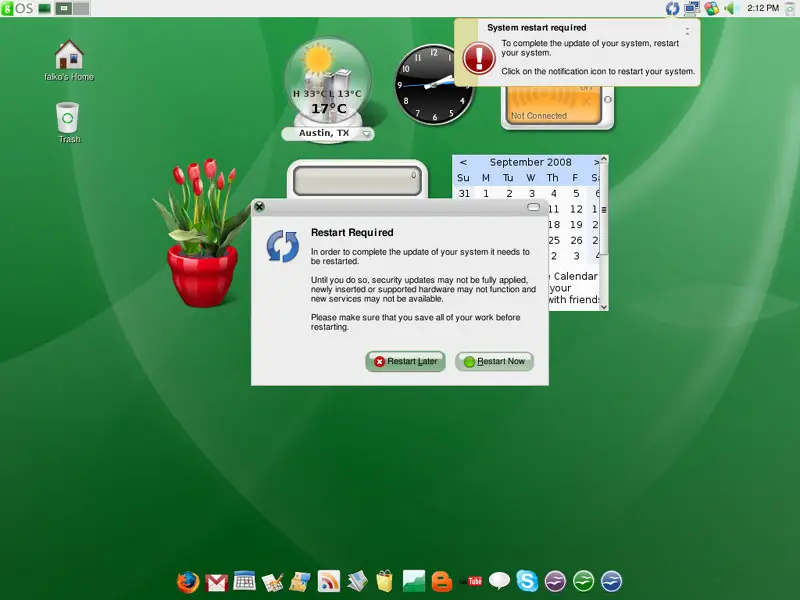
After the reboot, the system is up-to-date.
4 Inventory Of What We Have So Far
Now let's browse all menus to see which of our needed applications are already installed:
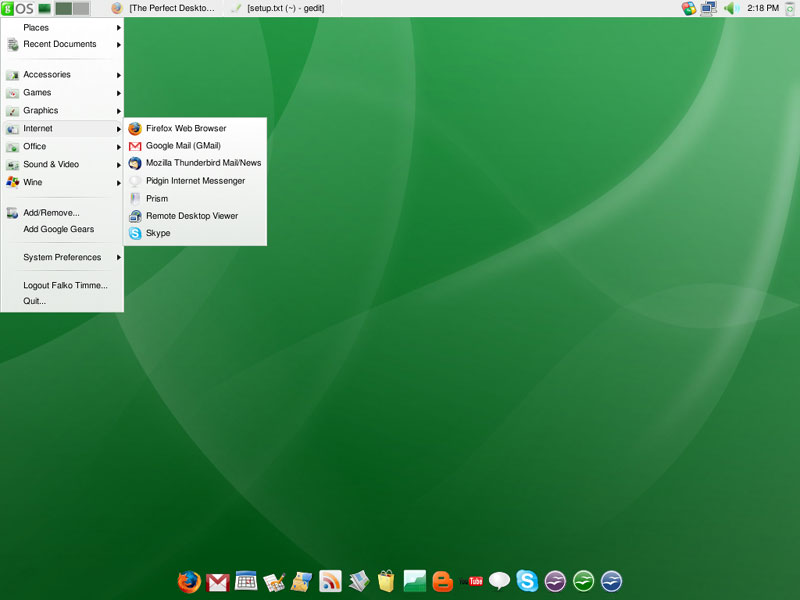
You should find the following situation ([x] marks an application that is already installed, where [ ] is an application that is missing):
Graphics:
[x] The GIMP
[ ] F-Spot
[x] Picasa
Internet:
[x] Firefox
[ ] Opera
[ ] Flash Player
[ ] FileZilla
[x] Thunderbird
[ ] Evolution
[ ] aMule
[ ] BitTornado
[ ] Azureus
[x] Pidgin
[x] Skype
[ ] Google Earth
[ ] Xchat IRC
Office:
[x] OpenOffice Writer
[x] OpenOffice Calc
[ ] Adobe Reader
[ ] GnuCash
[ ] Scribus
Sound & Video:
[ ] Amarok
[ ] Audacity
[ ] Banshee
[ ] MPlayer
[x] Rhythmbox Music Player
[ ] gtkPod
[ ] XMMS
[ ] dvd::rip
[ ] Kino
[ ] Sound Juicer CD Extractor
[ ] VLC Media Player
[ ] Helix Player
[x] Totem
[ ] Xine
[x] Brasero
[ ] K3B
[ ] Multimedia-Codecs
Programming:
[ ] KompoZer
[ ] Bluefish
[ ] Quanta Plus
Other:
[ ] VMware Server
[ ] TrueType fonts
[ ] Java
[x] Read/Write support for NTFS partitions
So some applications are already on the system. NTFS read-/write support is enabled by default on gOS 3.0 Gadgets.
5 Configure Additional Repositories
Some packages like the Adobe Reader are not available in the standard Ubuntu repositories. The easiest way to make such packages available to your system is to add the Medibuntu repository.
First we open a terminal (gOS > Accessories > Terminal):
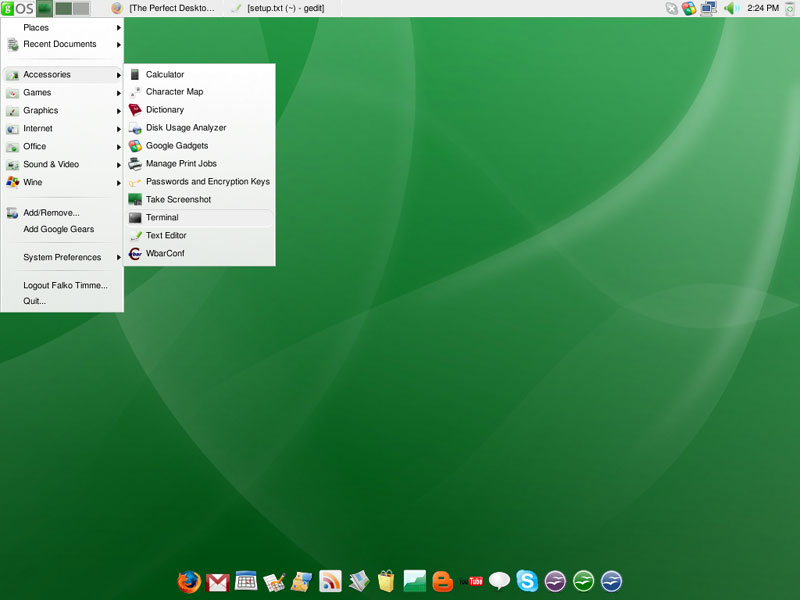
First off, we edit /etc/apt/sources.list...
sudo gedit /etc/apt/sources.list
... and enable the hardy partner repository (because some packages such as Opera are available only in that repository):
[...] ## Uncomment the following two lines to add software from Canonical's ## 'partner' repository. This software is not part of Ubuntu, but is ## offered by Canonical and the respective vendors as a service to Ubuntu ## users. deb http://archive.canonical.com/ubuntu hardy partner deb-src http://archive.canonical.com/ubuntu hardy partner [...] |
Then save the file.
To enable the Medibuntu repository, please do the following:
Import the repository:
sudo wget http://www.medibuntu.org/sources.list.d/hardy.list -O /etc/apt/sources.list.d/medibuntu.list
Import the gpg-key and update your package-list:
wget -q http://packages.medibuntu.org/medibuntu-key.gpg -O- | sudo apt-key add - && sudo apt-get update





