
How To Configure NX Client To Make A Remote Desktop Connection To View VMware Server Console Contents
I know many of you are strugling with this one. It took me sometime to find the proper settings in NX Client for Windows (or Linux). Many times after making the connection to the VMware Host Server - I could not see anything but a black screen of the Guest OS inside the VMware Server Console.
To fix this...
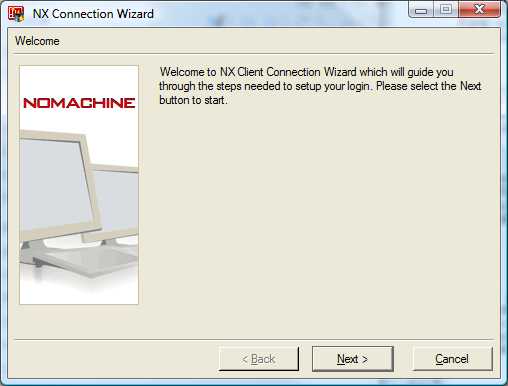
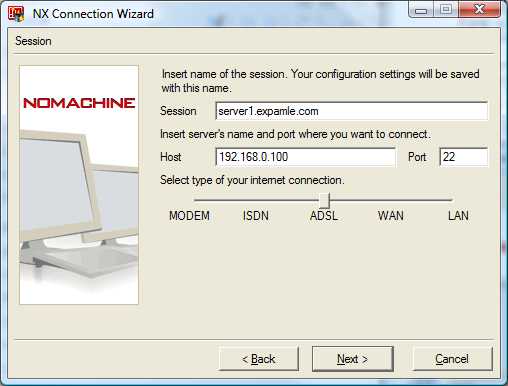
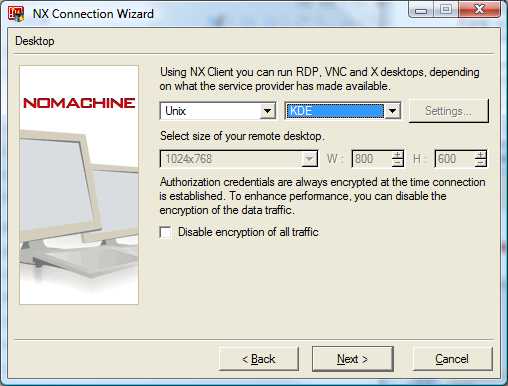
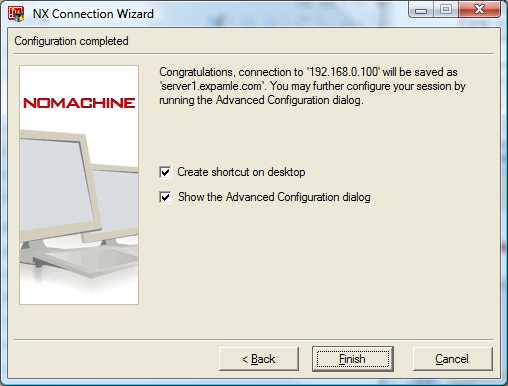
If you have all ready used the Connection Wizard, Go to the NX Client for Windows - Select the proper Session - "Configure" -> "Use Custom" settings on your NX connection properties. ("Configure" button is usually greyed out if you open a desktop shortcut session. Why?!?)
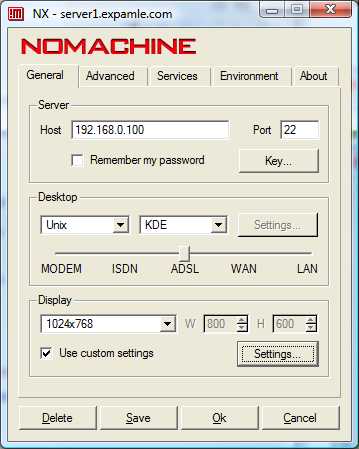
Disable all the "Performance" settings on the bottom of the "Display Settings" page.
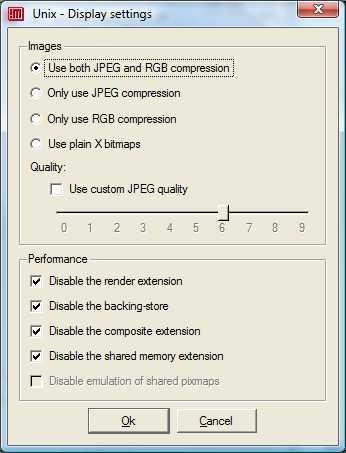
Performance.
Disable the shared memory extension.
Disabling "shared memory" should do the trick. (Disabling all - has always helped but affects the quality of the connection.) Log out from the remote server and try to login with the new settings. You should be able to see the Guest OS Virtual Machines in the VMware Server Console now.
Sami Mattila
http://www.mattila.eu





