
On this page
How To Compile A Kernel - The Fedora Way
Version 1.0
Author: Falko Timme
Each distribution has some specific tools to build a custom kernel from the sources. This article is about compiling a kernel on Fedora systems. It describes how to build a custom kernel using the latest unmodified kernel sources from www.kernel.org (vanilla kernel) so that you are independent from the kernels supplied by your distribution. It also shows how to patch the kernel sources if you need features that are not in there.
I have tested this on Fedora Core 6.
I want to say first that this is not the only way of setting up such a system. There are many ways of achieving this goal but this is the way I take. I do not issue any guarantee that this will work for you!
1 Preliminary Note
In this article I will describe two ways of building a kernel for Fedora systems. The first one is Fedora-specific, and in the end you will have a kernel rpm package that you can install or share with others. The second way is the same for all Linux distributions, but you don't end up with an rpm package.
I prefer to do all the steps here as the root user. However, it's possible to run most commands as a non-privileged user (e.g. user tom). Some commands such as yum or rpm still require root privileges, so you should add tom (or whatever your username is) to /etc/sudoers by running
visudo
Add this line:
tom ALL=(ALL) ALL |
Now whenever you run a command that requires root privileges, such as
yum install fedora-rpmdevtools unifdef
the command will tell you so, and you must run
sudo yum install fedora-rpmdevtools unifdef
instead. Remember: you can forget about sudo if you run all commands as root. It's up to you which way you prefer.
2 Building A Kernel rpm Package
This chapter shows how to build a kernel and end up with an rpm package that you can install and share with others.
2.1 Create Your rpmbuild Directory
Create your rpmbuild directory as follows:
cd ~
cp -a /usr/src/redhat/ rpmbuild
echo '%_topdir %(echo $HOME)/rpmbuild' >> .rpmmacros
Then install the required packages for building rpm packages
yum install fedora-rpmdevtools unifdef
and run
fedora-buildrpmtree
2.2 Download And Install A Fedora Kernel src.rpm
Next we download the latest kernel src.rpm for our Fedora version. For Fedora Core 6, the src.rpm packages are located in http://download.fedora.redhat.com/pub/fedora/linux/core/6/source/SRPMS/, for Fedora Core 5 it's http://download.fedora.redhat.com/pub/fedora/linux/core/5/source/SRPMS/, and so on.
The latest Fedora Core 6 kernel src.rpm is kernel-2.6.18-1.2798.fc6.src.rpm, so we download and install it now:
cd /usr/src
wget http://download.fedora.redhat.com/pub/fedora/linux/core/6/source/SRPMS/kernel-2.6.18-1.2798.fc6.src.rpm
rpm -ivh kernel-2.6.18-1.2798.fc6.src.rpm
If you see these warnings:
warning: user brewbuilder does not exist - using root
warning: group brewbuilder does not exist - using root
you can ignore them.
We have just installed the kernel sources for the 2.6.18 kernel together with lots of Fedora patches and a patch for kernel 2.6.18.1, so if we continued to build a kernel from this src.rpm we'd end up with kernel 2.6.18.1.
2.3 Patch The Kernel
Instead of kernel 2.6.18.1 I want to install kernel 2.6.18.2. The src.rpm we installed came with kernel 2.6.18 plus a patch for kernel 2.6.18.1. We will now replace that patch with the patch for kernel 2.6.18.2.
cd ~/rpmbuild/SOURCES/
wget http://www.kernel.org/pub/linux/kernel/v2.6/patch-2.6.18.2.bz2
You could also use the http://www.kernel.org/pub/linux/kernel/v2.6/testing/patch-2.6.19-rc5.bz2 prepatch if you want to end up with kernel 2.6.19-rc5. Please note that this works only for prepatches, i.e. patches for kernels that aren't available in a final version yet, such as the 2.6.19 kernel. You can apply that patch to the 2.6.18 kernel sources, but not to kernel 2.6.18.1 or 2.6.18.2, etc. This is explained on http://kernel.org/patchtypes/pre.html:
Prepatches are the equivalent to alpha releases for Linux; they live in the testing directories in the archives. They should be applied using the patch(1) utility to the source code of the previous full release with a 3-part version number (for example, the 2.6.12-rc4 prepatch should be applied to the 2.6.11 kernel sources, not, for example, 2.6.11.10.)
Now we must modify the kernel-2.6.spec file so that it knows about our new kernel patch:
cd ~/rpmbuild/SPECS/
vi kernel-2.6.spec
Search for the line
Patch1: patch-2.6.18.1.bz2
and replace it with this one:
Patch1: patch-2.6.18.2.bz2
(or whatever patch you downloaded before).
Then run
rpmbuild -bp kernel-2.6.spec
(If you want to build the kernel for a specific architecture such as i386, i586, i686, or x86_64, you can do it like this:
rpmbuild -bp --target=i686 kernel-2.6.spec
I don't specify it in this example and end up with a i386 kernel here. Your system might build a kernel for a different architecture instead if you don't specify it, so keep this in mind when you follow this tutorial.)
Now comes the tricky part. The src.rpm comes with a lot of Fedora-specific patches. Some of them don't work with our 2.6.18.2 patch, so if you see something like this in the rpmbuild output:
+ echo 'Patch #300 (linux-2.6-ppc-dac960-ipr-clash.patch):'
Patch #300 (linux-2.6-ppc-dac960-ipr-clash.patch):
+ patch -p1 -s
Reversed (or previously applied) patch detected! Assume -R? [n]
Apply anyway? [n]
1 out of 1 hunk ignored -- saving rejects to file drivers/block/DAC960.c.rej
error: Bad exit status from /var/tmp/rpm-tmp.46287 (%prep)
RPM build errors:
Bad exit status from /var/tmp/rpm-tmp.46287 (%prep)
you must edit kernel-2.6.spec again and comment out the patch #300:
vi kernel-2.6.spec
[...] #Patch300: linux-2.6-ppc-dac960-ipr-clash.patch [...] #%patch300 -p1 [...] |
Then run your rpmbuild command again, e.g.
rpmbuild -bp kernel-2.6.spec
You must repeat this over and over until there are no more patches that fail to be applied.
2.4 Specify A Kernel Identification String
Now we should specify a string that allows us to identify our kernel later on. Therefore we do this:
cd ~/rpmbuild/BUILD/kernel-2.6.18/linux-2.6.18.i386
vi Makefile
In the EXTRAVERSION line, you can put the kernel identification. I think it's good to append the kernel version to that string, so something like this is ok:
EXTRAVERSION = -custom-2.6.18.2
2.5 Configure The Kernel
Now we run
make menuconfig
which brings up the kernel configuration menu. Go to Load an Alternate Configuration File and choose .config as the configuration file:
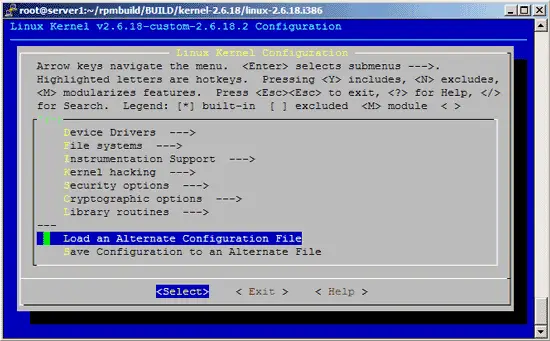
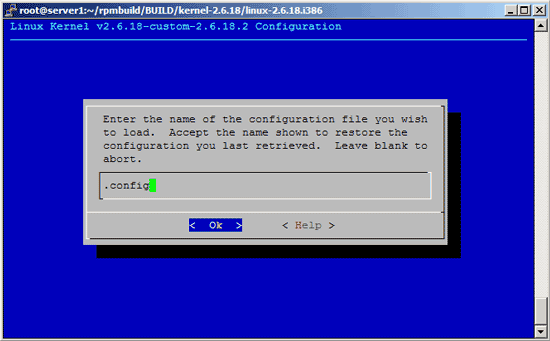
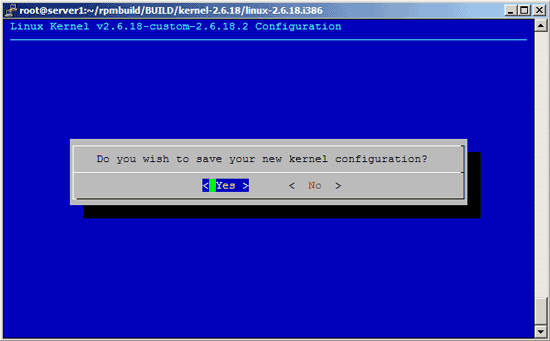
Then browse through the kernel configuration menu and make your choices. When you are finished and select Exit, answer the following question (Do you wish to save your new kernel configuration?) with Yes:
2.6 Build The Kernel
Now we build our kernel rpm package by simply running
make rpm
Afterwards you will find a new src.rpm package in the ~/rpmbuild/SRPMS/ directory, e.g. ~/rpmbuild/SRPMS/kernel-2.6.18custom2.6.18.2-1.src.rpm, and the kernel rpm package in ~/rpmbuild/RPMS/i386/ (or ~/rpmbuild/RPMS/i586/, ~/rpmbuild/RPMS/i686/, etc. depending on your architecture), e.g. ~/rpmbuild/RPMS/i386/kernel-2.6.18custom2.6.18.2-1.i386.rpm. As you see your kernel identification has been added to the package name.
2.7 Install The New Kernel
Now go the directory where your new kernel rpm package has been created (depending on your architecture, e.g. ~/rpmbuild/RPMS/i386/), and install the rpm package:
cd ~/rpmbuild/RPMS/i386
rpm -ivh kernel-2.6.18custom2.6.18.2-1.i386.rpm
(You can now even transfer the rpm package to other Fedora systems and install them there exactly the same way, which means you don't have to compile the kernel there again.)
Next we create a ramdisk for our new kernel, because otherwise the system will most likely not boot our new kernel:
mkinitrd /boot/initrd-2.6.18-custom-2.6.18.2.img 2.6.18-custom-2.6.18.2
Then edit /boot/grub/menu.lst. Have a look at your existing (working) kernel stanzas there and take one of them as a sample for your new stanza and replace the kernel and ramdisk, then add the stanza above all other stanzas.
vi /boot/grub/menu.lst
For example, my menu.lst looks like this before I add the new stanza:
# grub.conf generated by anaconda
#
# Note that you do not have to rerun grub after making changes to this file
# NOTICE:  You have a /boot partition.  This means that
#          all kernel and initrd paths are relative to /boot/, eg.
#          root (hd0,0)
#          kernel /vmlinuz-version ro root=/dev/VolGroup00/LogVol00
#          initrd /initrd-version.img
#boot=/dev/sda
default=0
timeout=5
splashimage=(hd0,0)/grub/splash.xpm.gz
hiddenmenu

title Fedora Core (2.6.18-1.2798.fc6)
        root (hd0,0)
        kernel /vmlinuz-2.6.18-1.2798.fc6 ro root=/dev/VolGroup00/LogVol00
        initrd /initrd-2.6.18-1.2798.fc6.img
|
and like this afterwards:
# grub.conf generated by anaconda
#
# Note that you do not have to rerun grub after making changes to this file
# NOTICE:  You have a /boot partition.  This means that
#          all kernel and initrd paths are relative to /boot/, eg.
#          root (hd0,0)
#          kernel /vmlinuz-version ro root=/dev/VolGroup00/LogVol00
#          initrd /initrd-version.img
#boot=/dev/sda
default=0
timeout=5
splashimage=(hd0,0)/grub/splash.xpm.gz
hiddenmenu

title Fedora Core (2.6.18-custom-2.6.18.2)
        root (hd0,0)
        kernel /vmlinuz-2.6.18-custom-2.6.18.2 ro root=/dev/VolGroup00/LogVol00
        initrd /initrd-2.6.18-custom-2.6.18.2.img

title Fedora Core (2.6.18-1.2798.fc6)
        root (hd0,0)
        kernel /vmlinuz-2.6.18-1.2798.fc6 ro root=/dev/VolGroup00/LogVol00
        initrd /initrd-2.6.18-1.2798.fc6.img
|
(You can find out about the right vmlinuz and initrd files by running
ls -l /boot
)
Now reboot the system:
shutdown -r now
If everything goes well, it should come up with the new kernel. You can check if it's really using your new kernel by running
uname -r
This should display something like
2.6.18-custom-2.6.18.2
If the system doesn't start, restart it, and when you see this:
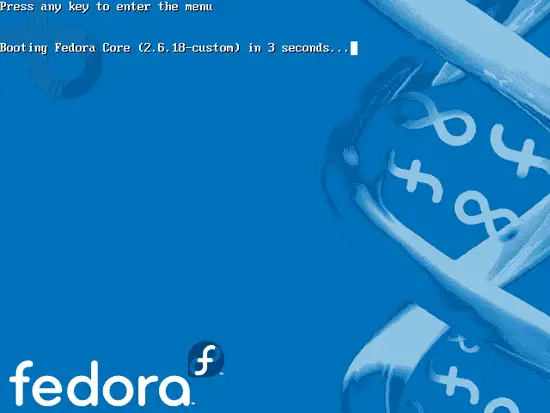
press any key to enter the GRUB menu:
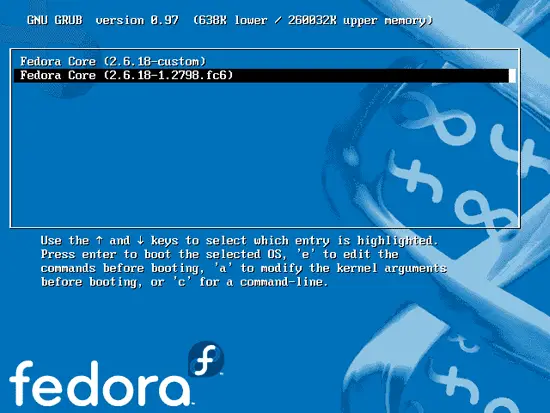
Select your old kernel and start the system. You can now try again to compile a working kernel. Don't forget to remove the stanza of the not-working kernel from /boot/grub/menu.lst.





