Enabling Compiz Fusion On An Ubuntu 7.10 Desktop (NVIDIA GeForce FX 5200)
Version 1.0
Author: Falko Timme
This tutorial shows how you can enable Compiz Fusion on an Ubuntu 7.10 (Gutsy Gibbon) desktop (the system must have a 3D-capable graphics card - I'm using an NVIDIA GeForce FX 5200 here). With Compiz Fusion you can use beautiful 3D effects like wobbly windows or a desktop cube on your desktop.
This document comes without warranty of any kind! I do not issue any guarantee that this will work for you!
1 Preliminary Note
I have tried this on a desktop computer with an NVIDIA GeForce FX 5200. It should work the same way with all other NVIDIA graphics cards.
2 Restricted Drivers Manager
To use 3D effects on an NVIDIA graphics card, we need the proprietary NVIDIA driver which is available in the Restricted Drivers Manager. Go to System > Administration > Restricted Drivers Manager:
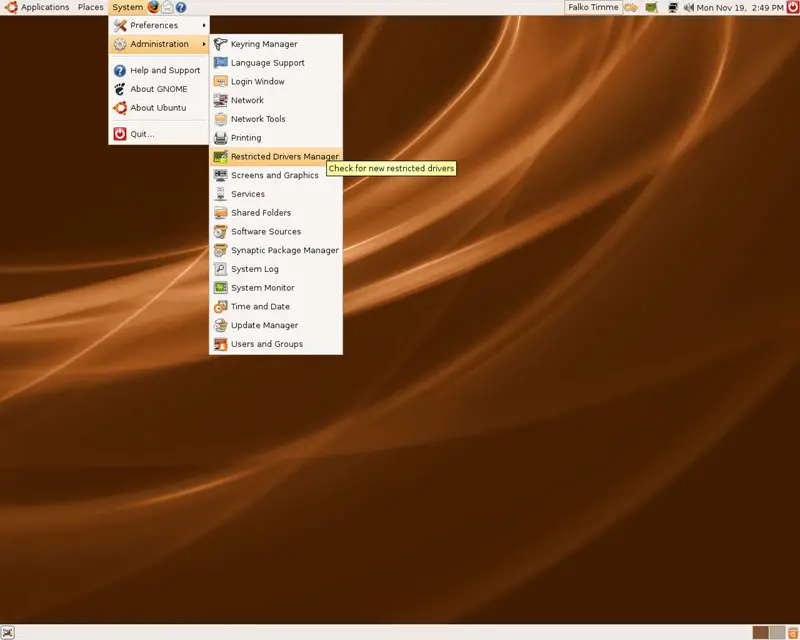
Type in your password:
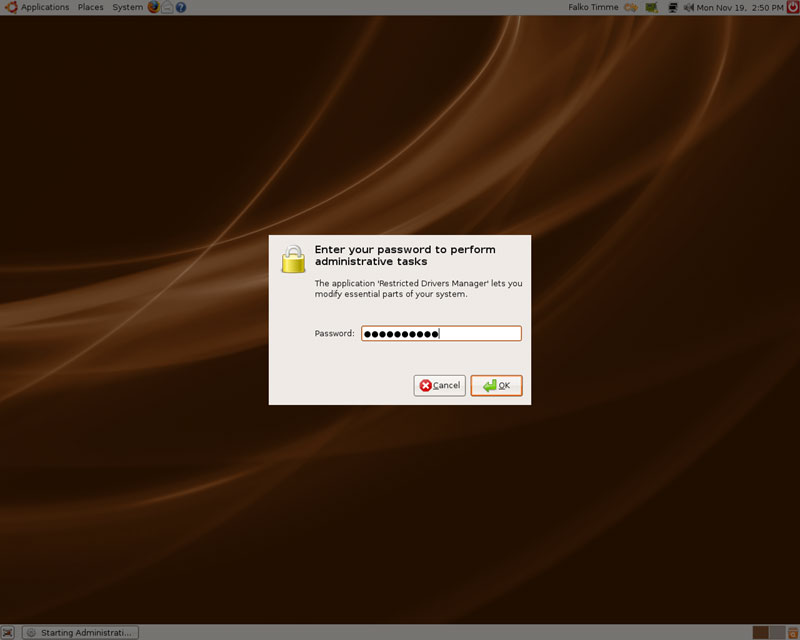
The Restricted Drivers Manager should offer an NVIDIA accelerated graphics driver for installation:
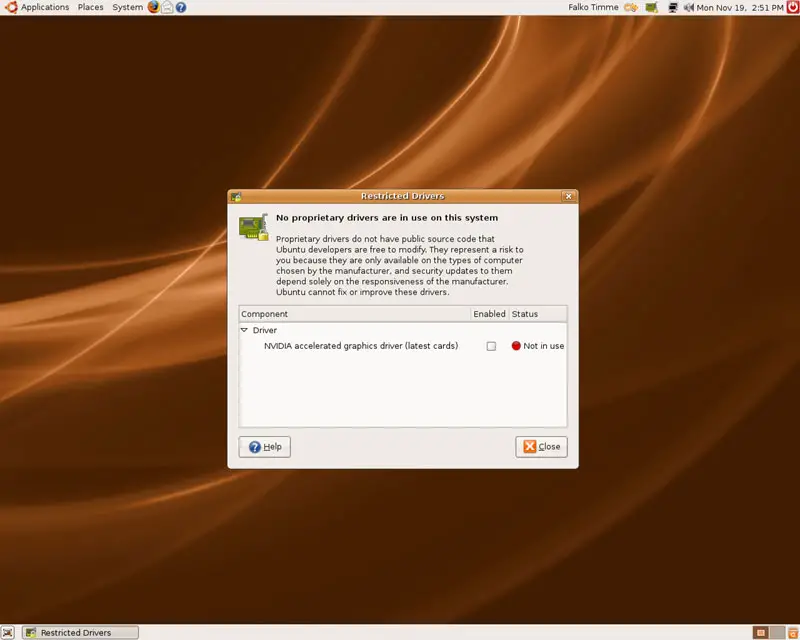
Choose that driver; a new window will pop up where you confirm your choice by clicking on the Enable Driver button:
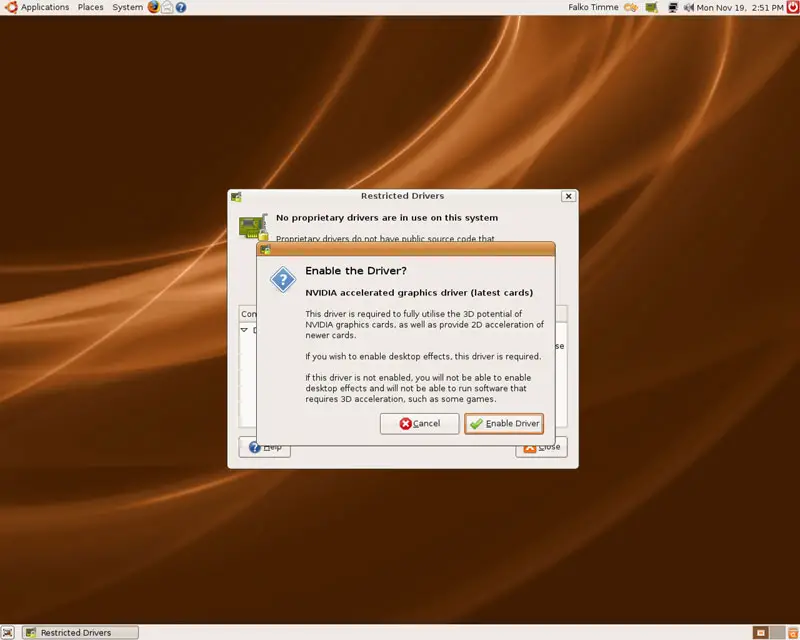
Afterwards the NVIDIA driver is being downloaded and installed:
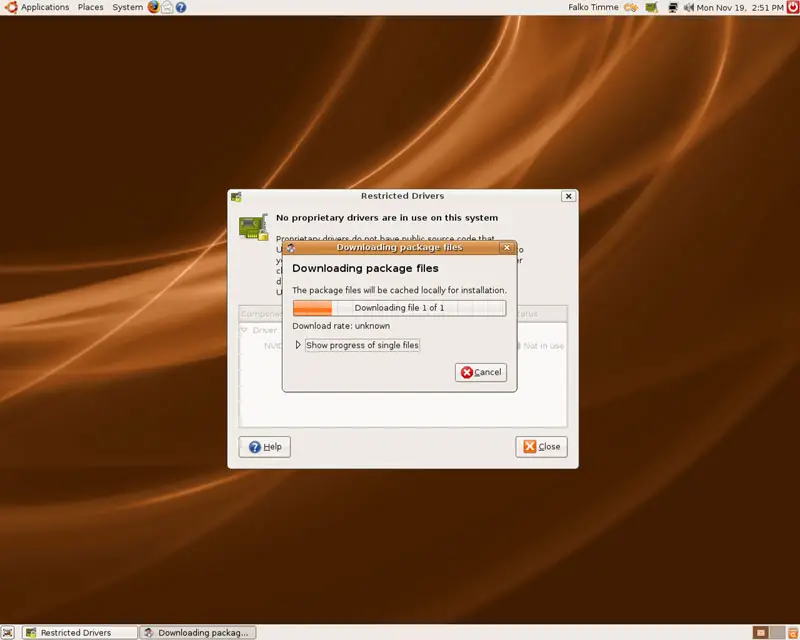
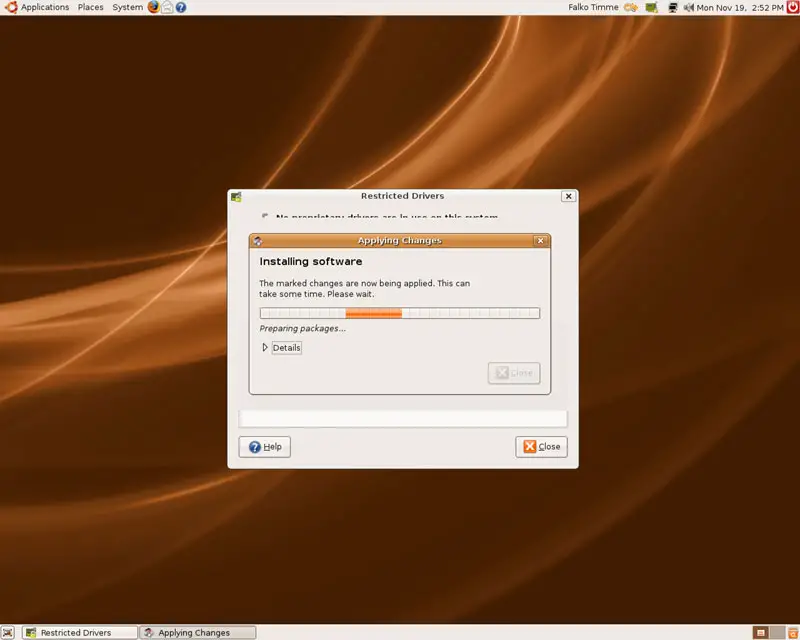
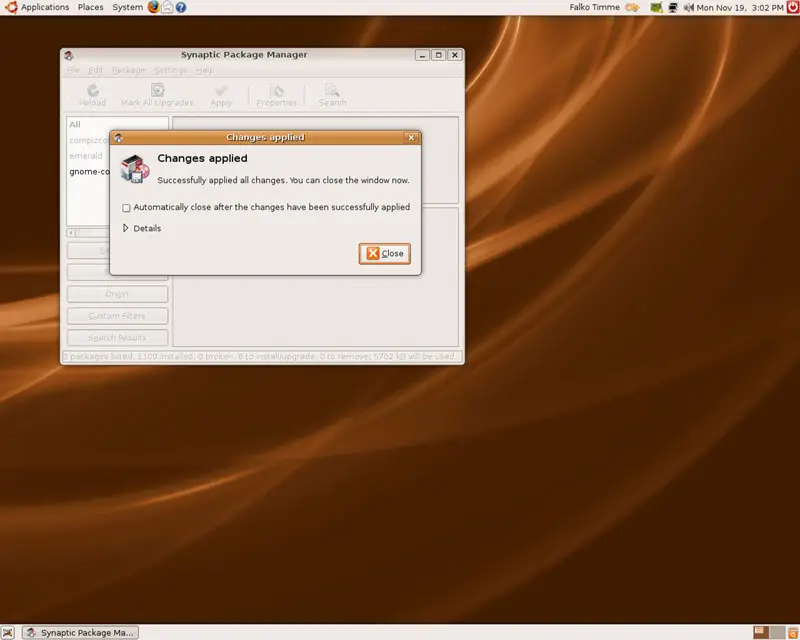
You can now close the Changes applied window...
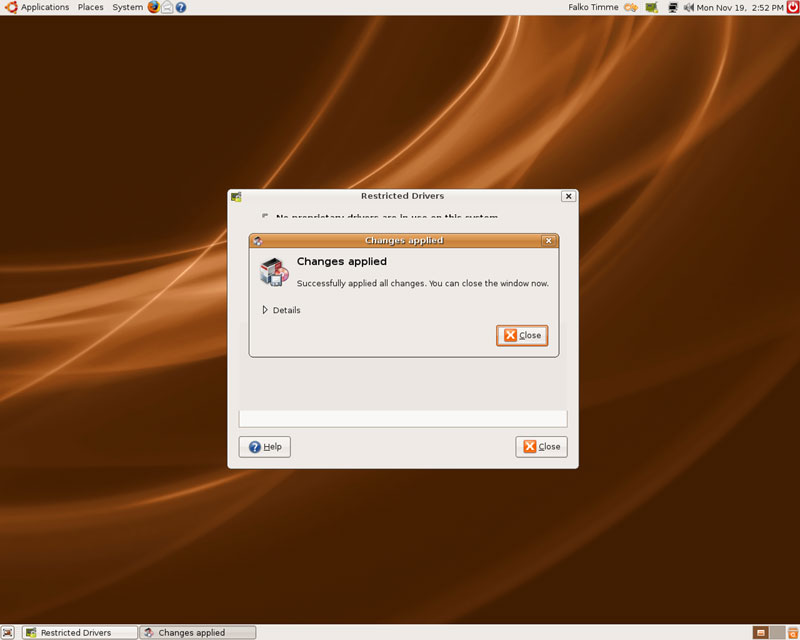
... as well as the Restricted Drivers Manager (but note the Needs computer restart line in the Status column - I'll come to this next):
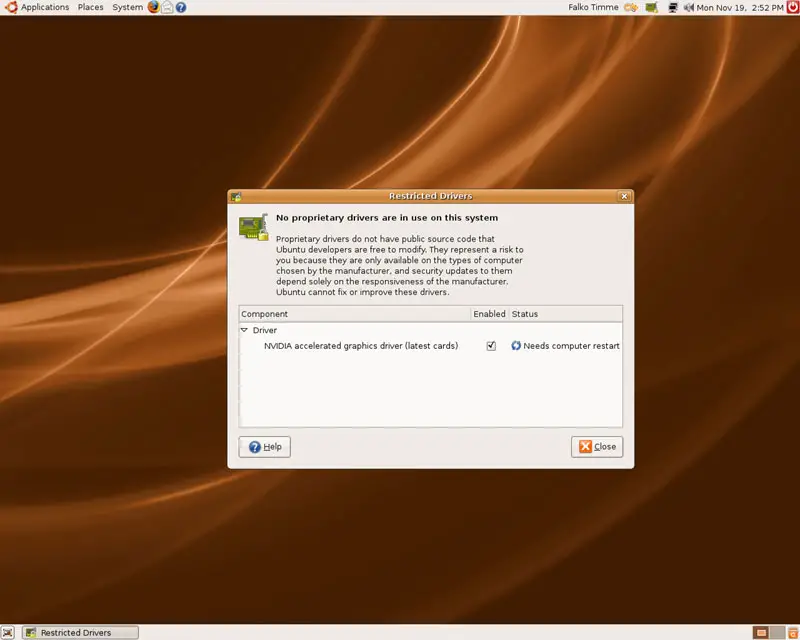
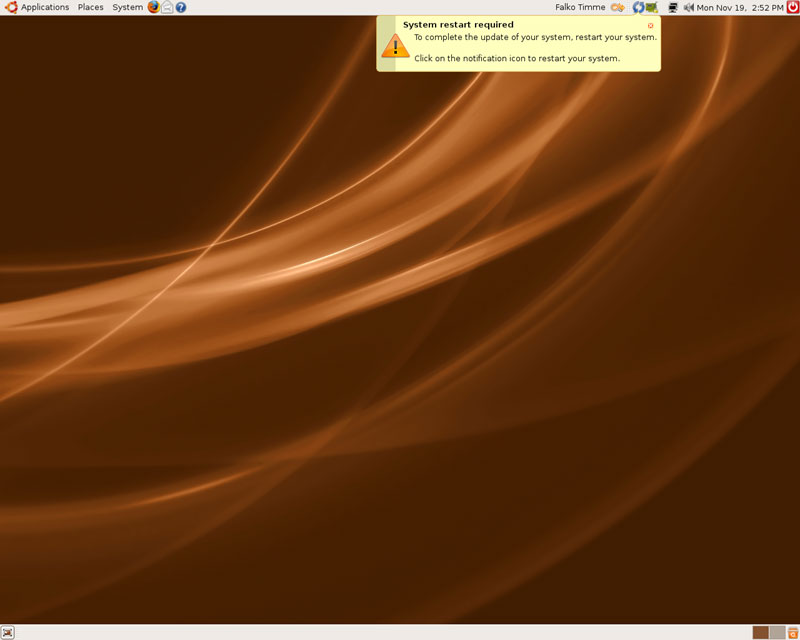
As you've noticed in the previous screenshot, the computer needs a restart so that the changes can take effect. Click on the restart icon in the upper right corner...
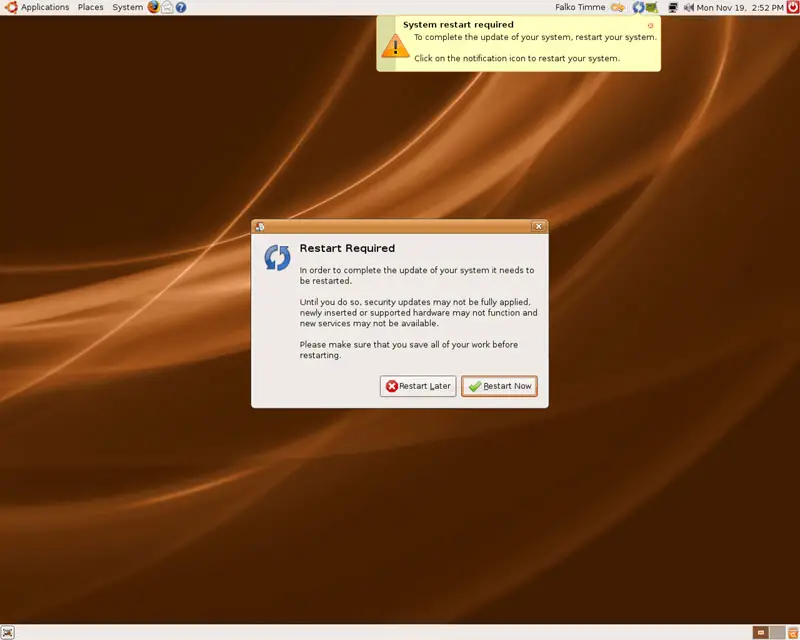
... and then on the Restart Now button to reboot the system:
After the reboot the system uses the proprietary NVIDIA graphics driver.
3 Installing Compiz Fusion
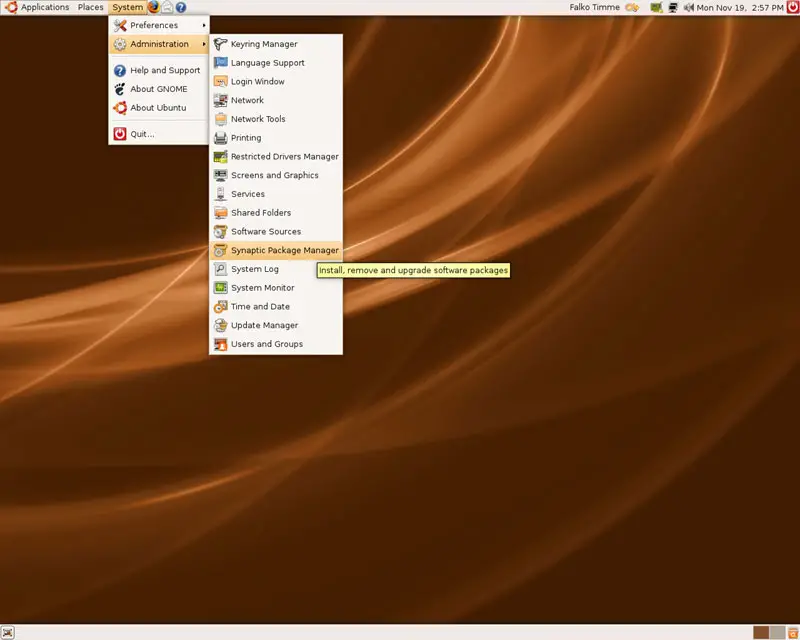
Open the Synaptic Package Manager (System > Administration > Synaptic Package Manager):
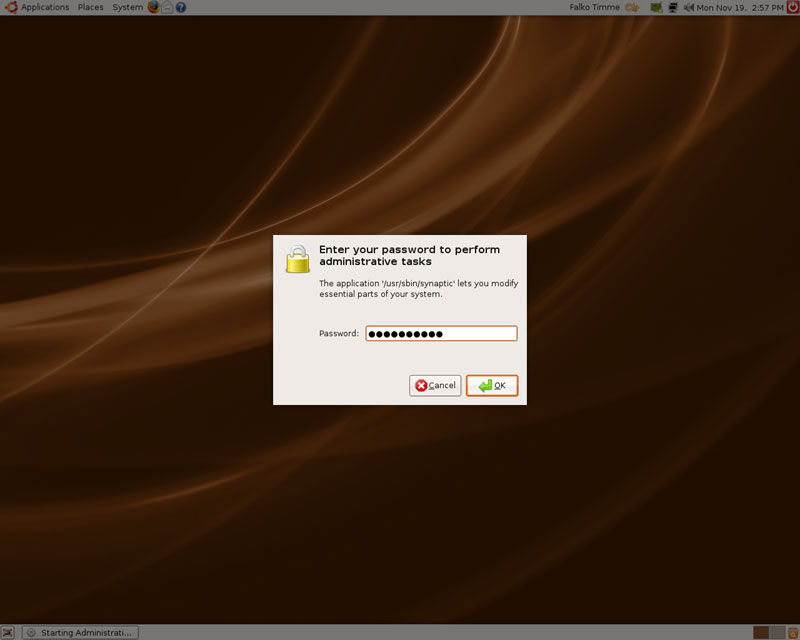
Type in the root password:
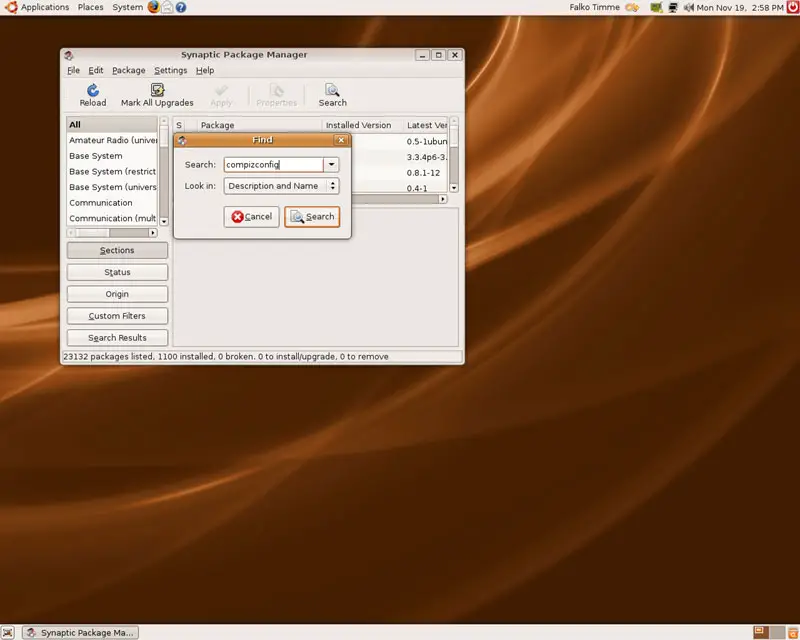
Use the Search function and search for compizconfig:
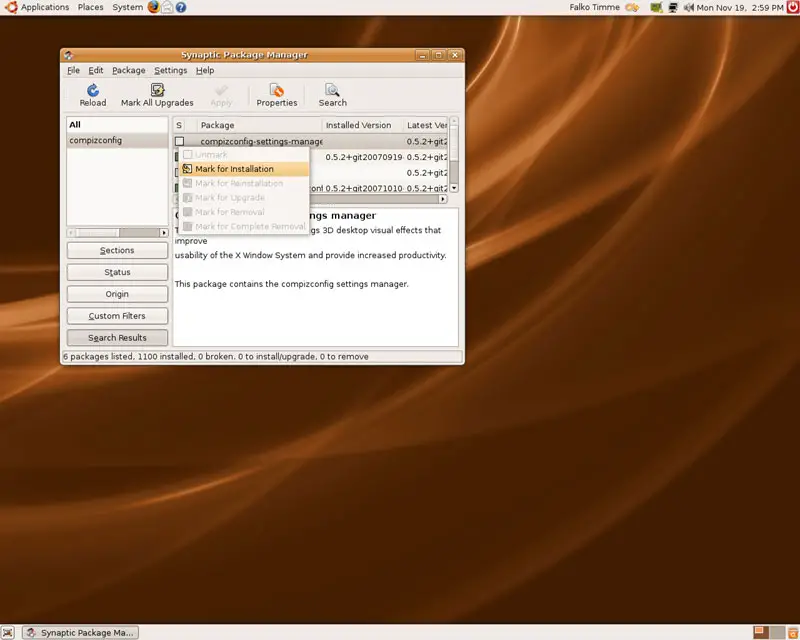
You should find the package compizconfig-settings-manager in the results. Click on it and select Mark for Installation:
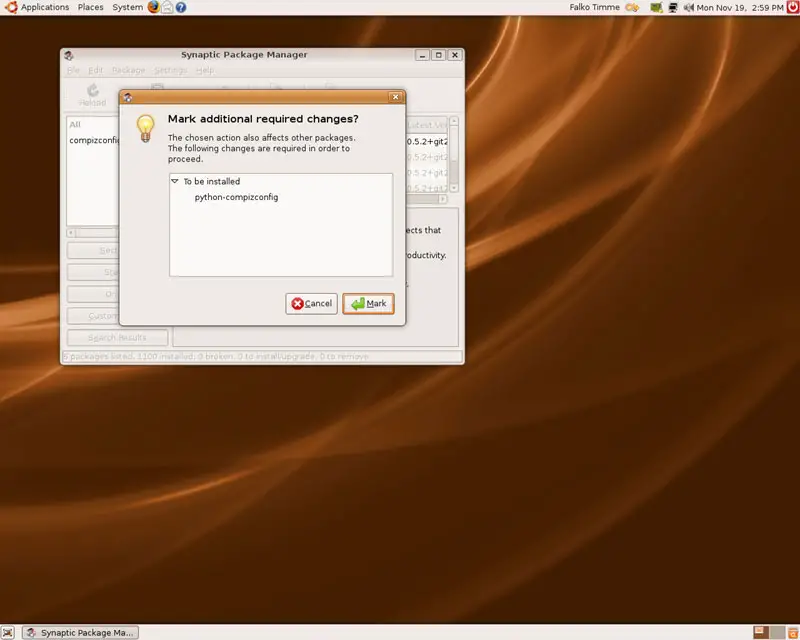
Accept that package's dependencies by clicking on Mark:
Afterwards, you should also select the packages emerald and gnome-compiz-manager for installation (you can use the Search fuction again to find them):
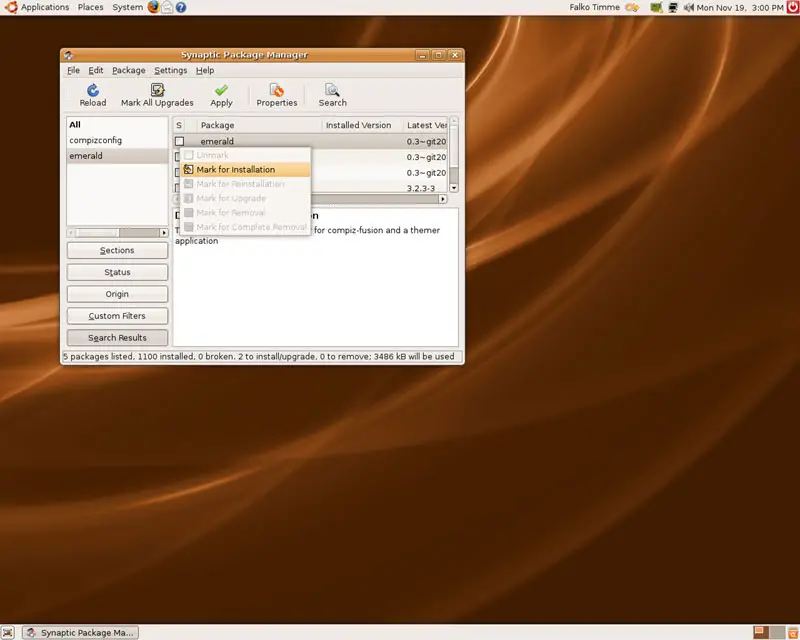
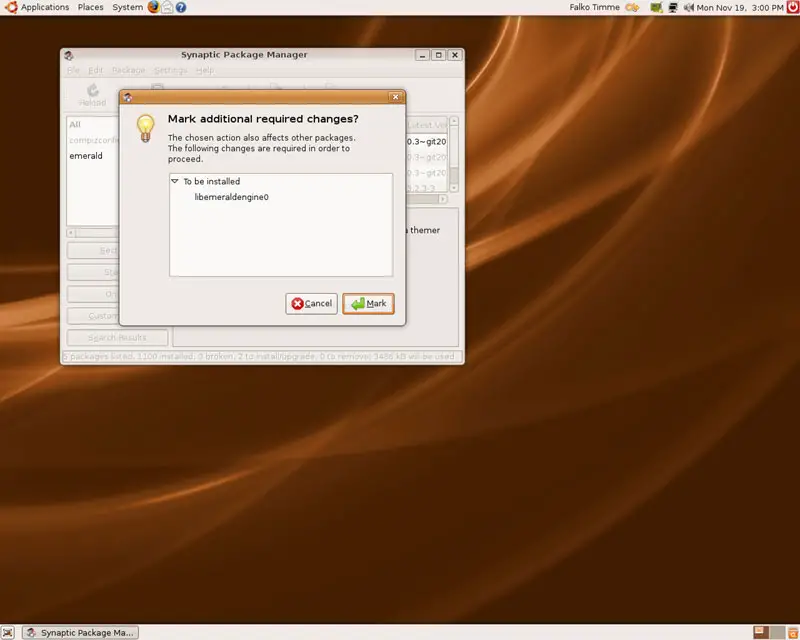
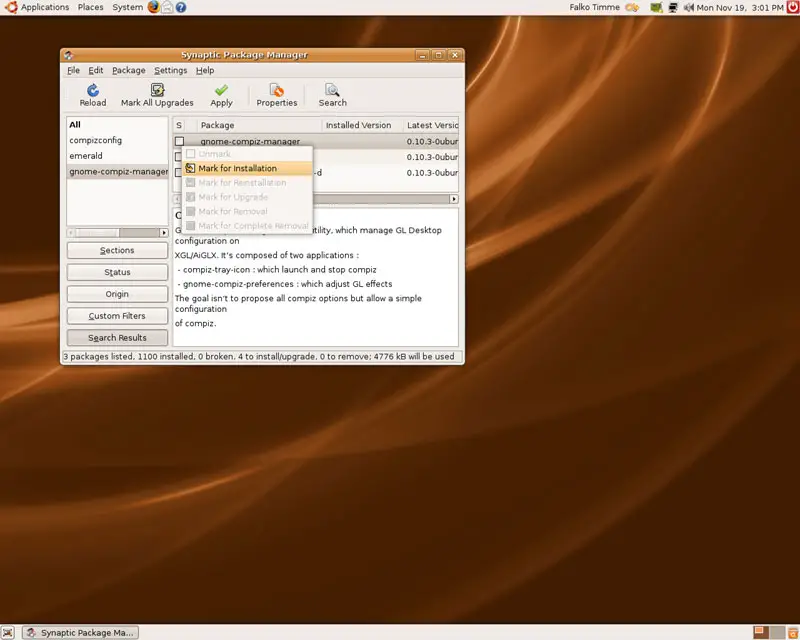
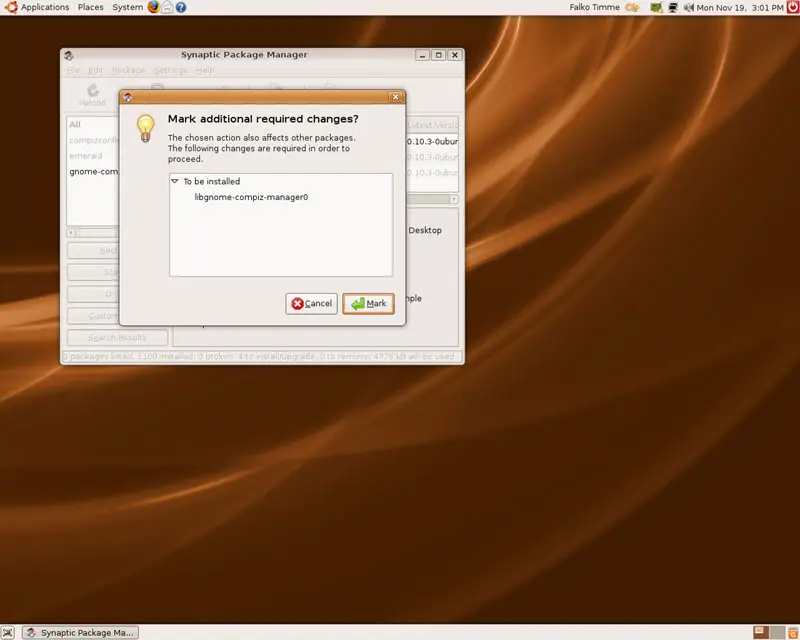
Next, click on the Apply button:
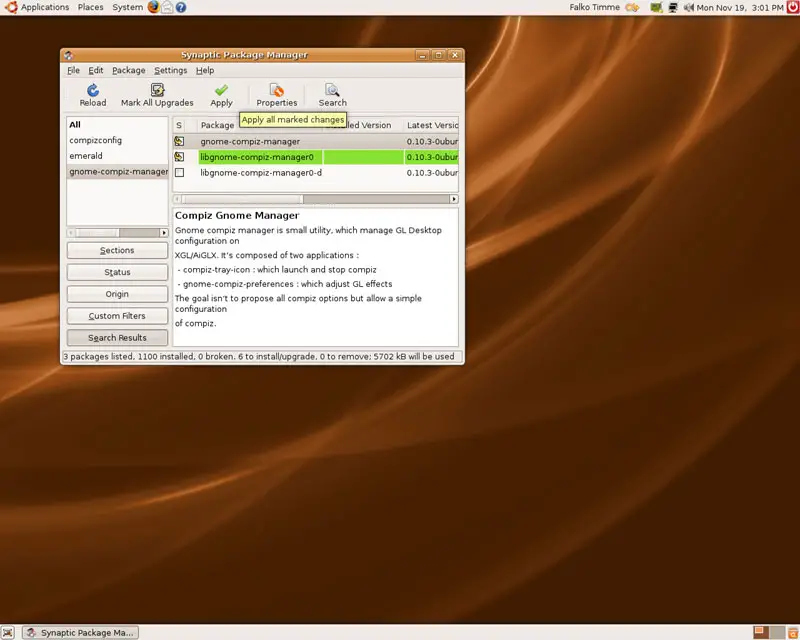
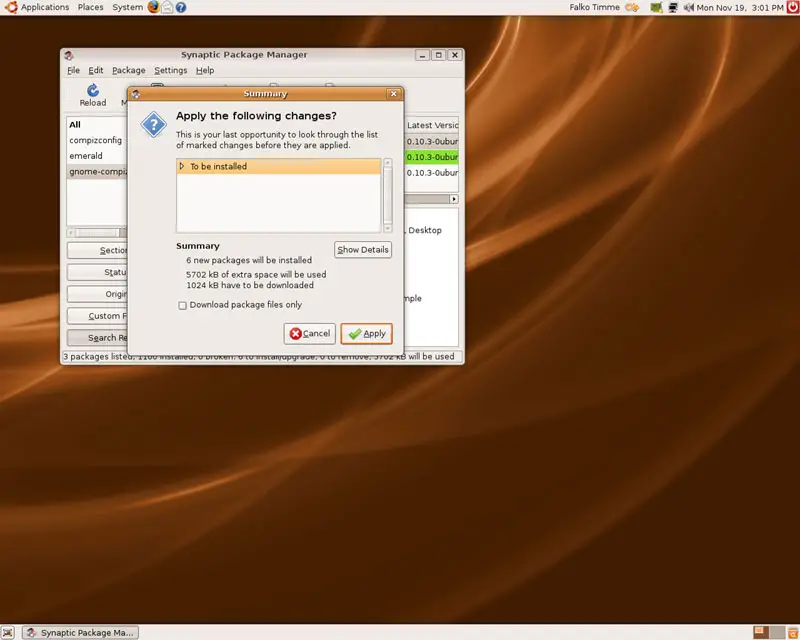
Confirm your selection by clicking on Apply again:
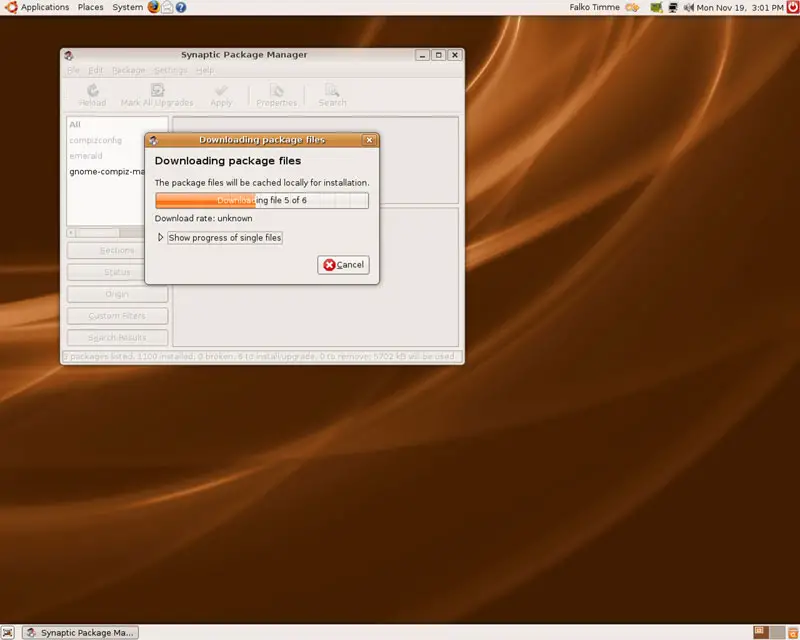
Afterwards, the packages are being downloaded and installed:
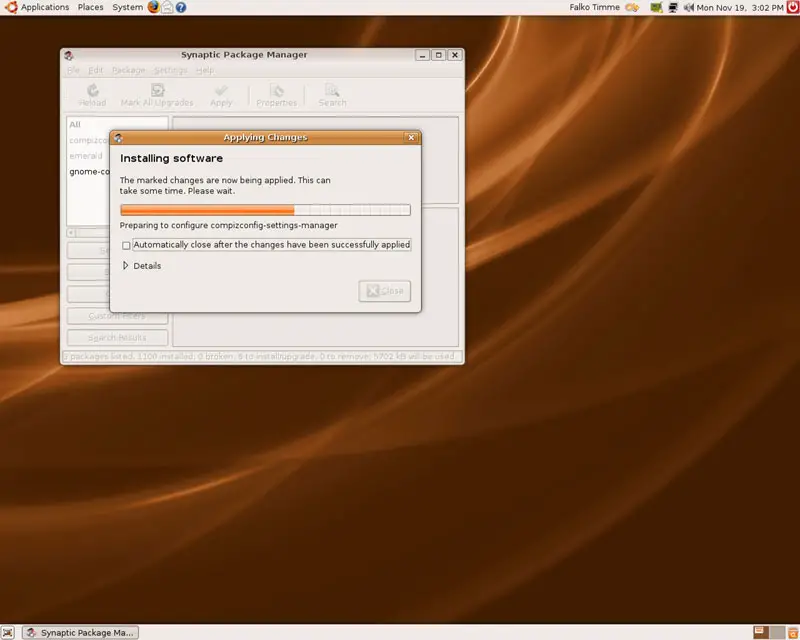
After all packages have been installed, you can close the Synaptic Package Manager: