Enabling Compiz Fusion On A Fedora 8 GNOME Desktop (ATI Mobility Radeon 9200)
Version 1.0
Author: Falko Timme
This tutorial shows how you can enable Compiz Fusion on a Fedora 8 GNOME desktop (the system must have a 3D-capable graphics card - I'm using an ATI Mobility Radeon 9200 here). With Compiz Fusion you can use beautiful 3D effects like wobbly windows or a desktop cube on your desktop.
This document comes without warranty of any kind! I do not issue any guarantee that this will work for you!
1 Preliminary Note
I have tried this on my 3-year old HP Pavilion zt3000 notebook which has an ATI Mobility Radeon 9200 graphic card, and it works really good there.
2 Graphic Card Driver
If you're using a new Nvidia or ATI graphic card, you will most likely have to install a proprietary driver for it. Fedora 8 doesn't come with these drivers by default, so you must install them from a third-party repository such as rpm.livna.org. Just install this package: http://rpm.livna.org/livna-release-8.rpm; afterwards you should find drivers for your graphic card under Applications > Add/Remove Software.
If you are not sure, please try to get Compiz Fusion working without a proprietary driver first, and if it doesn't work, install the proprietary driver for your graphic card.
I don't have to do this because my ATI Mobility Radeon 9200 is old enough to be supported by default. :-)
3 Installing Compiz Fusion
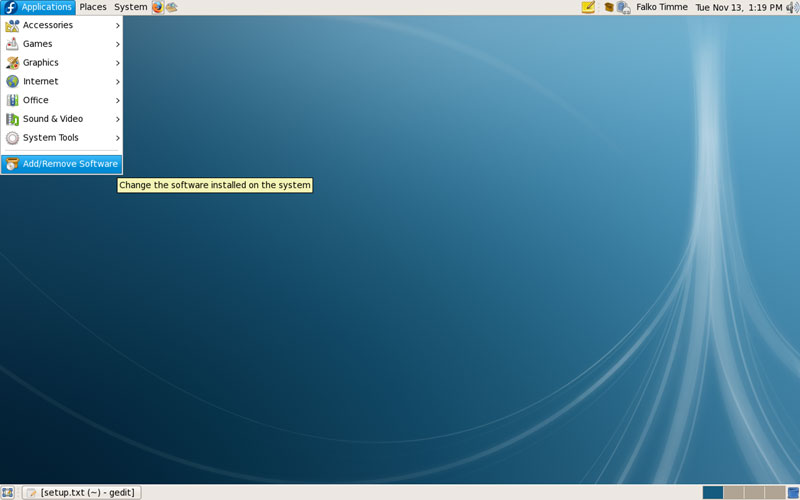
Open the Package Manager (Applications > Add/Remove Software):
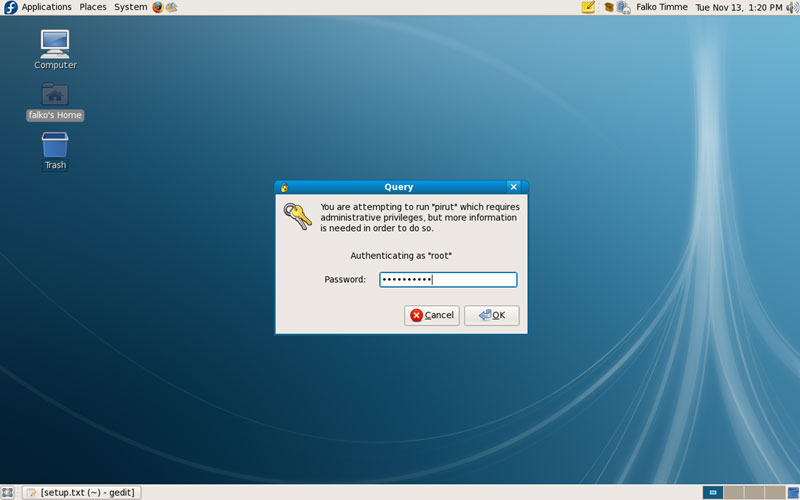
Type in the root password:
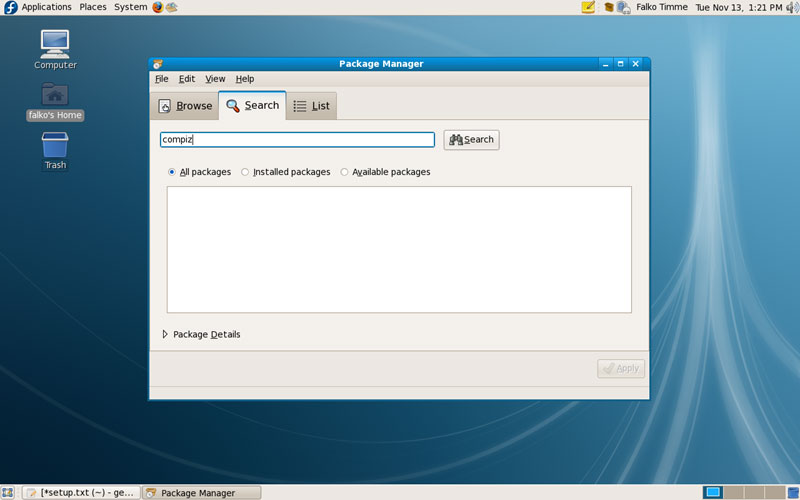
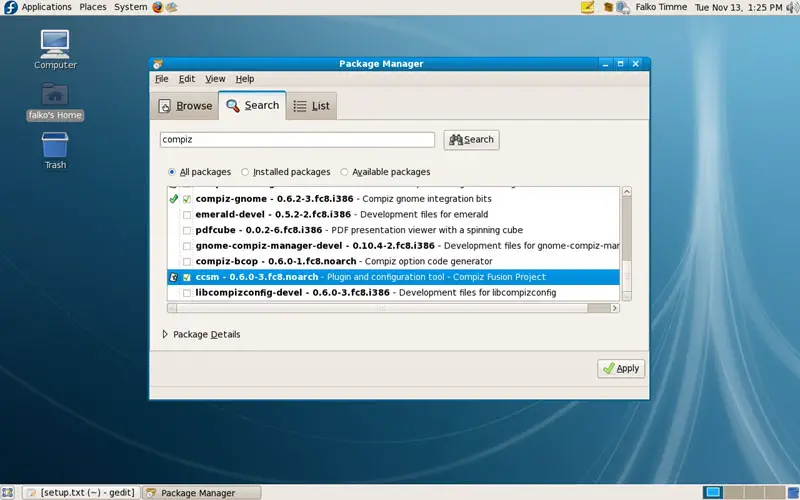
After the Package Manager has started, go to the Search tab and search for compiz:
In the list of found packages, please mark the following ones for installation:
- emerald-themes
- compiz-fusion-extras
- emerald
- compiz-fusion
- compiz-manager
- compiz-fusion-extras-gnome
- gnome-compiz-manager
- libcompizconfig
- compiz-fusion-gnome
- ccsm
Click on Apply afterwards:
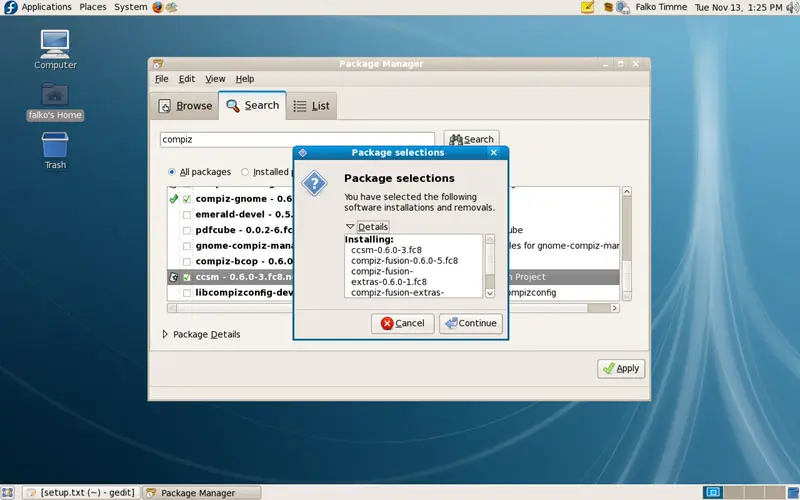
Confirm your selection by clicking on Continue:
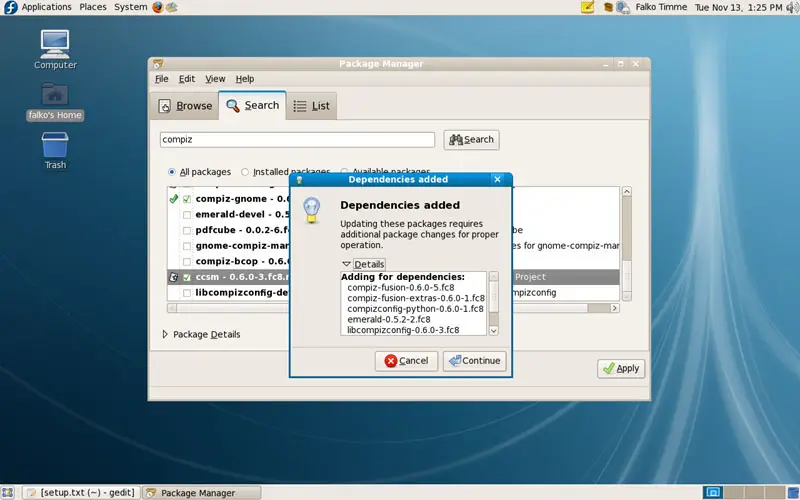
The selected packages might have a few dependencies that must be installed as well. Click on Continue to accept these dependencies:
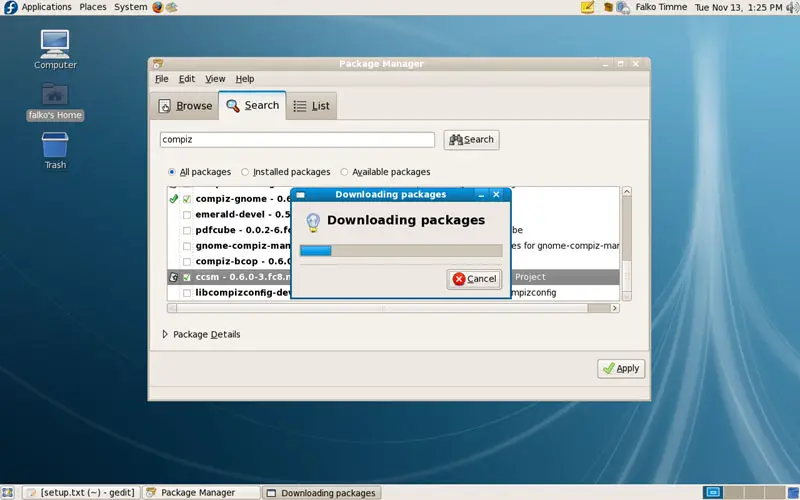
The packages are now being downloaded:
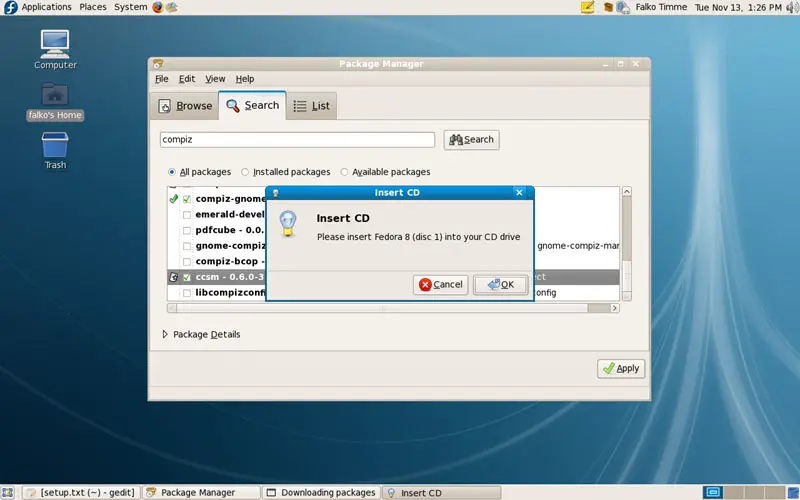
If the current version of one of the selected packages is on your Fedora DVD, you will be prompted to insert it. Click on OK afterwards:
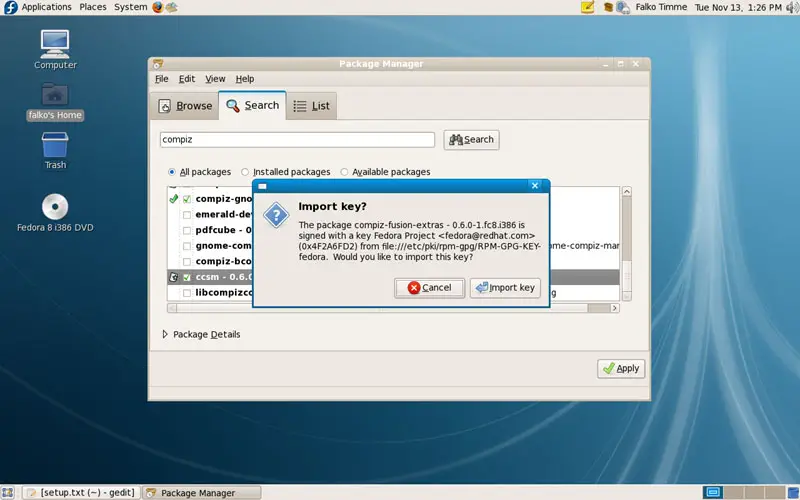
It might happen that your system doesn't know the GPG key of a package. If that happens, simply click on Import key to continue with the installation:
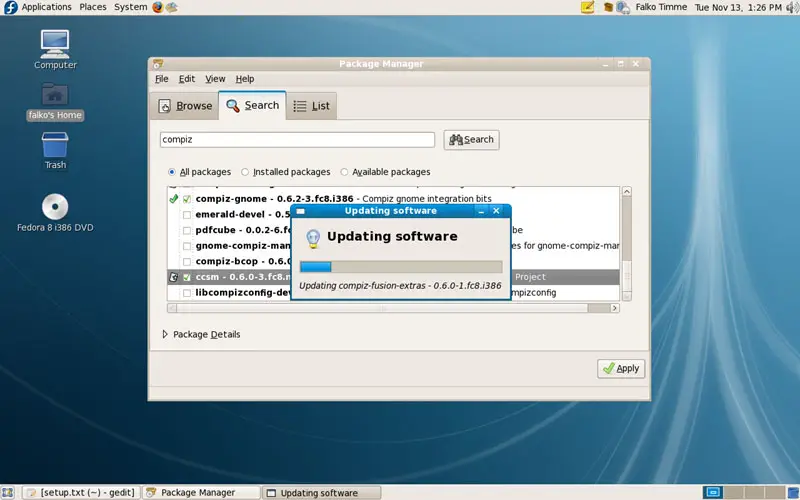
The packages are now being installed:
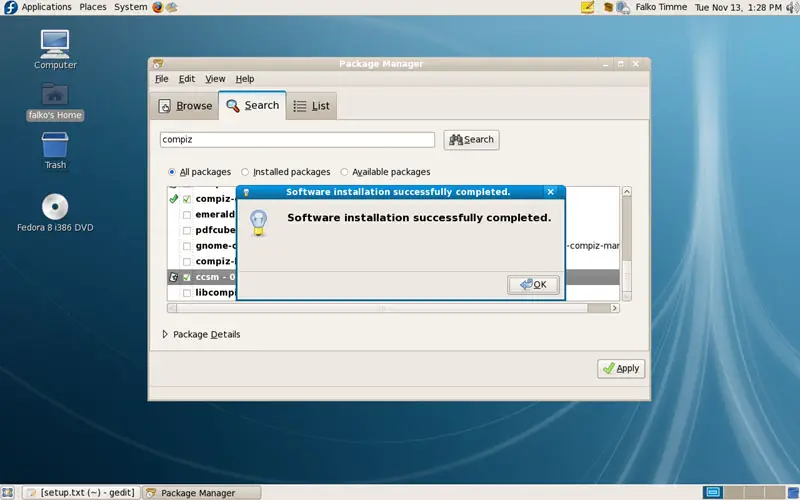
You can close the Package Manager afterwards: