
Three Ways To Access Linux Partitions (ext2/ext3) From Windows On Dual-Boot Systems
If you have a dual-boot Windows/Linux system, you probably know this problem: you can access files from your Windows installation while you are in Linux, but not the other way round. This tutorial shows three ways how you can access your Linux partitions (with ext2 or ext3 filesystem) from within Windows: Explore2fs, DiskInternals Linux Reader, and the Ext2 Installable File System For Windows. While the first two provide read-only access, the Ext2 Installable File System For Windows can be used for read and write operations.
I do not issue any guarantee that this will work for you!
1 Explore2fs
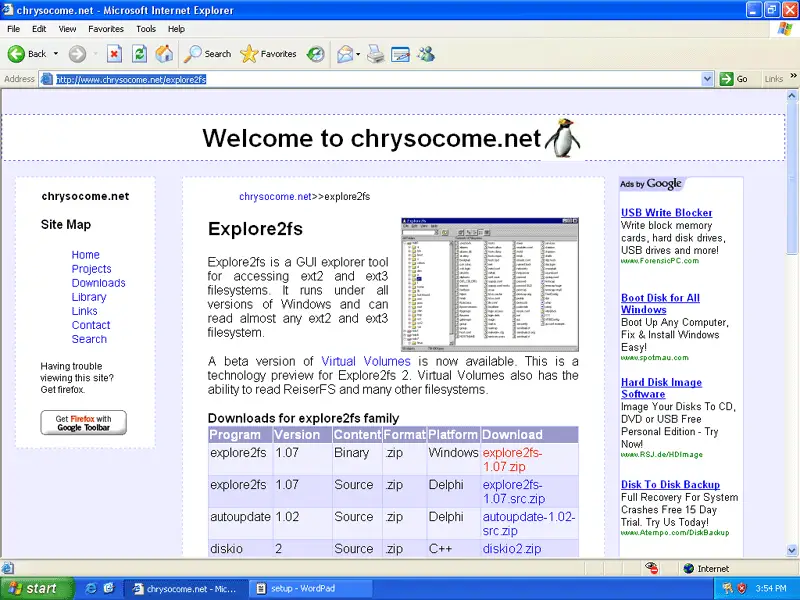
In Windows, open a browser and go to http://www.chrysocome.net/explore2fs. Download the latest explore2fs zip file...
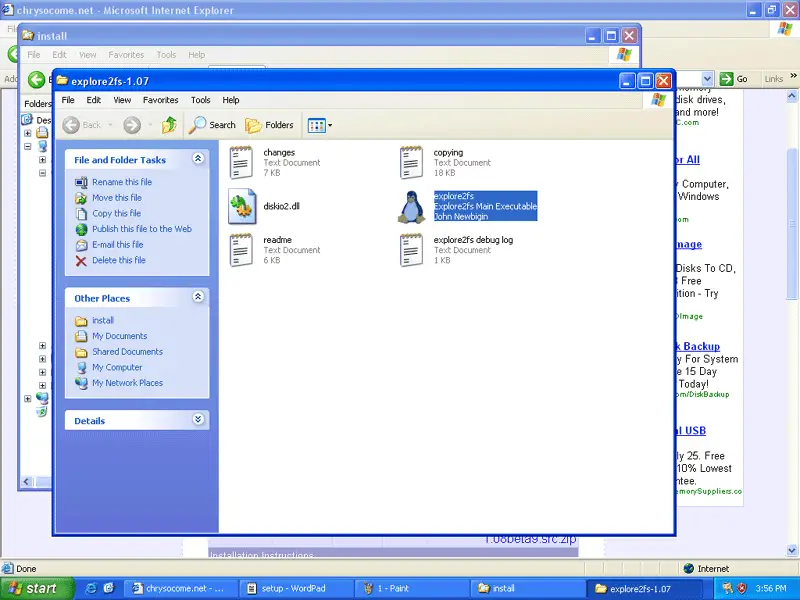
... and unpack it. In the new folder, you'll find the explore2fs executable. Double-click on it to start it:
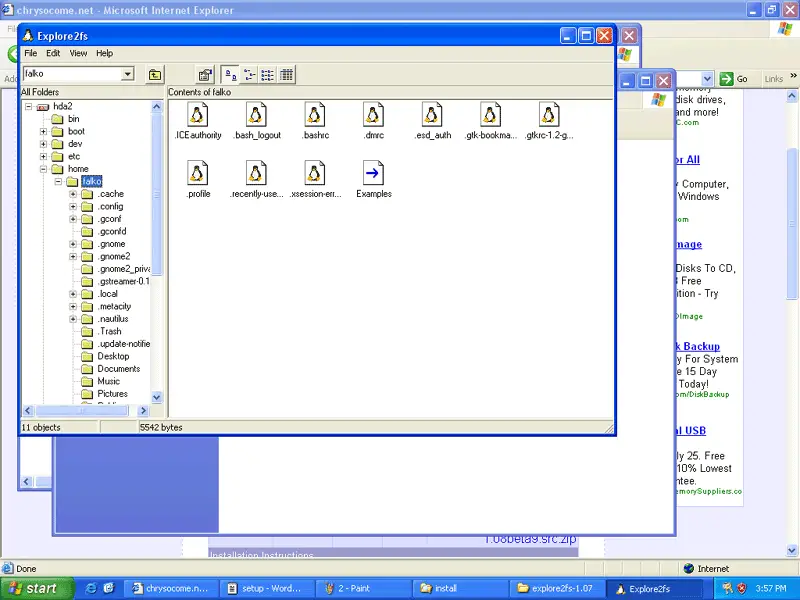
The Explore2fs filebrowser starts; you can now browse your Linux partitions and copy&paste files to your Windows partition:
2 DiskInternals Linux Reader
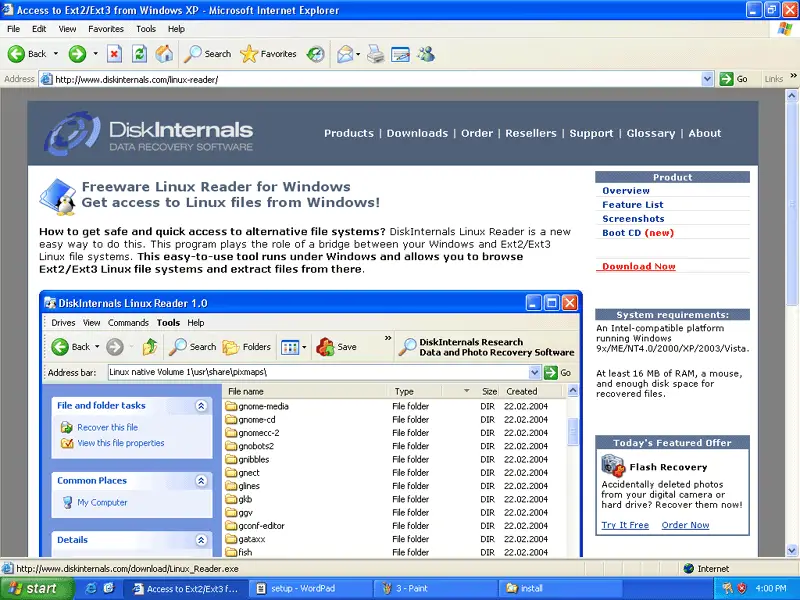
Go to http://www.diskinternals.com/linux-reader and download and install the DiskInternals Linux Reader.
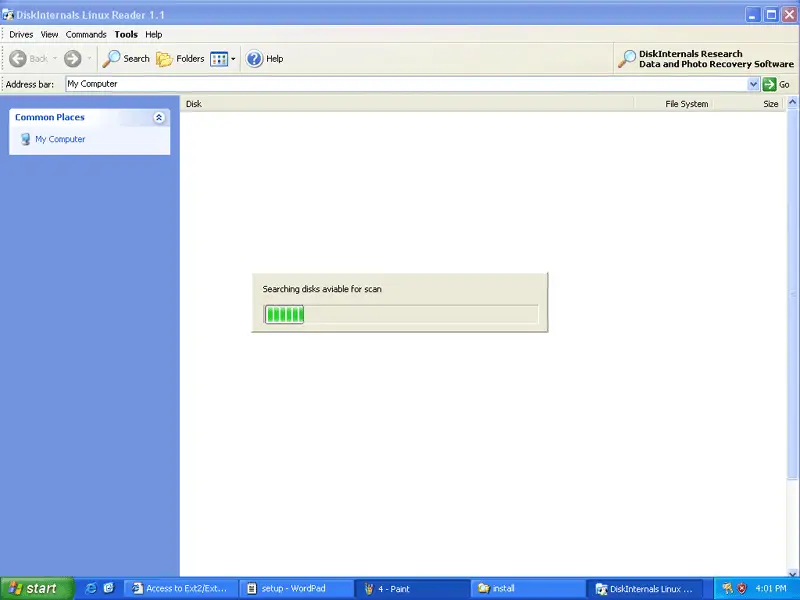
After the installation, the Linux Reader starts automatically and scans your hard drive for Linux partitions:
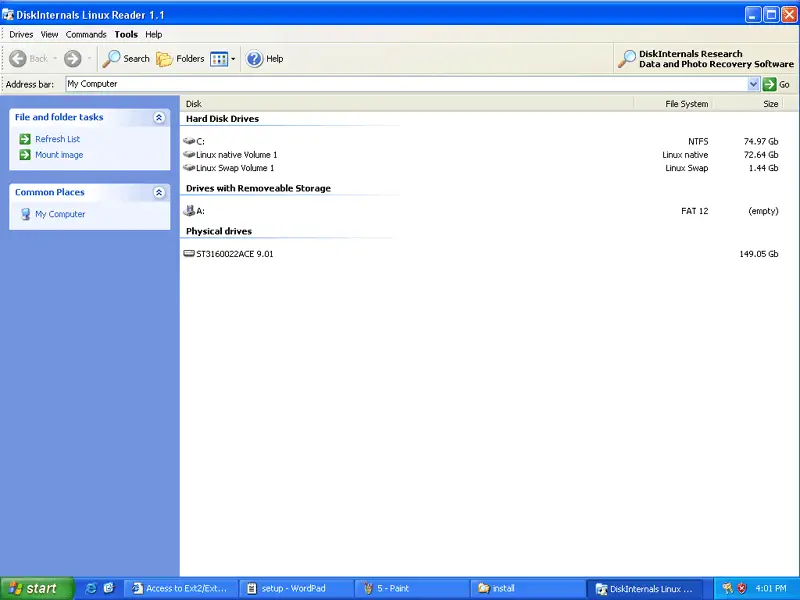
Afterwards, you can find your Windows and Linux partitions in the Linux Reader (which looks like the Windows Explorer):
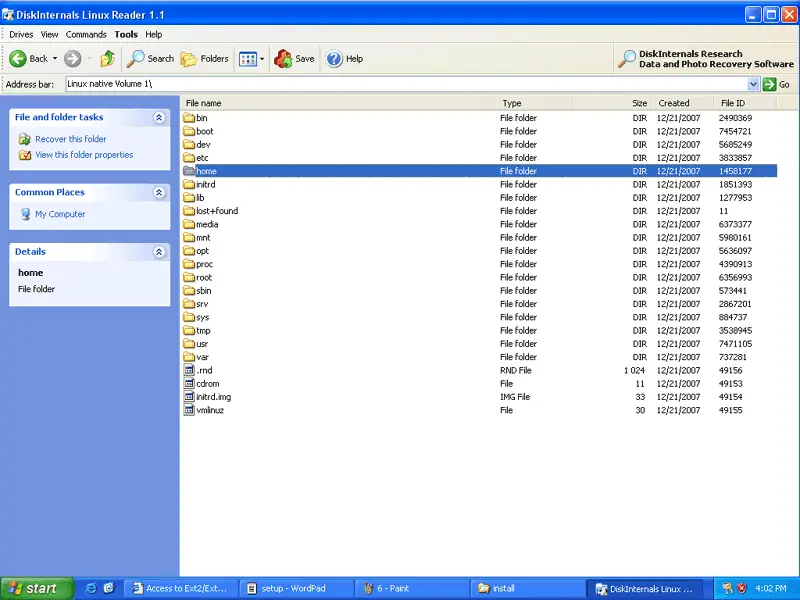
Now you can browse your Linux partitions:
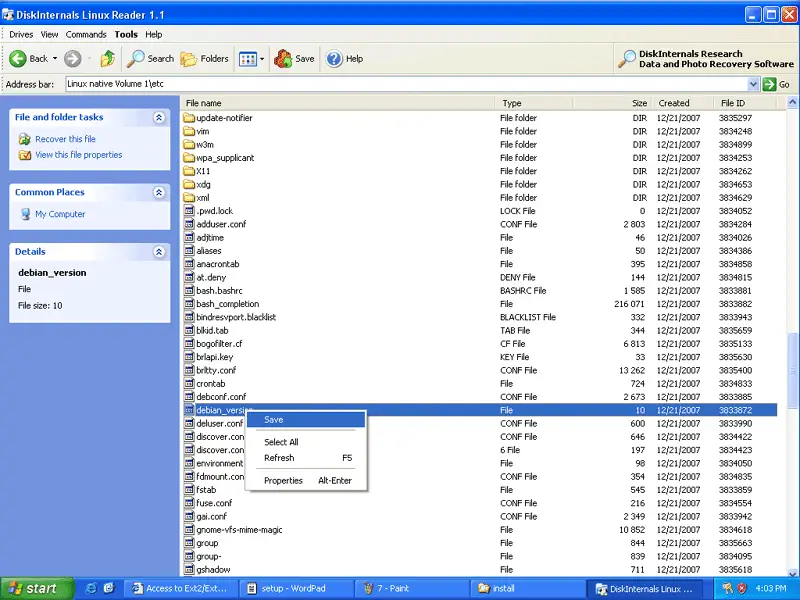
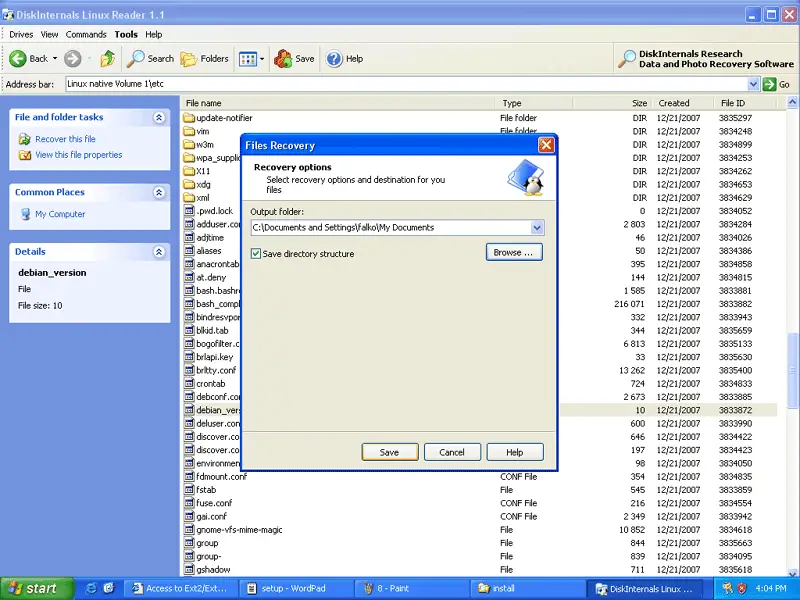
To copy a file/directory from a Linux partition to your Windows partition, right-click on the file/directory and select Save:
Then select the folder on your Windows partition where you want to store the file/directory:
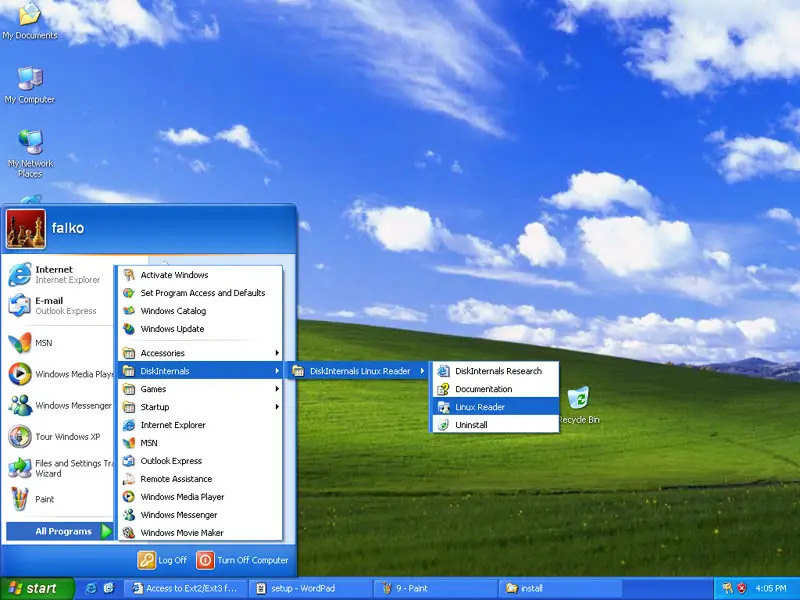
The DiskInternals Linux Reader can be started from the normal start menu:
3 Ext2 Installable File System For Windows
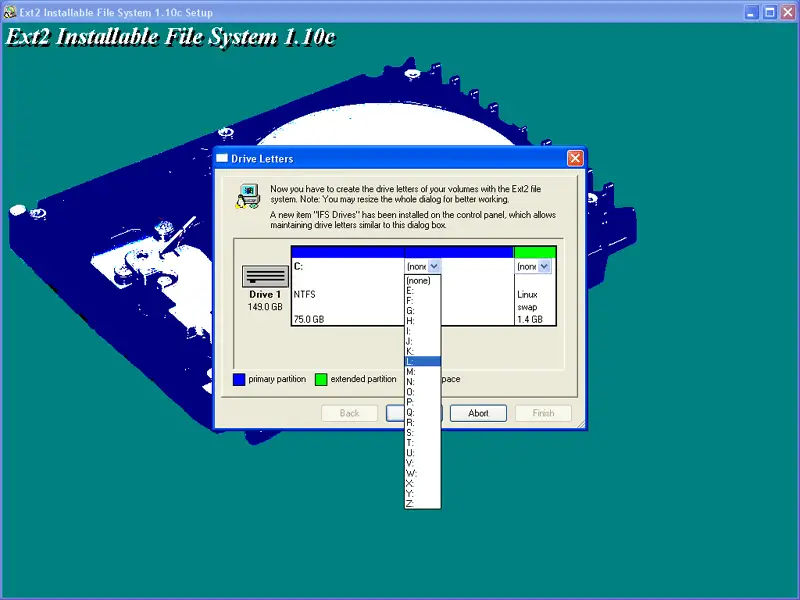
The Ext2 Installable File System For Windows (which supports ext2 and ext3!) can be downloaded from http://www.fs-driver.org/index.html. During the installation you will be asked to assign a drive letter to your Linux partitions (e.g. L:); you don't need to assign a drive letter to your swap partition:
After the installation, you can find your Linux partition(s) in the normal Windows Explorer (under the drive letter that you assigned to it during the installation):
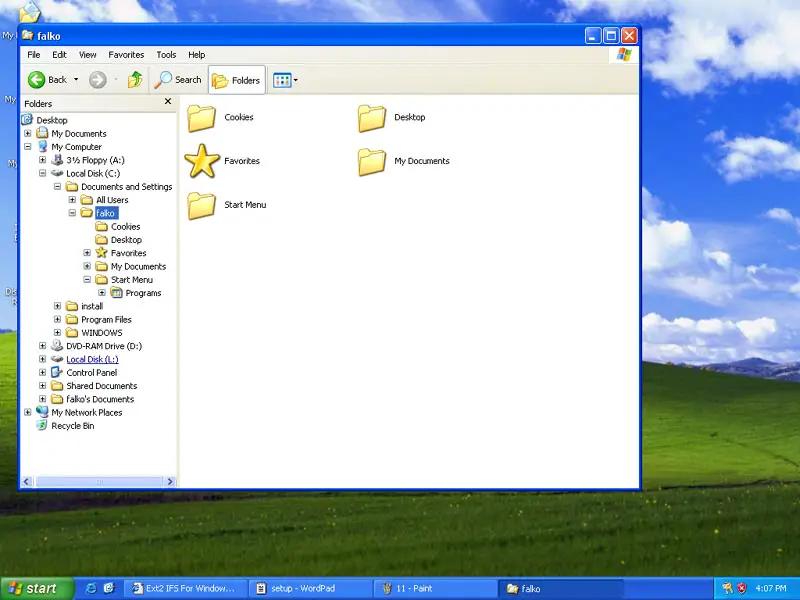
You can now browse and use your Linux partition(s) like a normal Windows partition.
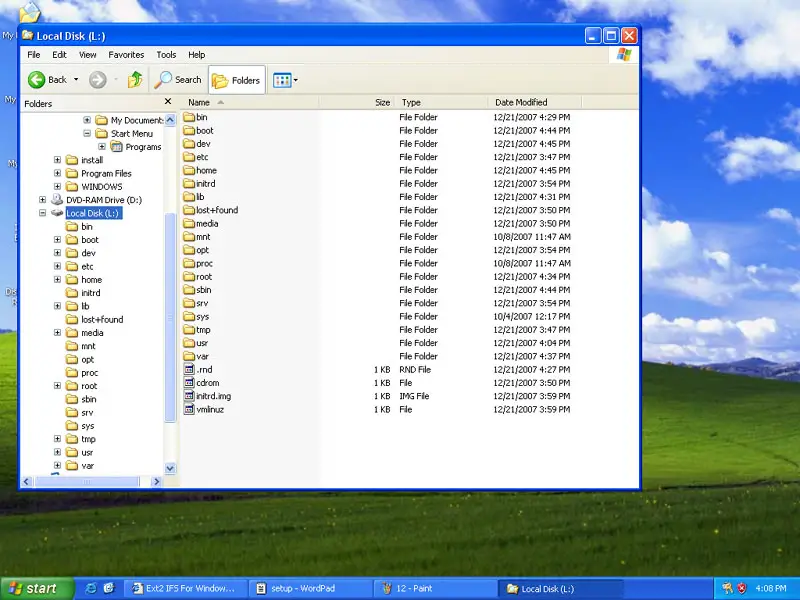
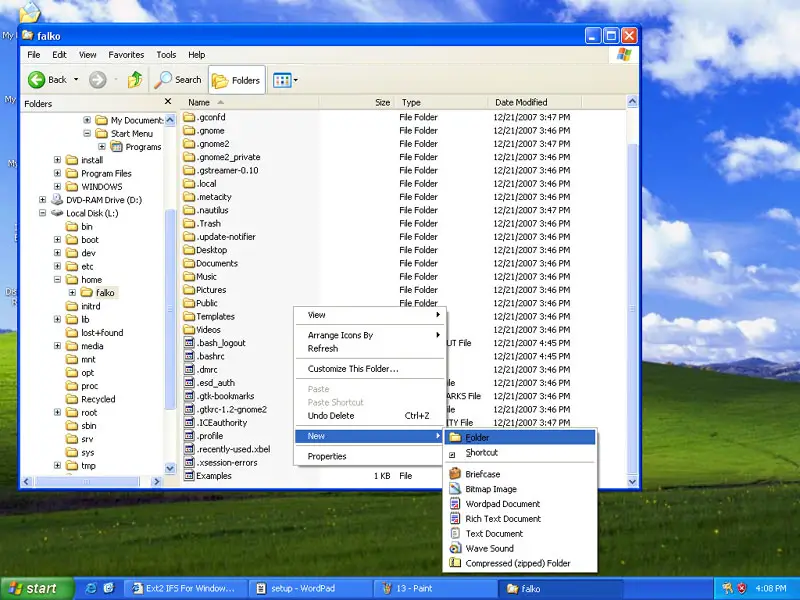
As mentioned in the introduction of this article, the Ext2 Installable File System For Windows supports read and write operations on the Linux partitions. In order to test if the write support really works, we can try to create an empty folder on a Linux partition. Right-click on an empty area on the Linux partition and select New > Folder:
Enter a name for the new folder (e.g. test):
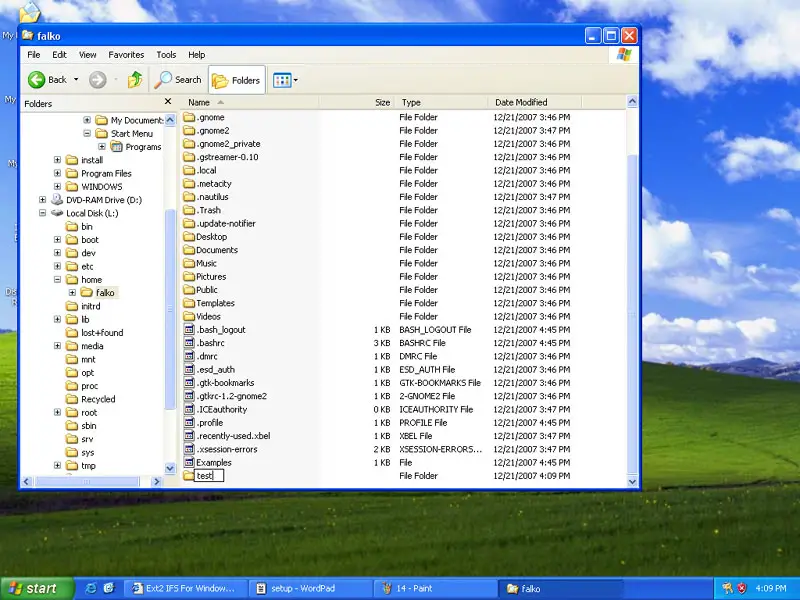
If everything goes well, you should now have a new folder on your Linux partition.
4 Links
- Explore2fs: http://www.chrysocome.net/explore2fs
- DiskInternals Linux Reader: http://www.diskinternals.com/linux-reader
- Ext2 Installable File System For Windows: http://www.fs-driver.org/index.html





